Every fresh WordPress installation ships with a small set of placeholder items: one sample post, one sample comment, a sample page and a draft privacy policy page. None of it is required, and leaving it in place makes a live site look unfinished. This guide shows you how to identify and remove that sample content on a WordPress site hosted with Noiz, including the parts most guides skip: what happens to the sample comment when you bin the post it belongs to, why the draft privacy policy page is worth keeping, and how to remove the same items from the block editor and the Site Editor.
Last reviewed: 27 July 2026, against WordPress 7.0.2 (latest stable). This guide is written for Noiz hosting and is kept current against WordPress. It complements, and does not replace, the official WordPress documentation linked below.
Official Documentation Reference
- Posts Screen, the full reference for row actions and bulk actions on the post list.
- Pages Screen.
- Comments Screen, covering approve, reply, spam and bin.
- Page and Post Settings Sidebar, where the block editor keeps its Move to trash control.
- Site Editor Pages, for block themes.
- Settings: Discussion Screen.
- wp-config.php: EMPTY_TRASH_DAYS, which controls how long binned items are retained.
Prerequisites
- An Administrator (or Editor) login for the WordPress dashboard at
https://yourdomain.com/wp-admin, replacingyourdomain.comwith your own domain. - Confidence about which content is genuinely placeholder. If the site has been live for a while, check the publish dates before deleting anything.
- A current backup if the install is anything other than brand new. Noiz takes scheduled backups of hosting accounts, but taking your own restore point before a bulk deletion costs nothing.
What a Fresh WordPress Install Actually Contains
WordPress creates exactly four items during installation. Knowing all four saves you from cleaning up three and leaving the fourth in place:
- Post: Hello world!, published, at the slug
hello-world. - Comment: a single approved comment on that post, authored by A WordPress Commenter from the address
[email protected], with an outbound link on the author name. - Page: Sample Page, published, at the slug
sample-page. - Page: Privacy Policy, saved as a draft at the slug
privacy-policy. Because it is a draft it never appears on the front end, which is why most people never notice it.
The gotcha worth knowing first: the sample comment belongs to the sample post. When you bin the post, WordPress moves its comment to an internal post-trashed state and it disappears from the Comments screen along with it. So if you delete the post first, the comment is already handled. Step 3 below still matters if you decided to keep the Hello world! post, or if you are cleaning up a site where the post was edited into real content but the placeholder comment was left underneath it.
Step 1: Remove the Sample Post
- Log in to the WordPress dashboard.
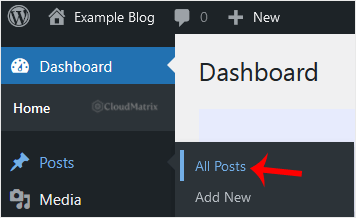
- In the left-hand admin menu, go to Posts and click All Posts.
- Hover your mouse over the Hello world! row. A set of row actions appears underneath the title. Click Trash.
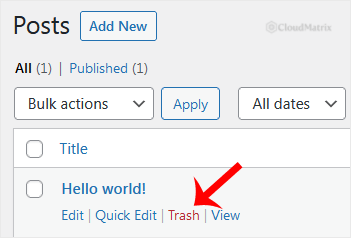
If you are clearing several posts at once, tick the checkbox in the header row to select everything on screen, choose Move to Trash from the Bulk actions dropdown, and click Apply.
Note on wording: a default WordPress install uses American English, so the action is labelled Trash. If the site language is set to English (UK) or another locale, the same action may be labelled Bin. It behaves identically.
Step 2: Remove the Sample Page
Pages live on their own screen, not under Posts. This is the single most common place people get stuck, because Sample Page is nowhere to be found on the posts list.
- In the admin menu, go to Pages and click All Pages.
- Hover over the Sample Page row and click Trash.

Leave the Privacy Policy page alone, or better, finish it. The draft Privacy Policy page on the same screen is not clutter in the same sense. WordPress links a designated privacy policy page from login and registration screens, and any South African site that collects personal information (a contact form is enough) has obligations under POPIA. Rather than binning it, open it, replace the boilerplate with a policy that reflects what your site actually collects, and publish it. Confirm the page is still designated under Settings then Privacy. If you genuinely do not want a privacy policy page yet, leaving it as an unpublished draft is harmless.
Step 3: Remove the Sample Comment
Only needed if you kept the Hello world! post, or if the comment survived an earlier cleanup.
- Click Comments in the admin menu.
- Hover over the comment from A WordPress Commenter and click Trash.
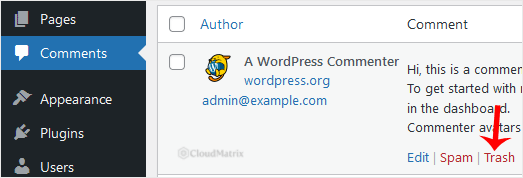
Do not click Spam here out of habit. Marking the default comment as spam trains the anti-spam service on a legitimate entry and, on sites that share spam data, is mildly counterproductive. Trash is the correct action.
Step 4: Empty the Bin to Delete Permanently
Binning an item does not delete it. It stays in the database with a trash status until it is purged.
- On the Posts, Pages or Comments screen, click the Trash link in the row of status filters above the list.
- Click Empty Trash to delete everything listed permanently, or hover an individual row and click Delete Permanently.
Left alone, WordPress purges binned items automatically after 30 days. That interval is set by the EMPTY_TRASH_DAYS constant in wp-config.php. If a site sets it to 0, the bin is disabled entirely and the row action reads Delete Permanently instead of Trash, with no undo. Check that before you start clicking on a site you did not build.
One small benefit of the bin: WordPress appends __trashed to the slug of a binned post or page immediately, so the hello-world and sample-page slugs are freed for reuse straight away. You do not have to empty the bin before creating a new page at /sample-page.
Doing the Same Thing From the Block Editor
If you have already opened an item in the block editor, you do not need to go back to the list screen:
- Open the settings sidebar (the panel icon at the top right), select the Post or Page tab, and scroll to the bottom for Move to trash.
- Alternatively, use the Options menu (the three vertical dots at the top right) and choose Move to trash.
On a site running a block theme, pages can also be managed from the Site Editor. Go to Appearance then Editor, click Pages, select Sample Page, and use the actions menu to move it to the bin. The classic Pages screen still works on block themes and is usually faster for a one-off cleanup.
Worth Checking Once the Placeholder Content Is Gone
- Navigation menus. Removing a page does not always remove its menu entry. On a classic theme, tidy up under Appearance then Menus. On a block theme, edit the Navigation block in the Site Editor.
- Comments you may not want at all. If the site is a brochure or business site rather than a blog, go to Settings then Discussion and untick Allow people to submit comments on new posts. Note that this only applies to content created afterwards; existing posts keep their individual comment setting, which you can change in bulk from the posts list using Bulk actions then Edit.
- An empty blog index. If Hello world! was the only post and the home page is set to show latest posts, the front page will read "Nothing Found" until you publish something. Either publish a first real post, or set a static front page under Settings then Reading.
- Unused default themes and plugins. A fresh install also carries the bundled twenty-something themes and the Hello Dolly plugin. Every inactive theme and plugin still ships code that must be kept patched, so delete what you will not use. Keep one default theme installed as a fallback for troubleshooting.
Troubleshooting
Symptom: no Trash link appears when hovering a row. Row actions only appear on hover over the row itself, and only for users whose role permits deletion. Subscribers and Contributors cannot delete published content. If every row shows Delete Permanently instead, the site has EMPTY_TRASH_DAYS set to 0 in wp-config.php.
Symptom: the sample post is gone from the dashboard but still loads on the live site. This is caching, not WordPress. Clear any caching plugin, then any server-side or CDN cache in front of the site, then reload with a hard refresh or in a private browsing window.
Symptom: the sample comment vanished before you got to it. Expected behaviour. It was attached to the Hello world! post and followed it into the bin. Restore the post and the comment returns with it.
Symptom: Sample Page still shows in the site menu. The menu item is a separate object from the page. Remove it from Appearance then Menus, or from the Navigation block if the theme is a block theme.
Symptom: the sample content came back. Something re-ran an installation over the top, most commonly a fresh install pushed to the same directory, or a staging site cloned back over production. Check the publish dates on the restored items to confirm.
Need a Hand?
If you are unsure whether something is placeholder content or the real thing, stop before you empty the bin and open a support ticket from the Noiz client area. Noiz can check the account backups and confirm what the site looked like before the change. On managed plans, the Noiz team is happy to do the post-install tidy-up for you as part of a new site handover.






