PHP does very little on its own. Almost everything a real application needs (image resizing, encrypted archives, SOAP, mail parsing, licensed code) arrives as a PHP extension: a compiled module that is loaded into PHP at start-up. On DirectAdmin accounts running CloudLinux, you control which extensions load using the Select PHP version tool, better known as CloudLinux PHP Selector. You do not need root access, a support ticket, or a server restart.
This is the general guide to that screen. It covers enabling an extension, disabling one, checking that the change actually took effect, and the handful of things that catch people out. If you are after one specific extension, the worked examples are linked further down.
Last reviewed: 27 July 2026, against the current DirectAdmin release and the current CloudLinux OS PHP Selector. This guide is written for Noiz hosting and is kept current against both products. It complements, and does not replace, the official documentation linked below.
Official Documentation Reference
- CloudLinux OS documentation: PHP Selector (what the Selector is, and its limits)
- CloudLinux end-user documentation
- DirectAdmin documentation: PHP
- DirectAdmin documentation: multiple PHP versions
- PHP Manual: extensions, by category (what each extension actually does)
Prerequisites
- A Noiz DirectAdmin hosting account, and your login details for it.
- Your account set to a non-native PHP version. If you are still on
native, see How to Change the PHP Version via CloudLinux Selector in DirectAdmin first, and read the note in step 3 below. - Knowing which extension your application needs. Most installers and framework requirement checkers name it exactly, for example
gd,intl,soap,mailparse.
What the PHP Selector Controls (and What It Does Not)
Two things on this screen are routinely confused, so it is worth being precise before you start clicking.
- Extensions are modules:
gd,imagick,zip,ioncube,mailparse. They are switched on or off with a tick box on the Extensions tab. That is what this article covers. - Options are configuration directives:
memory_limit,max_execution_time,upload_max_filesize,allow_url_fopen. They live on the separate Options tab and take a value, not a tick. See How to Enable or Disable PHP's allow_url_fopen Using CloudLinux Selector in DirectAdmin.
If an application asks you to "enable allow_url_fopen", you will never find it on the Extensions tab, because it is not an extension. Equally, no amount of editing php.ini values will conjure up an extension that is not installed on the server.
One more boundary: the Selector switches on extensions that Noiz has already built for that PHP version. It does not compile new ones. If an extension is genuinely absent from the list for every PHP version you try, that is a server-side build question rather than something you can fix from the panel.
Enable or Disable a PHP Extension
1. Log in to DirectAdmin
Log in to your DirectAdmin account with the username and password on your Noiz welcome email. If you have mislaid them, you can retrieve or reset the details from the Noiz client area.
2. Open Select PHP Version
In the Extra Features section of the dashboard, click Select PHP version. If you cannot see the section, type Select PHP into the navigation filter box at the top of the sidebar and click the result that appears. The filter box is the fastest route in the Evolution interface, and it also works if your reseller has rearranged the dashboard.

3. Open the Extensions tab
The Selector opens on the version screen. Click the Extensions menu to switch to the list of available modules for the PHP version currently selected for your account.
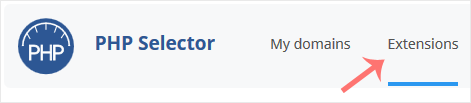
Note: if the Extensions page returns an error mentioning the native PHP version, that is expected behaviour rather than a fault. The Selector can only manage the alternative PHP versions it ships, so while your account is set to native it has nothing to manage. Go back to the version screen, pick a specific version such as 8.3, save it, then return to Extensions.
4. Tick to enable, untick to disable
Find the extension in the list and tick its box to enable it. Untick the box to disable it. The change is applied as soon as the tick box registers, so there is no separate Save button to hunt for on this tab; wait for the row to finish updating before you navigate away.
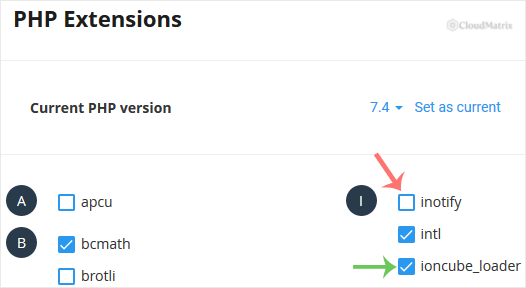
Changes apply to the whole hosting account, not to a single domain, and they take effect on the next PHP process that starts. In practice that is immediate for new requests, though a long-running process or an aggressive full-page cache can keep serving old output for a minute or two.
Confirm the Change Took Effect
Never assume the tick box is the end of the job. Applications fail in confusing ways when an extension is almost loaded, so verify:
- Create a file called something unguessable, for example
zz-check-9f2c.php, in yourpublic_htmldirectory containing<?php phpinfo(); - Visit
https://yourdomain.com/zz-check-9f2c.php(replaceyourdomain.comwith your own domain) and use your browser's find function to search the page for the extension name. - Delete the file as soon as you are done. A
phpinfo()page discloses paths, versions and module lists that are useful to an attacker, and automated scanners look for exactly this.
If you have SSH access on your plan, php -m lists the loaded modules without exposing anything publicly, and is the better option.
Worked Examples
These articles are the same procedure applied to specific extensions, with the version and compatibility notes that apply to each:
- How to Enable ionCube Loader Using CloudLinux Selector in DirectAdmin (for encoded, licensed commercial scripts)
- How to Enable the GD Extension of PHP Using CloudLinux Selector in DirectAdmin (image handling and thumbnails)
- How to Enable the Mailparse Extension of PHP Using CloudLinux Selector in DirectAdmin (parsing inbound mail, ticket systems)
Things Worth Knowing Before You Click
- Extension choices are stored per PHP version. Each version keeps its own set. Move from 8.2 to 8.3 and you inherit 8.3's saved selection, not a copy of your 8.2 one. This is the single most common reason an application breaks straight after a PHP upgrade, so re-check the Extensions tab every time you change version.
- Not every extension exists for every version. The list is built from what that particular PHP version ships. An extension missing from 8.4 but present on 8.1 usually means upstream has not released a compatible build yet.
- More is not better. Every enabled extension costs memory in each PHP process and adds start-up time. Debuggers and profilers slow down every single request. Enable what the application genuinely requires and leave the rest off.
- Some extensions conflict. Loaders and debuggers in particular do not always coexist, and two opcode caches will never coexist. If enabling one extension makes the site fail, disable it again and test them one at a time.
- The command line follows the same selection. Composer, WP-CLI and cron jobs that call plain
phpuse your selected version and its extensions. A cron job hard-coded to a specific binary path bypasses the Selector entirely and will keep using the old set. - A custom
php.inior.user.inican override you. If you have previously pastedextension=lines into your own configuration file, remove them; letting the Selector own the decision avoids two sources of truth disagreeing.
Troubleshooting
Symptom: the Extensions tab shows an error about the native PHP version. Switch your account to a specific, non-native PHP version on the version screen, save, then reopen Extensions.
Symptom: the extension you need is not in the list. Check whether it exists under a different PHP version; if it is absent everywhere, open a support ticket rather than trying to install it yourself, as accounts cannot compile PHP modules.
Symptom: the tick box is ticked but phpinfo() does not show the extension. You are almost certainly looking at a different PHP version than the one you edited, or the domain is served by a cached page. Confirm the version shown at the top of the phpinfo() output matches the version selected in the Selector, and clear any full-page cache.
Symptom: the site returns a 500 error immediately after you enable something. Untick that extension, confirm the site recovers, then check the error log in DirectAdmin for the loader message. A conflict between two extensions is the usual cause.
Symptom: Composer or WP-CLI still reports a missing extension after you enabled it. That process is running against a different PHP binary. Run php -v in the same shell to see which version is actually in use.
Need a Hand?
If an extension you need is not available on your account, or a site stops working after an extension change, open a ticket from the Noiz client area with the domain, the PHP version you selected and the exact extension name. Noiz support can check the server-side build and, on managed plans, make the change and verify the application for you.






