The CloudLinux Select PHP Version tool lets you change the PHP version your websites run on, from inside your DirectAdmin account, without opening a support ticket and without any server-level access. This guide shows you where the tool lives on Noiz DirectAdmin hosting, how to switch versions safely, and what the switch does and does not change.
You will see this feature referred to by several names: Select PHP Version, PHP Selector, and CloudLinux Selector. They all mean the same tool.
Last reviewed: 27 July 2026, against the current DirectAdmin release and the CloudLinux PHP Selector. PHP branch support was checked the same day against the official PHP release feed, where 8.2, 8.3, 8.4 and 8.5 are the actively supported branches. This guide is written for Noiz hosting and is kept current against DirectAdmin and CloudLinux. It complements, and does not replace, the official documentation linked below.
Official Documentation Reference
- CloudLinux OS: PHP Selector component reference
- DirectAdmin documentation
- PHP: supported versions and end-of-life dates
Prerequisites
- An active Noiz hosting account on a DirectAdmin server with CloudLinux PHP Selector enabled.
- Your DirectAdmin username and password.
- A recent backup of the site you are about to change, or at least the confidence that you can roll back by selecting the previous version again.
Change the PHP Version
Step 1: Log in to DirectAdmin
Log in to your DirectAdmin account using the URL and credentials supplied in your Noiz welcome email.
Step 2: Open Select PHP Version
In the Extra Features section, click Select PHP version. If you cannot see the section, type Select PHP into the navigation filter box at the top of the sidebar and click the result when it appears.

Step 3: Choose the version you want
To the right of Current PHP version, click the drop-down menu and choose the version you want to use.
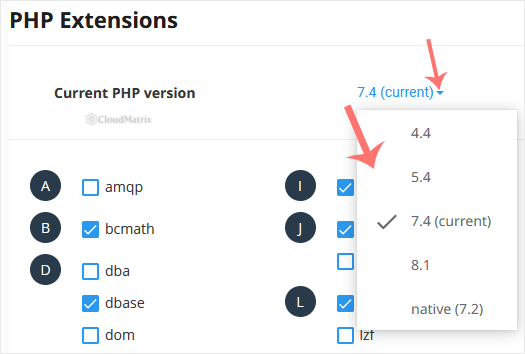
Older branches are usually still listed. Being listed is not the same as being supported: PHP branches that have reached end of life no longer receive security patches from the PHP project, so treat them as a short-term compatibility crutch rather than a place to sit. Pick the newest branch your application, theme and plugins are tested against.
Step 4: Apply the change
Click Set as current. The change takes effect within a few seconds for new requests, so there is no need to restart anything.
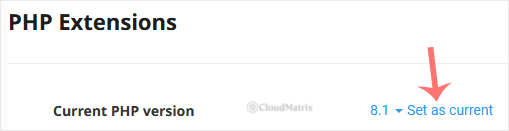
Reload your website and confirm it still loads correctly. If your application exposes a PHP info page or a system status screen, use that to confirm the version actually reported by the web server.
What the Change Affects
- Scope. The PHP Selector setting applies at the DirectAdmin account level, so every domain and subdomain under that account inherits it unless a per-domain override is in place. If you host several sites under one account and only one of them needs an older branch, move that site to its own account rather than holding everything back.
- Extensions. Each PHP branch keeps its own extension set. After switching, extensions you enabled on the previous branch are not carried across automatically, so recheck them. See How to Enable or Disable PHP Extensions Using the CloudLinux Selector in DirectAdmin.
- PHP settings. Values such as
memory_limit,max_execution_timeandupload_max_filesizeare also held per branch in the Selector, so a limit you raised on the old version may read back at its default on the new one. - Command line and cron. Scheduled tasks that call
phpdirectly may still resolve to a different binary than your websites use. If a cron job starts behaving differently after a switch, call the version explicitly in the cron command rather than relying on the default path. - Caching. Opcode caches are per version. Expect the first few requests after a switch to be slightly slower while the cache is rebuilt.
Troubleshooting
Symptom: Select PHP version is missing from the dashboard. The navigation filter is the fastest check; if the tool genuinely does not appear, the account is either on a server without PHP Selector or on a plan where the option is not exposed. Open a ticket with Noiz support and the version will be set for you.
Symptom: the site returns a blank page or an HTTP 500 error straight after the switch. The new branch has almost certainly removed a function or syntax your code still uses. Select the previous version and click Set as current to roll back, then update the application, theme and plugins before trying again.
Symptom: the application complains that an extension is missing. The extension was enabled on the old branch only. Re-enable it for the branch you have just moved to.
Symptom: the version in the Selector does not match what a PHP info page reports. A handler directive in a .htaccess file, or a per-domain override, is taking priority over the account setting. Remove or correct the directive, or ask Noiz support to check the domain-level configuration.
Symptom: a site works but is noticeably slower after the change. Confirm that the opcode cache has warmed up, then recheck the per-branch PHP settings, since a much lower memory_limit on the new branch is the usual cause.
Need a Hand?
If you are not sure which PHP branch your site can safely run on, or a switch has broken something you cannot roll back cleanly, contact Noiz support with your domain name and the version you were moving from and to. On managed plans, Noiz will test the change and apply it for you.






