GD is PHP's built-in image processing library. If a site needs to resize an upload, generate a thumbnail, stamp a watermark, draw a CAPTCHA or render a chart, GD is almost always the extension doing the work. When GD is missing you usually notice the symptom rather than an error: uploaded images stay at full size, thumbnails come out blank, a CAPTCHA renders as a broken image, or an installer stops with a message such as The GD extension is required.
On Noiz DirectAdmin hosting that runs CloudLinux, you enable GD yourself from your own DirectAdmin account. No support ticket and no server restart is needed. This guide covers the CloudLinux PHP Selector, which appears in DirectAdmin's Evolution interface under Select PHP Version, and the things that most often make the change look as though it has not worked.
Last reviewed: 27 July 2026, against the current DirectAdmin release and its Evolution interface, with the CloudLinux PHP Selector on the current CloudLinux OS release. This guide is written for Noiz hosting and is kept current against DirectAdmin and CloudLinux. It complements, and does not replace, the official documentation linked below.
Official Documentation Reference
- CloudLinux OS documentation: PHP Selector (how the Selector, alt-php and CageFS fit together)
- DirectAdmin Docs: PHP (how DirectAdmin handles PHP versions and per-domain assignment)
- PHP Manual: Image Processing and GD
- PHP Manual: GD installation and requirements
Prerequisites
- An active Noiz hosting account on a DirectAdmin server, and your DirectAdmin login details.
- A DirectAdmin account on a server running CloudLinux. If Select PHP Version opens a screen with a version drop-down and Extensions and Options tabs, you have the CloudLinux PHP Selector.
- Your account set to a specific PHP version rather than
native. See How to Change the PHP Version via CloudLinux Selector in DirectAdmin if you need to change it first.
Enable the GD Extension
1. Log in to DirectAdmin
Log in to your DirectAdmin account at the address supplied in your Noiz welcome email.
2. Open Select PHP Version
In the Extra Features section, click Select PHP Version. If you cannot find the section, type Select PHP into the navigation filter box at the top of the menu and click the entry that appears.

3. Open the Extensions tab
Click the Extensions tab. This lists every extension available for the PHP version your account is currently using, with a tick box next to each one.
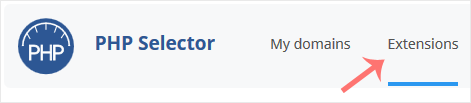
Note: if the Extensions tab shows an error about the native PHP version, or the list comes up empty, your account is still set to native. The native build is the server's own PHP and its extension set is fixed, so the Selector cannot manage it. Switch the version drop-down to a specific version such as 8.3, then return to Extensions.
4. Tick GD
Scroll to gd in the list and tick it. There is no Save button: the Selector applies the change as soon as you tick the box and confirms it on screen.
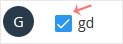
The confirmation message reads that the module gd is saved. That message is the only confirmation you get, so if it does not appear, the change did not take.
Confirm GD Is Actually Loaded
The Selector confirms that it saved your choice, which is not quite the same as PHP having loaded the extension. Running PHP processes finish their current work before recycling, so allow up to a minute and then check one of the following.
- A phpinfo page. Create a file containing
<?php phpinfo();in the document root of the domain you care about, load it in your browser, and search the page for a gd section. Delete the file afterwards: it exposes a great deal about your configuration. - SSH. If SSH access is enabled on your account, run the command below. The account's selected PHP version is what you get by default.
php -m | grep -i gd- WordPress. Go to Tools > Site Health > Info > Media Handling, which reports whether GD is present and which image formats it supports.
What to Know Before You Change This
- The setting is per account, not per domain. The CloudLinux PHP Selector applies to the whole DirectAdmin user account. Every domain and subdomain that follows the account's PHP version picks up the extension.
- A per-domain PHP version can override it. DirectAdmin has its own PHP version setting for each domain under Domain Setup. Where a domain has been pinned to one of the server's own PHP builds there, it runs that build with its own fixed extension list and your change will not reach it. This is the most common reason GD looks enabled while the site still complains.
- GD is not Imagick. They are separate extensions with separate tick boxes. Some applications prefer Imagick and fall back to GD, others use only one. Enabling GD does not enable Imagick.
- Extensions are not free. Each enabled extension adds memory to every PHP process. Enabling a long list you do not use makes it easier to hit your account's memory limit under load. Enable what the application asks for and leave the rest alone.
- Some builds include GD already. If the tick box is already ticked and cannot be cleared, GD is compiled into that PHP build and there is nothing to do.
- Switching PHP version resets the picture. Extensions are stored per PHP version. If you later move the account from PHP 8.2 to 8.3, check the Extensions tab again, because the new version carries its own set of enabled modules.
- GD does not cover every image format on its own. WebP and AVIF support depends on how the GD build was compiled. If a modern format fails while JPEG and PNG work, check the gd section of a phpinfo page for the supported format list before assuming the extension is broken.
Troubleshooting
Symptom: the Extensions tab shows an error about the native PHP version. Change the version drop-down from native to a specific PHP version, then reopen the Extensions tab.
Symptom: gd is ticked but the application still reports it as missing. Check Domain Setup for a per-domain PHP version that differs from the account version, and confirm with a phpinfo page loaded on that exact domain rather than on another one.
Symptom: images upload but are never resized, and no error appears. Many applications degrade quietly without GD. Confirm GD is loaded first, then clear any image or page cache and re-upload a test image, because images already uploaded will not be reprocessed on their own.
Symptom: gd is not in the Extensions list at all. The list is specific to the selected PHP version, and different versions carry different module sets. Try a currently supported version, and if GD is still absent, open a support ticket with Noiz and quote the PHP version you selected.
Symptom: the tick box reverts when you reload the page. The change was not saved. Watch for the on-screen confirmation as you tick the box, and try again with browser extensions such as ad blockers disabled, since the Selector saves in the background and a blocked request fails silently.
Related Articles
- How to Enable or Disable PHP Extensions Using the CloudLinux Selector in DirectAdmin (the general procedure, for any extension)
- How to Change the PHP Version via CloudLinux Selector in DirectAdmin
- How to Enable the PHP GD Extension Using the CloudLinux Selector in cPanel
If the Extensions tab does not appear on your account, or GD is loaded and the site still will not process images, open a support ticket from your Noiz client area with the domain name and the PHP version you selected, and the Noiz support team will check the account configuration for you.






