allow_url_fopen is the PHP directive that decides whether your code is allowed to treat a remote URL as if it were a local file. With it switched on, functions such as file_get_contents(), fopen(), copy() and getimagesize() will happily accept https://example.com/feed.xml in place of a path on disk. With it switched off, those same calls fail on anything that is not a local file.
On Noiz cPanel hosting that runs CloudLinux, you control this yourself from the Select PHP Version tool, usually called the CloudLinux PHP Selector. This guide shows you where the toggle lives, what turning it on genuinely exposes, and why the setting sometimes appears to ignore you.
Last reviewed: 27 July 2026, against cPanel & WHM version 134 (the stable and LTS tier in cPanel's own wording) with the Jupiter interface, and against the current CloudLinux PHP Selector release. This guide is written for Noiz hosting and is kept current against cPanel and CloudLinux. It complements, and does not replace, the official documentation linked below.
Official Documentation Reference
- PHP: Filesystem and Streams Configuration Options: the authoritative definition of
allow_url_fopen, including its default value and the fact that it is anINI_SYSTEMsetting. - PHP: Using Remote Files: how the URL-aware stream wrappers behave once the directive is enabled.
- CloudLinux OS Components: PHP Selector: how the Selector stores per-account PHP settings and what its limitations are.
- OWASP: Server Side Request Forgery: the attack class that an enabled
allow_url_fopenmakes easier to reach through vulnerable code.
Prerequisites
- A Noiz cPanel hosting account and its login details.
- An account running a numbered CloudLinux PHP version rather than native. If you are still on native, change it first using How to Change the PHP Version via CloudLinux Selector in cPanel.
- A clear reason for the change. Knowing which script or plugin needs remote file access makes the troubleshooting section far shorter if something breaks.
Before You Change It: What allow_url_fopen Actually Exposes
PHP ships with allow_url_fopen set to 1, so on most accounts it is already on and most people never think about it. It is worth thinking about, because the directive does not grant a capability to your application so much as it grants a capability to every line of code running under your account, including code you did not write.
- It turns file functions into network clients. Any place your code passes a variable into
file_get_contents(),fopen(),copy()or a similar call, an attacker who can influence that variable can point it at a URL instead of a path. That is the standard route to server-side request forgery, where your server is used to reach things the attacker cannot reach directly, such as internal services, a local admin interface, or a cloud metadata endpoint. - It widens the blast radius of one bad plugin. A single unpatched WordPress plugin with a sloppy file handler becomes considerably more useful to an attacker when remote URLs are accepted. Turning the directive off does not fix the plugin, but it removes an entire category of exploitation from a vulnerability you have not found yet.
- It is a prerequisite for something worse. The related
allow_url_includedirective, which would letincludeandrequirepull in remote code, only functions whenallow_url_fopenis on.allow_url_includedefaults to off and has been deprecated since PHP 7.4, and it should stay off permanently. Leave it alone. - Turning it off is rarely as disruptive as people expect. The cURL extension is a completely separate mechanism and is unaffected by this directive. Well-written applications, WordPress core included, prefer cURL for outbound requests, so they keep working with
allow_url_fopendisabled. What tends to break is older or lazier third-party code that callsfile_get_contents()directly on a URL.
The practical position: leave it on if something you rely on genuinely needs it, and turn it off if nothing does. If you are unsure which applies to your site, disable it on a quiet day and watch for errors rather than guessing.
Enable or Disable allow_url_fopen
1. Open Select PHP Version
Log in to your cPanel account, scroll to the Software section, and click Select PHP Version. If you cannot see it, type PHP into the search box at the top of the cPanel home page.

2. Open the Options tab
The PHP Selector opens with its own navigation bar across the top: My domains, Extensions and Options. Click Options.

Note: if the Options tab shows an error, or is empty, check the Current PHP version shown at the top right of the page. When the account is set to native, the server manages PHP directly and the Selector cannot edit its directives, so there is nothing for the Options tab to show. Switch to a numbered version first, then return here.
3. Set the directive
Find allow_url_fopen in the list of directives. Tick the checkbox to enable it, or clear the checkbox to disable it.
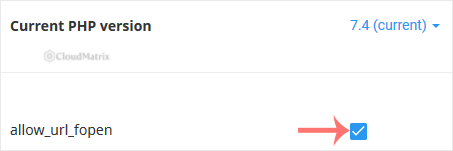
4. Let the change save
The Selector saves each directive as you change it, so there is no separate submit button to press. Wait for the on-screen confirmation before you navigate away, and give it a few seconds to apply. No restart is required from your side.
Confirm the Setting Took Effect
Do not trust the checkbox alone. Create a file called phpinfo.php in your public_html directory containing:
<?php phpinfo();Load https://yourdomain.com/phpinfo.php in your browser, replacing yourdomain.com with your own domain, and search the page for allow_url_fopen. The Local Value column is the one that matters.
Delete the file as soon as you have read it. A phpinfo() page left in place publishes your full server configuration, module list and paths to anyone who finds the URL, and automated scanners look for exactly that filename.
Things the Toggle Does Not Do
- It does not travel with you between PHP versions. The Selector stores directive values separately for each PHP version. Change your PHP version later and the new version starts on its own defaults, so a carefully disabled
allow_url_fopencan quietly switch back on. Re-check the Options tab after every version change. - It cannot be overridden from your code.
allow_url_fopenis anINI_SYSTEMdirective, which meansini_set('allow_url_fopen', '1')in a PHP script has no effect and returns nothing useful. The same applies to aphp_valueline in.htaccess. The Selector, or a support request, is the only route. - It applies to the whole cPanel account. Every domain, subdomain and add-on domain under the account shares the setting. You cannot enable it for one site and disable it for another within the same account.
- It has no effect on cURL. Scripts that use
curl_exec()to fetch remote content carry on regardless of this setting, in both directions. Disablingallow_url_fopenis not a way to stop outbound HTTP requests from your account.
Troubleshooting
- Symptom: the Options tab is missing, empty, or throws an error about the native PHP version. The account is running native PHP, which the Selector does not manage. Change to a numbered PHP version and try again.
- Symptom:
file_get_contents(): https:// wrapper is disabled in the server configuration. This is exactly what a disabledallow_url_fopenlooks like. Either enable it, or better, change the offending code to use cURL. - Symptom: the checkbox is ticked but
phpinfo()still reports Off. Confirm the version shown at the top right of the Options tab is the version your site is actually running. Editing the directive while a different version is selected is the usual cause. Clear any opcode or full-page cache, then re-check. - Symptom:
allow_url_fopendoes not appear in the directive list at all. Some server configurations lock the directive. Open a ticket with Noiz support and state which value you need and why. - Symptom: an update or a WordPress plugin insists
allow_url_fopenis required. Check whether the requirement is real before enabling it. Many installers list it as a preference and fall back to cURL without complaint. If it truly is required, enable it, but treat that dependency as a reason to review how well maintained the software is.
Related Guides
- How to Change the PHP Version via CloudLinux Selector in cPanel
- How to Enable or Disable PHP Extensions Using the CloudLinux Selector in cPanel
- How to Enable or Disable PHP's display_errors via CloudLinux Selector in cPanel
- How to Increase or Decrease PHP Memory Limit via CloudLinux Selector in cPanel
If a script needs allow_url_fopen and you would rather not leave it enabled, or a site stopped working the moment you changed it, open a ticket with Noiz support. Include your domain name, the PHP version shown in the Selector, and the exact error text. On managed plans, Noiz will review which of your scripts actually depend on remote file access and help you move them onto cURL instead.






