On Noiz cPanel hosting that runs CloudLinux, the Select PHP Version tool (commonly called the CloudLinux PHP Selector) lets you raise or lower memory_limit yourself, without editing a php.ini file or opening a support ticket. This guide shows you where the setting lives, what the value actually controls, and the ceiling that quietly caps whatever you choose.
memory_limit is the maximum amount of memory a single PHP script may allocate while it runs. It is not your account's total memory allowance, and it is not the amount of memory your site will use. It is a safety valve: when one script tries to exceed the figure, PHP kills that script with a fatal Allowed memory size ... exhausted error rather than letting it consume the server.
Last reviewed: 27 July 2026, against cPanel & WHM version 134 (the stable and LTS tier in cPanel's own wording) with the Jupiter interface, and against the current CloudLinux PHP Selector. This guide is written for Noiz hosting and is kept current against cPanel and CloudLinux. It complements, and does not replace, the official documentation linked below.
Official Documentation Reference
- PHP Manual: memory_limit: the authoritative definition of the directive, its accepted shorthand notation (
128M,1G) and its default. - CloudLinux OS Components: PHP Selector: how the Selector stores per-version settings and where its limitations lie.
- CloudLinux OS: Limits: how per-account physical memory (PMEM) and virtual memory limits work, and why they override anything set in PHP.
- cPanel: MultiPHP INI Editor: the separate cPanel-native editor that some accounts have instead of, or alongside, the CloudLinux Selector.
Prerequisites
- A Noiz cPanel hosting account and its login details.
- A note of the current value before you change it, so you can put it back.
- The figure your application actually asks for. Most CMS documentation states a minimum; use that as your starting point rather than guessing.
Change the PHP Memory Limit
1. Open Select PHP Version
Log in to your cPanel account, scroll to the Software section, and click Select PHP Version. If you cannot see it, type PHP into the search box at the top of the cPanel home page.

2. Open the Options tab
Click Options. This tab lists the PHP directives you are allowed to change for the version currently selected on your account.

Note: if the Options tab shows an error mentioning the native PHP version, switch to a numbered (alt-php) version first. The native build is managed by the server, so the Selector cannot edit its directives. See How to Change the PHP Version via CloudLinux Selector in cPanel.
3. Set memory_limit
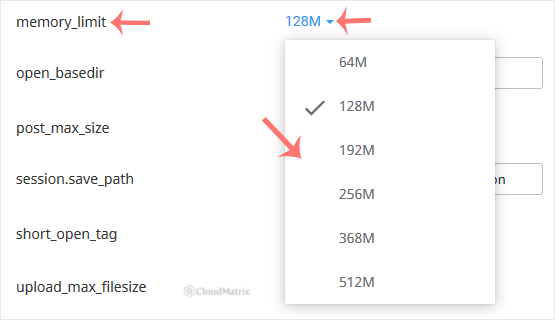
Find memory_limit in the list and open the drop-down beside it, then choose the value you need. The change saves as soon as you select it, and applies to new PHP requests immediately. There is no restart to perform and no confirmation button to press.
4. Confirm it took effect
Reload the page you were troubleshooting. If your application has a system information screen, check the value there: WordPress shows it under Tools then Site Health then Info then Server, and most other CMS platforms have an equivalent panel. That reading is the one that matters, because it reports what PHP is genuinely enforcing rather than what the drop-down displays.
The Ceiling You Cannot Raise From Here
This is the single most important thing to understand about the setting, and it is the reason most follow-up tickets get opened.
Your hosting plan carries a hard per-account memory ceiling enforced by CloudLinux at the operating system level. The Selector's drop-down does not know about that ceiling and will happily offer you figures above it. The lower of the two values wins. Selecting 2048M on a plan whose ceiling sits well below that does not give your scripts 2 GB. It simply means PHP stops policing the script itself, and the account limit stops it instead, usually with a harder-to-read failure than a clean PHP error.
- Symptoms of hitting the account ceiling rather than
memory_limittend to be a 508 Resource Limit Is Reached page, a blank white screen, an abruptly terminated request, or a process that dies with no useful message in the PHP error log. - Raising the drop-down further will not fix those. Once the PHP figure is already at or above the account ceiling, the remaining fix is either to reduce what the application is trying to do in one request, or to move to a plan with more memory. Open a ticket with Noiz support and ask for your account's current memory ceiling and utilisation before you spend an afternoon tuning a value that is not the constraint.
- If your account has a resource usage page in cPanel, it will show you when the ceiling was last reached and how often. That history is far more useful than a single failed page load.
Choosing a Sensible Value
- Start from the application's stated requirement. Many PHP applications run comfortably in
128Mor256M. Image processing, PDF generation, large imports and exports, and heavyweight page builders are the usual reasons to need more. - Raise in steps, not to the maximum. Move from
128Mto256M, retest, then to512Mif the error persists. Jumping straight to the largest available figure removes the diagnostic signal you were using. - A very high limit hides bugs rather than fixing them. A well-behaved page should not need hundreds of megabytes. If yours does, the usual causes are a plugin loading an entire database table into an array, an unbounded loop, or an import script processing every row at once instead of in batches. Fixing that is cheaper than paying for memory to absorb it.
- Do not set it to
-1, even if the option appears. That removes the limit entirely, so a single runaway script will consume the whole account allowance and take every other site in the account down with it. - Lowering it is a legitimate move too. A deliberately modest limit makes a memory leak fail fast and visibly, on one page, instead of intermittently starving the whole account.
Things That Catch People Out
- The value is stored per PHP version. Each version keeps its own set of Options values. If you later change your PHP version, the new version starts on its own defaults and your tuned
memory_limitdoes not follow it across. Re-check the Options tab immediately after any version change. - The setting is account-wide, not per-domain. The CloudLinux Selector applies one configuration to the whole cPanel account, so every domain, subdomain and add-on domain in it shares the value. Sites needing genuinely different limits belong in separate cPanel accounts.
- Your application can override it downwards. WordPress in particular sets its own figures through
WP_MEMORY_LIMITandWP_MAX_MEMORY_LIMITinwp-config.php. If the server allows 512M butwp-config.phpasks for 128M, your admin pages get 128M. Check that file before assuming the Selector change did not work. - A custom
php.inior.htaccessentry may be doing nothing. Under the PHP handlers used with the CloudLinux Selector,php_value memory_limitlines in.htaccessare typically ignored, and a strayphp.iniin your web root may be ignored or may conflict with the Selector. Set the value in one place, in the Selector, and remove the leftovers. - Command-line and cron runs are separate. A script run through cron or PHP CLI does not necessarily inherit the same
memory_limitas a web request. If a scheduled import fails while the same task succeeds in the browser, that difference is the first thing to check. - The drop-down offers fixed choices, not free text. If the exact figure you want is not listed, pick the next value up. If the option is greyed out or missing entirely, the value is locked at plan level, and only Noiz support can change it.
Troubleshooting
- Symptom:
Fatal error: Allowed memory size of X bytes exhausted. This is the clean case, and the one this guide fixes. The number in the message tells you the limit PHP is currently enforcing. If it does not match the drop-down, something is overriding it: checkwp-config.php, then any customphp.ini, then confirm which PHP version the site is actually running. - Symptom: a 508 error, or the page simply dies with nothing in the PHP error log. You are hitting the account memory ceiling rather than
memory_limit. Raising the drop-down will not help. Contact Noiz support for your account's ceiling and recent usage. - Symptom: the change saved but the site still reports the old value. Confirm the account is on the PHP version you edited, not a different one, and clear any full-page or object cache in the application before re-reading the figure.
- Symptom: the Options tab is empty or shows an error. The account is on the native PHP build. Switch to a numbered version first, then return to Options.
- Symptom: only one particular page or import fails, everything else is fine. That is a workload problem rather than a configuration problem. Split the import into smaller batches, or reduce the number of records processed per request, before raising memory again.
Related Guides
- How to Change the PHP Version via CloudLinux Selector in cPanel
- How to Enable or Disable PHP's display_errors via CloudLinux Selector in cPanel
If raising the limit does not clear the error, or you are not sure whether you are hitting PHP's limit or your plan's ceiling, open a ticket with Noiz support. Include your domain name, the value you set, and the exact error text or the URL that fails. On managed plans, Noiz will identify which limit is actually being reached and either tune it or advise on the plan that fits your workload.






