FTP accounts are the credentials that let a person, a design agency, a deployment script or a backup plugin write files into your hosting space. Rotating one of those passwords is the fastest way to cut off access you no longer want, or to recover after a password has been shared too widely. This guide shows you how to change the password on an additional FTP account from the DirectAdmin control panel on your Noiz hosting, and what else you need to update afterwards so nothing silently breaks.
Last reviewed: 27 July 2026, against the current DirectAdmin release and its Evolution interface. This guide is written for Noiz hosting and is kept current against DirectAdmin. It complements, and does not replace, the official DirectAdmin documentation linked below.
Official Documentation Reference
Prerequisites
- Your DirectAdmin login details for the hosting account. Noiz sends these in your welcome email, and they are also listed in your Noiz client area.
- At least one additional FTP account already created. If you have not created one yet, see How to Create an FTP Account in DirectAdmin.
- A password manager or another safe place to store the new password. DirectAdmin does not show it again once you leave the page.
- A list of anything that logs in with this account, such as an FTP client, an IDE, a backup plugin or a deployment job.
Which FTP Account Are You Changing?
DirectAdmin treats two kinds of FTP login differently, and picking the wrong one is the most common reason this task goes sideways.
- The main FTP account. This shares its username with your DirectAdmin account and cannot be given a separate password. To change it you change your DirectAdmin account password itself, which also changes the password you use to log in to the control panel and to any shell access on the account. Only do this if that is genuinely what you want.
- Additional FTP accounts. These are the ones you created yourself, usually in the
[email protected]form, each scoped to a folder. Their passwords are independent of your panel login, and they are the accounts the steps below apply to. If you are handing access to a contractor, this is the type of account you should be using.
If the goal is to stop someone accessing your files permanently rather than to rotate a password, suspending or deleting the account is cleaner than changing the password. See How to Suspend an FTP Account in DirectAdmin or How to Remove an FTP Account in DirectAdmin.
Change the Password
Step 1: Open FTP Management
Log in to your DirectAdmin account. In the Account Manager section, click FTP Management. If the menu is long, type FTP Management into the navigation filter box at the top of the sidebar and the entry will appear.

If FTP Management is not listed at all, the feature is switched off on your hosting package. Contact Noiz support and it can be enabled for you.
Step 2: Select the FTP account
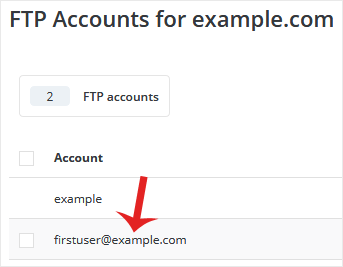
The page lists every FTP account on the hosting account, along with the directory each one is restricted to. Click the account you want to change. Check the path in the same row before you click, because usernames on similar domains are easy to confuse and there is no undo once the password is replaced.
Step 3: Set the new password
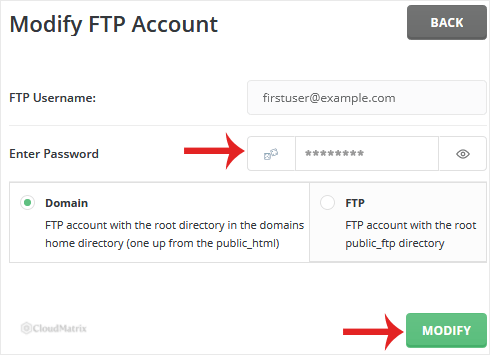
Type the new password into the Enter Password field and repeat it in the confirmation field, or click Generate Random Password to have DirectAdmin create a strong one for you. The random option is the better choice: FTP accounts are a favourite target for automated login attempts, and a generated password will not be guessed.
Copy the password into your password manager now, before you go any further. DirectAdmin stores the password as a hash, so neither you nor Noiz support can read it back afterwards. If you lose it, the only fix is to set it again.
Step 4: Save the change
Click Modify. DirectAdmin confirms the change and the new password takes effect immediately for new connections.
An FTP session that is already open stays authenticated until it disconnects, so close and reopen your FTP client if you want to be certain the old password is out of use.
Update Everything That Used the Old Password
This is the step people skip, and it is where the support tickets come from. Changing the password in DirectAdmin does nothing to the copies of it saved elsewhere, and every one of those will start failing on its next connection attempt. Work through:
- FTP clients, including saved entries in a site manager or bookmark list.
- Code editors and IDEs with publish or deploy profiles pointed at the site.
- Backup and migration plugins in WordPress or another CMS that push archives over FTP.
- Deployment pipelines and scheduled jobs that upload builds. These usually fail silently and only surface as a stale website.
- Anyone you shared the old password with. Send the new one over a channel that is not email if you can, or better, give them their own FTP account so the next rotation affects only them.
One practical warning: a script or plugin that retries a failed login on a schedule can rack up dozens of failures in a few minutes, and the brute-force protection on the server will block the source IP address. Update or disable the automated jobs before they start retrying, not after.
Connect Using Explicit FTP over TLS
Plain FTP sends your username and password across the network in clear text. On a shared office network, a public hotspot or an untrusted uplink, anyone in a position to watch the traffic can read the credentials you have just changed, which defeats the point of changing them.
Noiz hosting supports explicit FTP over TLS, usually shown in FTP clients as Require explicit FTP over TLS or FTPES. Set your connection up like this:
- Protocol: FTP, with encryption set to explicit FTP over TLS.
- Host: your domain name, for example
yourdomain.com, replacing that with your own domain. - Port:
21. Explicit TLS upgrades the standard FTP port rather than using a separate one. - Username: the full FTP username exactly as it appears in FTP Management, including the
@yourdomain.compart where present. - Transfer mode: passive, which is what most networks and firewalls expect.
Set the client to refuse an unencrypted fallback rather than to "use TLS if available". A client that quietly downgrades gives you the appearance of encryption without the substance. If your client offers a plain FTP option and an FTPES option side by side, always choose FTPES.
Troubleshooting
Symptom: the client reports 530 Login authentication failed. The username is usually the culprit rather than the password. Additional FTP accounts need the full [email protected] form, not just the part before the @. Copy it straight from the FTP Management list.
Symptom: the login worked a moment ago and now every attempt times out or is refused outright. Repeated failures have most likely tripped the server's brute-force protection and your IP address is blocked for a period. Stop retrying, and contact Noiz support with your current public IP address if you need it cleared sooner.
Symptom: the connection succeeds but the directory listing is empty or hangs. This is almost always a passive-mode or firewall issue rather than an authentication one. Switch the client to passive mode and try again from a different network to confirm.
Symptom: the certificate warning names a different hostname than your domain. This happens when the FTP service presents the server's own certificate. Verify the details before accepting, and contact Noiz support if you are unsure whether the certificate is legitimate.
Symptom: the website has stopped updating since the password change. A deployment job or backup plugin is still using the old credentials. Check the tool's own logs, update the stored password and run it manually once to confirm.
Need a Hand?
If an FTP password change has locked out a live deployment, or you suspect an FTP account was used by someone who should not have had it, open a support ticket from your Noiz client area. The Noiz team can confirm what connected and when, clear a brute-force block on your IP address, and help you move contractors onto separate, directory-scoped FTP accounts so future rotations affect one person rather than everyone.






