Your main DirectAdmin username and password already work as an FTP login, and that login lands in your home directory with access to every domain, every public_html and every log file on the account. That is fine for you, but it is far too much access to hand to a designer, a developer or a client who only needs one folder. This guide shows you how to create a separate FTP account in DirectAdmin, scoped to a single directory, and explains the account type choice that decides exactly what that account can reach.
Last reviewed: 27 July 2026, against the current DirectAdmin release and its Evolution interface. This guide is written for Noiz hosting and is kept current against DirectAdmin. It complements, and does not replace, the official DirectAdmin documentation linked below.
Official Documentation Reference
- DirectAdmin Docs: FTP (server-side reference: which FTP daemon runs and how it is debugged)
- DirectAdmin Docs (full documentation index)
Prerequisites
- A Noiz hosting account on DirectAdmin, and your DirectAdmin login details.
- The domain the new FTP account should be attached to, already added to the account.
- A decision about which folder the account holder actually needs. Read the account type section below before you fill in the form, because the type cannot be guessed later from the username.
Create the FTP Account
-
Log in to your DirectAdmin account.
-
In the Account Manager section, click FTP Management. If you cannot see it, type FTP Management into the navigation filter box at the top of the sidebar and the entry will appear. Click it.

-
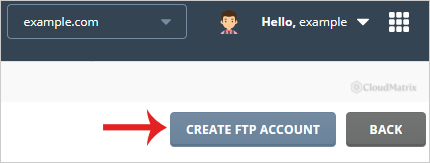
Click Create FTP Account, at the top right of the FTP Management page.
-
Enter the FTP Username, for example
firstuser, then set and confirm a password. DirectAdmin appends the domain for you, so the finished login will be[email protected](replaceyourdomain.comwith your own domain). Then choose the account type: Domain, FTP, User or Custom.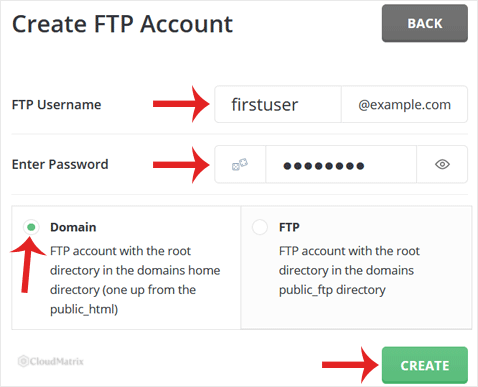
-
Click Create.
The account is created immediately and DirectAdmin displays the login details. Copy them somewhere safe, because the password is not shown again. If you lose it, you can set a new one rather than recreating the account.
Choosing the Account Type
This is the real decision on the form. The type sets the directory the account is locked into, and the account holder cannot move above it. Assume your DirectAdmin username is exampleuser, your domain is yourdomain.com and the new FTP user is firstuser.
- Domain: lands in
/home/exampleuser/domains/yourdomain.com. The account sees the whole domain folder, which includespublic_html,private_html, the logs and the stats directories. Choose this for a developer who is working on the live site and may need to look at more than the web root. - FTP: lands in
/home/exampleuser/domains/yourdomain.com/public_ftp. This is the public FTP directory, not the website. Files placed here are not served by your website unless you deliberately link them. Choose this only when you are genuinely running a file drop, not when someone needs to edit the site. - User: lands in
/home/exampleuser/domains/yourdomain.com/public_html/firstuser, a subfolder inside the web root named after the FTP user. Choose this when someone should only touch one section of the site, such as a landing page or a microsite. Anything they upload is publicly reachable athttps://yourdomain.com/firstuser/, so do not treat this folder as private storage. - Custom: lands wherever you type. Choose this when none of the above match, for example an assets folder or a staging subdirectory. Point it at a path that already exists under the account's home directory; if the path is wrong or missing, the account will either be refused at login or drop into an empty folder with nothing to upload into.
If you are not sure, Domain is the usual answer for a person working on the website, and User is the usual answer for a person who should be kept to one corner of it.
Connecting With the New Account
- Host: your domain, for example
yourdomain.com, or the server hostname shown in your Noiz welcome email. - Username: the full
[email protected], not justfirstuser. This is the single most common cause of a failed login. - Port:
21. - Encryption: choose Explicit FTP over TLS (FTPS) in your FTP client. Plain FTP sends the username and password across the network in clear text, so there is no good reason to use it when your client supports FTPS.
- Transfer mode: passive. Most clients default to passive already, and active mode frequently stalls behind home and office routers.
Troubleshooting
- Login is rejected with an authentication failure: you almost certainly entered the username without the domain. Use
[email protected]in full. - The account connects but the folder is empty, or the website files are missing: the account type is pointing somewhere other than where you expected. A User account only sees its own subfolder, and an FTP account sees
public_ftprather than the website. Recreate the account with the correct type. - The account holder cannot move up out of their folder: that is the intended behaviour. The directory chosen at creation is the ceiling, which is the entire point of a separate FTP account.
- The connection hangs after login, when the directory listing should appear: switch the FTP client to passive mode, and allow it through any local firewall.
- The password was lost: do not recreate the account and risk breaking someone's saved connection. Set a new password instead, using the guide linked below.
Related Guides
- How to Change an FTP Account Password in DirectAdmin
- How to Suspend an FTP Account in DirectAdmin
- How to Remove an FTP Account in DirectAdmin
If you would rather not hand out FTP access at all, or you are unsure which folder a contractor should be limited to, open a support ticket from your Noiz client area with the domain name and what the person needs to do. Noiz will set the account up with the narrowest access that still gets the job done.






