Databases pick up two kinds of wear over time: internal inconsistencies that make queries return errors, and wasted space left behind by deleted or updated rows. DirectAdmin exposes two one-click maintenance actions for exactly this. Check examines a database and reports whether its tables are sound, and Optimize rebuilds the tables to reclaim unused space and tidy up the on-disk layout. Some guides call the first action "examining" the database. It is the same thing.
This guide shows you how to run both from the DirectAdmin control panel on your Noiz hosting account, explains what each action actually does so you know which one you need, and covers the results you are likely to see.
Last reviewed: 27 July 2026, against the current DirectAdmin release and its Evolution interface. This guide is written for Noiz hosting and is kept current against DirectAdmin. It complements, and does not replace, the official DirectAdmin documentation linked below.
Official Documentation Reference
- DirectAdmin: MariaDB and MySQL
- DirectAdmin: MariaDB and MySQL troubleshooting
- MariaDB: CHECK TABLE
- MariaDB: OPTIMIZE TABLE
- MySQL: OPTIMIZE TABLE
Prerequisites
- An active Noiz hosting account with DirectAdmin access, and your DirectAdmin username and password.
- At least one database on the account. If you have not created one yet, see How to Create a Database in DirectAdmin.
- A current backup, if the database is behind a live site. Optimising rebuilds tables, so take a copy first: How to Download a Database Backup from DirectAdmin.
Check or Optimise a Database
1. Log in to DirectAdmin
Sign in to your DirectAdmin account with the username and password on your Noiz welcome email.
2. Open MySQL Management
In the Account Manager section, click MySQL Management. If you cannot see it, type MySQL Management into the navigation filter box at the top of the menu and the option will appear. Click it.

3. Select the databases you want to work on
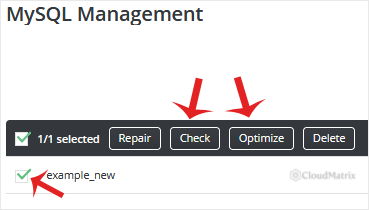
From the list of databases, tick the one you want. You can tick more than one, and DirectAdmin will run the same action against every database you have selected.
4. Run Check or Optimize
Click Check to examine the selected databases, or Optimize to rebuild and compact them. A report is displayed once the action finishes, listing every table that was processed and the result for each one.
Which One Do You Need?
The two buttons solve different problems, and running the wrong one wastes time without changing anything.
- Check is a read-only health test. It reports whether each table's data and indexes are internally consistent. Nothing is modified. Run it when a site throws database errors, when a page returns partial data, or when you simply want confirmation that the database is sound. Check never repairs anything. If it reports a problem, follow up with How to Repair a Database in DirectAdmin.
- Optimize is a housekeeping action. Deleting rows does not automatically shrink a table file, and heavily updated tables end up fragmented, so the table occupies more disk than the data inside it actually needs. Optimising rebuilds the table, reclaims that space and refreshes the index statistics the query planner uses. It does not fix corruption.
What to Expect in the Report
OKagainst a table means the action completed with nothing to report. This is the normal result.Table is already up to dateis a success message, not an error. You will see it often when optimising, and it is the standard response for storage engines that handle their own space reuse internally.note: Table does not support optimize, doing recreate + analyze insteadis also normal and also a success. The table is rebuilt and its statistics are recalculated, which achieves the same goal by a different route.- Anything reporting a table as corrupt, crashed or in need of repair is a genuine fault. Do not keep running Optimize against it. Move to the repair procedure instead.
Things Worth Knowing Before You Optimise
- Optimising needs free disk space. The rebuild writes a fresh copy of the table before swapping it in, so you need roughly as much free space as the largest table being processed. If your account is close to its disk quota, clear space first or the operation can fail part way through.
- Tables are busy while the work runs. Depending on the storage engine, the table can be locked or under heavy input and output for the duration. On a large database this is noticeable to visitors. Run it during a quiet period rather than at peak traffic.
- Once in a while is enough. Optimising after a large deletion, a bulk import or a plugin clear-out is sensible. Scheduling it nightly is not: the churn costs more in disk activity than the fragmentation it removes.
- Optimising is not a performance fix on its own. If a site is slow, the cause is far more often a missing index, an oversized options or metadata table, or an application accumulating expired temporary records, than it is fragmentation. Optimise by all means, then look at what the application is actually storing.
- Only your own databases are listed. DirectAdmin shows the databases belonging to your account. A database created under a different hosting account will not appear here.
Troubleshooting
- Symptom: MySQL Management is missing from the menu. Type
MySQL Managementinto the navigation filter box. If it still does not appear, the feature is not enabled on your package, so contact Noiz support. - Symptom: the Check report flags a table as crashed or corrupt. Optimising will not help. Use the repair procedure, and if repair does not clear it, restore the most recent backup.
- Symptom: Optimize runs but the database size barely changes. That is expected on engines that reuse freed space internally, and expected again if you optimised recently. The space is available for new rows even though the file on disk has not shrunk.
- Symptom: the page appears to hang on a very large database. The action is still running server side. Give it time rather than clicking again, because a second request against the same tables only adds load.
- Symptom: an error mentioning disk space or quota. Free space on the account, then retry. The rebuild cannot complete without room for a temporary copy of the table.
Need a Hand?
If a check reports damage you are not comfortable acting on, or a database is large enough that you would rather not run maintenance against it during business hours, open a ticket with Noiz support. The support team can run the maintenance for you, confirm the results and restore from backup if anything needs undoing.






