This guide shows you how to restore a backup you previously generated in DirectAdmin on your Noiz hosting account. Restoring puts a saved copy of your website files, databases, email accounts or FTP users back onto the live account, which is what you want after a bad update, a botched edit, an accidental deletion or a compromise.
Last reviewed: 27 July 2026, against the current DirectAdmin release and its Evolution interface. This guide is written for Noiz hosting and is kept current against DirectAdmin. It complements, and does not replace, the official DirectAdmin documentation linked below.
Official Documentation Reference
- DirectAdmin Docs: Restore
- DirectAdmin Docs: User Level Backup/Restore settings
- DirectAdmin Docs: The backup progress monitor
Before You Start: Restoring Overwrites Your Current Data
Read this part before you click anything. A restore is not a merge and it is not a preview. DirectAdmin writes the contents of the backup over what is on the account right now, and there is no undo button afterwards.
- Files are overwritten. Anything in the backup replaces the matching file on the live account. If the backup is three weeks old, three weeks of changes to those files are gone.
- Databases are replaced. A restored database drops and reimports its tables. Every order, comment, post or form entry created after the backup was taken disappears.
- Email can go backwards. Restoring email accounts and mailbox data rolls mailboxes back to the state they were in when the backup ran. Mail that arrived since then, and mail you deleted since then, are both affected.
- Newer files are not always deleted. Files created after the backup and not present in it may survive the restore, which can leave a half-old, half-new site. This matters most for content management systems where the database and the file tree have to match.
The safe habit: generate a fresh backup of the account as it stands right now, before you restore the older one. That gives you a way back if the restore turns out to be the wrong choice. See How to Generate and Download a Full Backup of Your Account in DirectAdmin.
Prerequisites
- Your DirectAdmin login details for your Noiz hosting account.
- A backup that was generated from this account and is still present in the account's backup area. See How to Generate and Download a Full Backup of Your Account in DirectAdmin or How to Download Email, FTP, or a Database-only Backup from DirectAdmin.
- A quiet moment. Put the site into maintenance mode first if it takes orders or form submissions, so nothing is lost mid-restore.
Restoring the Backup
Step 1: Log in to DirectAdmin
Log in to your DirectAdmin account.
Step 2: Open Create/Restore Backups
In the Advanced Features section, click Create/Restore Backups. If you cannot see it, type Restore into the navigation filter box at the top of the menu and the option will appear. Click it.

Step 3: Switch to the Restore Backup screen
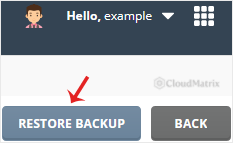
Click Restore Backup. You will find it at the top right of the page.
Step 4: Choose the backup file
Under Restore Backup, click the drop-down menu and select the backup you wish to restore.
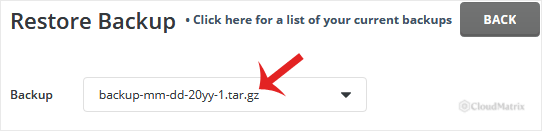
Backup filenames carry the date they were generated, so pick by date rather than by position in the list. If you are recovering from a hack or a broken plugin, choose the most recent backup taken before the problem started, not simply the newest one, otherwise you will restore the problem along with the site.
Step 5: Select what to restore
Under Restore Options, untick the data you do not want to include in the restore. Everything left ticked will be written over the live account.
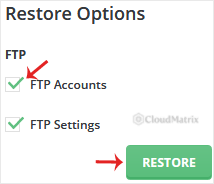
Restoring only what you actually need is almost always the better move. Some worked examples:
- A broken theme or plugin update: restore the website files only, and leave the databases untouched, so recent orders and comments survive.
- A corrupted or wiped database: restore the database only, and leave the files alone.
- A deleted mailbox: restore the email data only, so the website is not rolled back at the same time.
- A full compromise: restore everything from a known-clean backup, then change every password on the account.
Step 6: Start the restore
Scroll to the bottom of the page and click Restore Backup. The restore is queued immediately and cannot be cancelled once it starts, so make sure your selection is right before you click.
Checking the Status of Your Restore
DirectAdmin runs restores in the background and reports the result as a message. From the top right of the page, click your Username and then Messages to see whether the restore is still running, has completed, or has failed with an error.
Note: restoring takes time. Check Messages again after a few minutes. How long it takes depends on the size of the backup, the number of files and how large the databases are, so a small brochure site may finish in under a minute while a large shop can take considerably longer. Do not start a second restore because the first one looks slow, and avoid making changes to the site while a restore is in progress.
Troubleshooting
- Symptom: the drop-down menu is empty or the backup you expected is not listed. The restore screen only lists backups still stored in the account's backup directory. Backups you downloaded and then deleted from the server will not appear. Upload the backup file back into the backup directory, or generate a new one.
- Symptom: the restore finishes but the website still looks wrong. The file tree and the database are probably out of step, because only one of the two was restored. Restore the matching half from the same backup file, then clear any caching plugin and your browser cache before judging the result.
- Symptom: the site loads but cannot connect to its database. Restored files include the old configuration file, so the database name, database user or password in it may no longer match. Update the site's configuration file with the current credentials.
- Symptom: Messages reports the restore failed on disk space. A restore needs room for both the extracted backup and the existing data at the same time. Remove old backup files or unused data from the account and run the restore again. See How to Remove a Backup File Using DirectAdmin.
- Symptom: email accounts came back but the mailboxes are empty. The backup was generated with email accounts selected but not the mailbox data itself. Check the options you tick when generating the backup, not only when restoring it.
Related Guides
- How to Generate and Download a Full Backup of Your Account in DirectAdmin
- How to Download Email, FTP, or a Database-only Backup from DirectAdmin
- How to Remove a Backup File Using DirectAdmin
Need a Hand?
Restores are one of the jobs where a second pair of eyes is worth having, because the wrong selection can cost you data that no longer exists anywhere else. If you are unsure which backup to use, or the restore has not produced the result you expected, open a support ticket in the Noiz client area with your domain name, the backup date you want restored and what went wrong. Noiz support can check the restore log on the server and advise before anything else is overwritten.






