DirectAdmin lets you package your entire hosting account into a single compressed archive and download it to your own computer. In DirectAdmin's own terminology this is a Site Backup, the user-level version of the DirectAdmin backup system, and it is the same archive format used for account moves between servers. That matters, because a Site Backup is not just a copy of your files: it is a restorable snapshot of your websites, email accounts and their messages, FTP accounts, databases and DNS-adjacent settings, all in one .tar.gz file.
This guide covers creating the backup and then downloading it, which are two separate jobs in DirectAdmin. The backup is generated on the server first and dropped into your account's backups directory, and only then do you fetch it with File Manager. If you are looking for a smaller, targeted export rather than the whole account, or you already have an archive and want to put it back, see the related guides at the end.
Last reviewed: 27 July 2026, against the current DirectAdmin release and its Evolution skin, which is the interface Noiz DirectAdmin accounts use. This guide is written for Noiz hosting and is kept current against DirectAdmin. It complements, and does not replace, the official DirectAdmin documentation linked below.
Official Documentation Reference
- DirectAdmin Docs: Backup / Restore / Migration overview
- DirectAdmin Docs: User-level Backup/Restore settings (what each checkbox includes)
- DirectAdmin Docs: File Manager
- DirectAdmin Docs: Message System (where the completion notice appears)
- DirectAdmin Docs: Evolution skin
Prerequisites
- Your DirectAdmin login details and panel address, both of which are in your Noiz welcome email.
- Enough free disk space on the account to hold the archive. The backup is written into your own home directory before you download it, so an account sitting close to its quota cannot produce one. See the disk space note below.
- A few minutes. Backups are queued rather than produced instantly, and a large mailbox is usually what makes the wait noticeable.
Part 1: Create the Backup
Step 1: Log In to DirectAdmin
Sign in to DirectAdmin with the username and password from your welcome email. You land on the user-level dashboard, with the navigation menu grouped into sections such as Account Manager, E-mail Manager, Advanced Features and System Info & Files.
Step 2: Open Create/Restore Backups
In the Advanced Features section, click Create/Restore Backups. If you would rather not hunt through the menu, type backup or restore into the navigation filter box at the top of the sidebar and the entry appears straight away.

Step 3: Choose What to Include
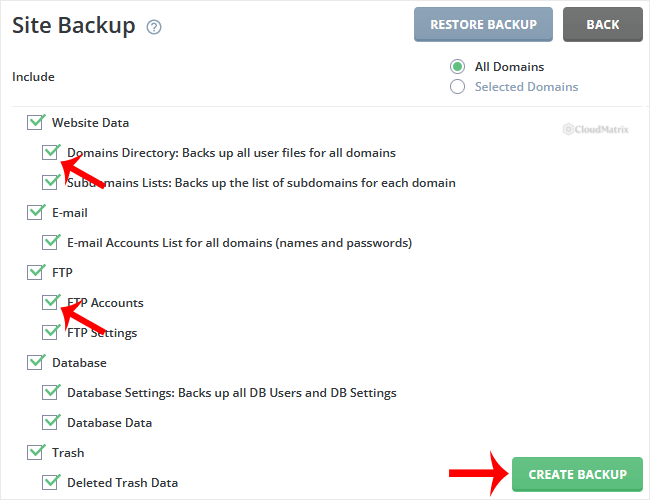
Under Site Backup, tick the items you want in the archive. The options are grouped so you can take everything or trim the archive down:
- Website Data: the domains directory (all files for all your domains) and your subdomain lists.
- E-mail: the account list with passwords, the actual message data from Inbox and IMAP folders, filters and catch-all settings, forwarders, autoresponders and vacation messages.
- FTP: FTP accounts and their settings.
- Database: database settings and database users, plus the database data itself. These are two separate ticks, and taking the data without the settings gives you an archive that restores tables but not the users that connect to them.
- Trash: deleted trash data, which is rarely worth including.
For a genuine full backup, tick everything. If you are only after part of the account, leaving items unticked keeps the archive smaller and faster, and email data is almost always the bulk of it.
Step 4: Start the Backup
Scroll to the bottom of the page and click Create Backup.
Step 5: Wait for the Completion Notice
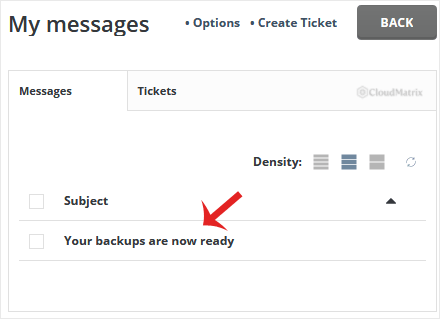
DirectAdmin responds immediately with a message along the lines of Backup creation added to the queue. That is confirmation the job was accepted, not that it has finished. The work happens in DirectAdmin's task queue in the background, so you can close the page and come back later.
When the archive is ready, DirectAdmin posts a message to its own internal message system, reachable from the Support & Help section under Support Center (also shown as a message or bell indicator in the header once something is waiting). Open it to confirm the backup completed rather than failing partway.
What the Backup Does and Does Not Contain
This is the part people usually find out about at the worst possible moment, so it is worth two minutes now.
It contains the items you ticked in step 3, packaged so that DirectAdmin can restore them in one operation, either back into your own account or into a fresh DirectAdmin account elsewhere.
It does not contain anything DirectAdmin deliberately skips inside your home directory. The skipped list includes the backup directories themselves (backups, user_backups, admin_backups, which prevents a backup from recursively swallowing older backups) along with system-ish paths such as usr, bin, etc, lib, lib64, tmp, var, sbin and dev. The practical consequence: anything you have parked outside your domain directories, particularly under ~/var, is not in the archive. If you keep files somewhere unusual, move or symlink them into public_html before backing up.
It is a point-in-time snapshot. If your site is taking orders or accepting form submissions while the archive is being written, activity during that window may or may not be captured. For a migration or a risky update, take the backup during quiet hours, or put the site into maintenance mode first.
It is not a substitute for server-side backups. A Site Backup you download and keep off the server is genuinely useful precisely because it lives somewhere the server cannot reach. Treat it as your own copy, taken before you change something, rather than as your only line of defence.
Part 2: Download the Backup
The archive is now sitting on the server in your account's backups directory. Downloading it is a File Manager job.
Step 1: Open File Manager
Back on the user-level dashboard, open the System Info & Files section and click File Manager. The navigation filter box works here too: type file and the entry appears.

Step 2: Open the backups Directory
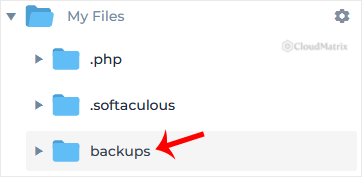
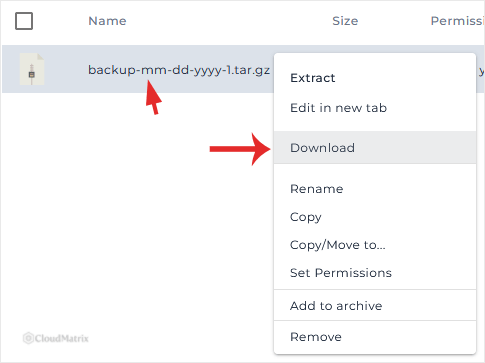
File Manager opens at the root of your home directory. Click into the backups folder. Your archive is the .tar.gz file with the most recent timestamp. If several are listed, check the date and size columns rather than trusting the order on screen.
Step 3: Download the File
Right-click the archive and choose Download from the context menu. The file transfers to your computer over your browser's normal download mechanism.
Large archives are the one place this can go wrong. A multi-gigabyte download through a browser is at the mercy of your connection staying up, and there is no resume. If the account is large, connect over SFTP or FTP with a proper client instead, point it at the backups directory and pull the file that way, which gives you resume support and a checksum you can trust.
Step 4: Verify, Then Tidy Up
Once the download has finished, open the archive locally to confirm it is not truncated. Any standard archive tool will do, and on macOS or Linux tar -tzf yourbackup.tar.gz | head lists the first entries without extracting anything. A file that will not open is a file that will not restore.
Then delete the copy on the server. Backups sit inside your home directory and count towards your account's disk quota, so leaving a few of them there is a common and entirely avoidable reason for an account to run out of space. They are excluded from future backups, but they are not excluded from your quota.
Troubleshooting
Symptom: The backup never appears and no completion message arrives. The most likely cause is insufficient disk space. DirectAdmin has to build the archive inside your own home directory, so an account already near its quota cannot create one. Clear old backups, caches and logs, then try again. Check your usage under System Info & Files.
Symptom: The message system reports the backup finished with errors. Read the message body rather than acting on the summary. It normally names the specific component that failed, most often a database or a mailbox, and a partial archive will restore that component incorrectly or not at all.
Symptom: The download stops partway or the resulting file will not open. The browser transfer was interrupted. Retry, and if it fails again use an SFTP client against the backups directory instead.
Symptom: The file has a .tar.zst extension rather than .tar.gz. Some DirectAdmin servers are configured to use zstd compression, which produces smaller archives faster. It restores exactly the same way. On your own machine you need a tool that understands zstd, such as a current build of tar with zstd installed, or 7-Zip on Windows.
Symptom: You want the backup to run automatically every night. The user-level Site Backup interface has no scheduling option by design; scheduled backups are configured above user level. If you need a recurring account backup, raise it with the Noiz support team rather than trying to script it from inside the account.
Symptom: The archive is far larger than you expected. Email data is almost always the reason. Empty old Trash and Junk folders, archive mailboxes nobody reads, then take the backup again.
Related Guides
- How to Download Email, FTP, or a Database-only Backup from DirectAdmin
- How to Restore a Backup you Generated Earlier in DirectAdmin
Need a hand?
Backups are the one task where it is worth being certain rather than hopeful, especially before a migration, a major update or a change you are not sure about. If the backup will not complete, the archive is too large to download comfortably, or you want a scheduled backup arranged for your account, contact the Noiz support team through the client area with your domain name and the exact wording of any error message, and the team will sort it out with you.






