DirectAdmin lets you back up part of your hosting account instead of all of it. If you only need a copy of your databases before an upgrade, or your email accounts before switching mail client, or your FTP users before handing a site to a developer, there is no need to generate a full account backup and wait for gigabytes of website files you already have.
This guide shows you how to generate a database-only, email-only or FTP-only backup on your Noiz hosting account in DirectAdmin, and then download the resulting file to your own computer.
Last reviewed: 27 July 2026, against the current DirectAdmin release and its Evolution interface. This guide is written for Noiz hosting and is kept current against DirectAdmin. It complements, and does not replace, the official DirectAdmin documentation linked below.
Official Documentation Reference
- DirectAdmin Docs: Backup / Restore / Migration
- DirectAdmin Docs: Backups
- DirectAdmin Docs: Message System
- DirectAdmin Docs: Directories and Locations
Prerequisites
- Your DirectAdmin login details for your Noiz hosting account.
- Enough free disk space on the account to hold the backup file. The backup is written into your account before you download it, so it counts against your quota while it exists.
- A few minutes. Backups are queued and run in the background, so the file does not appear the instant you click the button.
Why Take a Partial Backup Rather Than a Full One
A full account backup is the right tool when you are moving a whole site or recovering from a disaster. For everyday work it is usually overkill, and a targeted backup is faster to create, faster to download and far easier to find things in later.
- Before a plugin, theme or core update: a database-only backup takes seconds and is the piece you are most likely to need if the update goes wrong.
- Before reconfiguring mail: an email-only backup preserves the account names and passwords, so you are not rebuilding twenty mailboxes from memory.
- Before handing a site to a developer: an FTP-only backup records the FTP users and their settings, which is the part nobody documents and everybody loses.
- When disk space is tight: a full backup can be several times the size of a partial one, and it has to fit on the account before you can download it.
How to Generate a Database-Only, FTP, or Email Backup
Step 1: Log in to DirectAdmin
Log in to your DirectAdmin account.
Step 2: Open Create/Restore Backups
In the Advanced Features section of the menu, click Create/Restore Backups. If you cannot see it, type Restore into the navigation filter box at the top of the menu and the option will appear. Click it.

Step 3: Tick only the data you want
Under Site Backup, clear every tick box first, then tick only the items you actually want. For an email-only backup, tick only the options grouped under E-mail. For an FTP-only backup, tick only the options under FTP. For a database-only backup, tick only the options under Databases.
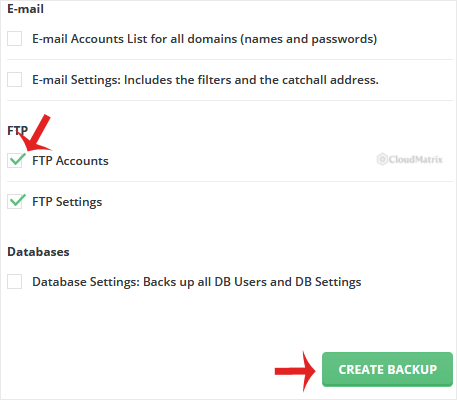
Take a moment over the labels, because they are more literal than they look and this is where most partial backups turn out to be missing the thing the person actually wanted:
- E-mail Accounts saves the mailbox names and passwords for all domains on the account. It does not save the messages inside those mailboxes.
- E-mail Data is the option that saves the actual messages. If your goal is to preserve mail, this is the one you need, and it is by far the largest of the email options.
- E-mail Settings covers filters, forwarders, autoresponders, vacation messages and the catch-all address.
- Database Settings saves your database users and their permissions. It does not save the contents of the databases.
- The individual databases are listed separately under Databases. Tick the database itself to back up its tables and data, and tick Database Settings as well if you want the user accounts that connect to it.
- FTP Accounts and FTP Settings cover the additional FTP logins you created, not the files they have access to. Website files come from the website data options.
If the page offers a choice of where to store the backup, leave it set to store the file locally in your account. Choosing a remote destination sends the file straight off the server, and it will not appear in your backups directory for downloading later.
Step 4: Create the backup
Scroll to the bottom of the page and click Create Backup.
Step 5: Wait for the confirmation message
DirectAdmin queues the job and shows a message such as Backup creation added to the queue. The file is not ready yet. When it is finished, DirectAdmin posts a message to your account saying your backups are now ready.
To check, click your Username at the top right and choose Messages, or open the Support & Help section and go to Support Center >> Messages.
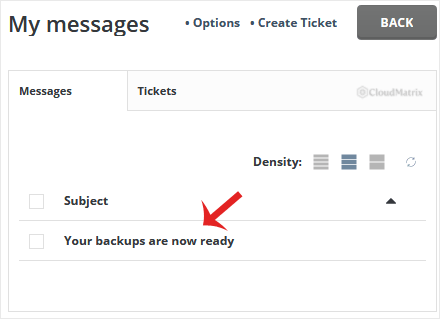
Small backups usually complete in well under a minute. Large mailboxes and busy databases take longer. Do not click Create Backup a second time because nothing has appeared yet, as that simply queues a duplicate job and uses more disk space.
How to Download the Generated Backup
Step 1: Log in to DirectAdmin
Log in to your DirectAdmin account.
Step 2: Open File Manager
In the System Info & Files section, click File Manager. If you cannot see it, type File Manager into the navigation filter box and the option will appear. Click it.

Step 3: Open the backups directory
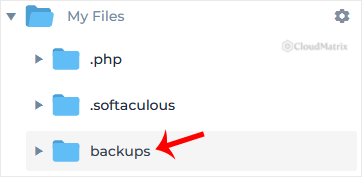
From the top of your account's file tree, open the backups directory. This sits in your home directory, alongside folders such as domains, and it is where DirectAdmin writes user-level backups.
Step 4: Download the file
Right-click your newly generated backup file and choose Download from the context menu. The file downloads to your computer.
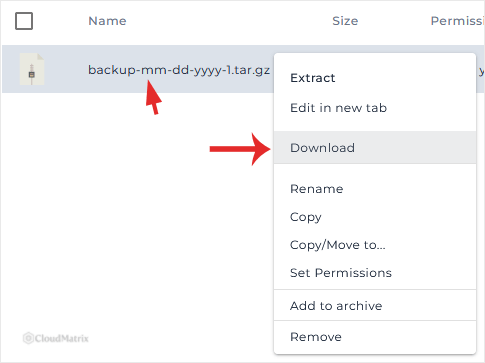
DirectAdmin names the archive after the date it was created, with a trailing number, and writes it as a .tar.gz file. The date is written month first, which catches people out when several backups from the same week are sitting side by side, so read the filename carefully rather than assuming the newest is at the top. The trailing number distinguishes multiple backups taken on the same day, so a -2 is the second backup that day, not a second part of the first. Check the exact filename in the backups folder before you download.
A .tar.gz file is a compressed archive. On macOS and most Linux desktops it opens with a double-click. On Windows you need an archive tool that understands the format, such as 7-Zip. There is no need to unpack it if you are only storing it, and unpacking it is not how you put the data back.
Tidy Up Afterwards
Backups sit in your account and count towards your disk quota until you remove them. It is easy to generate a handful over a busy month and quietly fill the account, which then starts breaking mail delivery and website uploads for reasons that look unrelated.
Once the file is safely downloaded and you have confirmed it opens, delete it from the server. See How to Remove a Backup File Using DirectAdmin.
Keep the downloaded copy somewhere that is not the same machine you work on every day. A backup that lives only on the laptop you are about to spill coffee over is not really a backup.
Troubleshooting
Symptom: the backups directory is empty. The job has not finished yet, or it failed. Check your messages first. If a message says the backup completed, make sure you are looking in the backups directory in your home directory rather than inside a domain folder.
Symptom: the backup failed and mentions disk space. The archive needs room on the account while it is being written. Remove older backup files or unused data and try again, or take the data in smaller pieces, for example one database at a time.
Symptom: the file downloaded but is far smaller than expected. You almost certainly ticked E-mail Accounts or Database Settings without ticking the option that carries the actual data. Generate the backup again with the data options selected.
Symptom: the download stalls or the archive will not open. Large files can fail part way through a browser download and still leave a file on disk. Download it again, and if the account is large, use an FTP client to fetch the file from the backups directory instead of the browser.
Symptom: no confirmation message ever arrives. Check the message area again after a few minutes, since the queue processes jobs in turn and a busy server can take longer. If nothing appears at all, open a ticket with Noiz support rather than repeatedly queueing more backups.
Related Guides
- How to Restore a Backup you Generated Earlier in DirectAdmin
- How to Remove a Backup File Using DirectAdmin
Need a Hand?
If you are backing up ahead of a migration, a major upgrade or a suspected compromise, it is worth getting the selection right the first time. Open a support ticket in the Noiz client area with your domain name and what you are trying to protect, and Noiz support can confirm which options cover it before you rely on the file.






