Backup archives that you generate yourself are written into your own account, inside a folder named backups in your home directory. They count towards your account's disk quota exactly like your website files do, so old archives you no longer need are one of the most common reasons an account runs out of space. This guide shows you how to remove a backup file from your Noiz DirectAdmin account using the File Manager.
This is also the fix for the error you may see when generating a new backup, where DirectAdmin reports that the backup would exceed your storage limit. Clearing out a superseded archive frees the room the new one needs.
Last reviewed: 27 July 2026, against the current DirectAdmin release and its Evolution interface. This guide is written for Noiz hosting and is kept current against DirectAdmin. It complements, and does not replace, the official DirectAdmin documentation linked below.
Official Documentation Reference
- DirectAdmin Docs: Backup / Restore / Migration covers what a user-level backup archive contains and how it is produced.
- DirectAdmin Docs: Evolution skin is the interface described in the steps below.
Prerequisites
- Your DirectAdmin username and password for your Noiz hosting account.
- A backup archive you have already generated and no longer need.
- If the archive still has value to you, download a copy before you delete it. See How to Download Email, FTP, or a Database-only Backup from DirectAdmin.
Before You Delete: This Cannot Be Undone
The DirectAdmin File Manager has no recycle bin and no trash folder. When you confirm a removal, the file is unlinked from the filesystem immediately and there is no undo button, no restore prompt and no version history to fall back on.
Treat every deletion here as permanent. If there is any chance you will want the archive later, download it to your own computer or to external storage first, verify that the downloaded file opens, and only then remove the copy on the server. A backup you have deleted is no longer a backup.
Removing the Backup File
Step 1: Log In to DirectAdmin
Sign in to your DirectAdmin account with the username and password issued when your Noiz hosting was set up. If you have mislaid these, they are available from your Noiz client area, or Noiz support can reissue them.
Step 2: Open the File Manager
In the System Info & Files section, click the File Manager icon. If you cannot see the section, type File Manager into the navigation filter box at the top of the menu and click the result that appears.

Step 3: Open the backups Directory
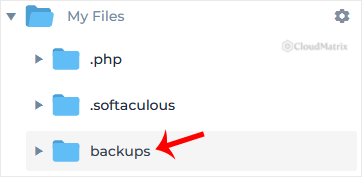
File Manager opens in your home directory. Double-click the backups folder to open it.
Everything inside this folder is a backup archive, typically a .tar.gz file with the generation date in its name. Nothing your website needs in order to run lives here, so removing a file from backups will not take your site offline. Check the dates carefully and keep the most recent archive unless you have a specific reason not to.
Step 4: Remove the File
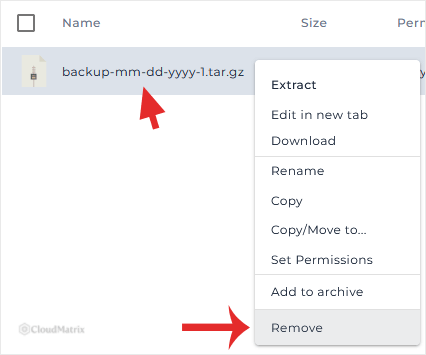
Right-click the backup file you want to delete and choose Remove from the context menu.
To clear several archives in one pass, tick the checkbox beside each file instead and use the Remove action in the toolbar above the file listing.
Step 5: Confirm
Click Remove again in the confirmation dialog. This is the last point at which you can cancel. Once the dialog closes, the file is gone.
The file disappears from the listing and the space it occupied is returned to your account immediately. You can now generate a fresh backup, or carry on with whatever the disk space was needed for.
Keeping the backups Folder Under Control
- Download, then delete. An archive sitting in
backupsis stored on the same account it is protecting. It is a convenience copy, not disaster recovery. Pull it down to your own machine and remove the server-side copy once you have it. - One archive at a time. There is rarely a reason to keep more than the newest full backup on the server. Older ones only consume quota.
- Check the folder before you generate. If a backup job fails for space, look in
backupsfirst. A part-written archive from a previous failed attempt is often still sitting there taking up room.
Troubleshooting
Symptom: The Remove option is greyed out or the deletion fails. Confirm you are inside the backups folder in your own home directory and that you have selected a file rather than the folder itself. If it persists, the file may be held open by a backup job that is still running; wait for it to finish and try again.
Symptom: The file is gone but disk usage has not dropped. DirectAdmin's usage figures are cached and recalculated periodically rather than the instant a file changes. Give it a little time and reload the dashboard before assuming the space was not freed.
Symptom: There is no backups folder in your home directory. It is only created the first time you generate a backup. If you have never generated one, there is nothing to remove and your space is being used elsewhere, most often by mail storage or website files.
Symptom: You deleted the wrong archive. There is no way to recover it from the server. Generate a fresh backup straight away so you are not left without one.
Need a Hand?
If you are unsure which archive is safe to remove, or your account is still short of space after clearing the backups folder, open a ticket with Noiz support from your client area. Noiz can review what is actually consuming your quota and advise before anything is deleted.






