Bandwidth is the amount of data a hosting account transfers to visitors each month. In WHM you can raise, lower or remove that monthly allowance for any cPanel account you own, without touching the account's hosting package. This guide shows you where the setting lives, explains what actually happens when an account runs out of bandwidth, and covers how to lift the block once it has been applied.
It is written for resellers and server administrators managing cPanel accounts through WHM. A reseller can change the bandwidth of the accounts they own; the root user can change it for any account on the server.
Last reviewed: 27 July 2026, against the current stable cPanel & WHM release. This guide is written for Noiz hosting and is kept current against cPanel & WHM. It complements, and does not replace, the official cPanel documentation linked below.
Official Documentation Reference
- cPanel documentation: WHM Limit Bandwidth Usage
- cPanel documentation: Account Suspension Versus Bandwidth Limiting and Account Termination (exactly which services stop when a limit is hit)
- cPanel documentation: WHM Unsuspend Bandwidth Exceeders
- cPanel documentation: WHM View Bandwidth Usage
- cPanel documentation: WHM Edit a Package
Prerequisites
- WHM access with reseller or root privileges. If you are not sure how to reach WHM, see How to Access the Web Host Manager or WHM.
- Ownership of the cPanel account you want to change. Resellers only see their own accounts in the list.
- The Limit Bandwidth Usage privilege on your reseller account. The server administrator controls this under Resellers >> Edit Reseller Nameservers and Privileges, so if the tool does not appear in your WHM at all, ask for it to be enabled.
- The figure you want to set, in megabytes. cPanel measures bandwidth in MB, so a 50 GB monthly allowance is
51200.
Change an Account's Bandwidth Limit in WHM
1. Log in to WHM
Sign in to WHM with your reseller or root credentials.
2. Open Limit Bandwidth Usage
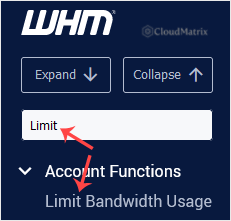
Go to Account Functions >> Limit Bandwidth Usage, or type Limit into the menu filter box at the top left and click the result that appears.
3. Select the account
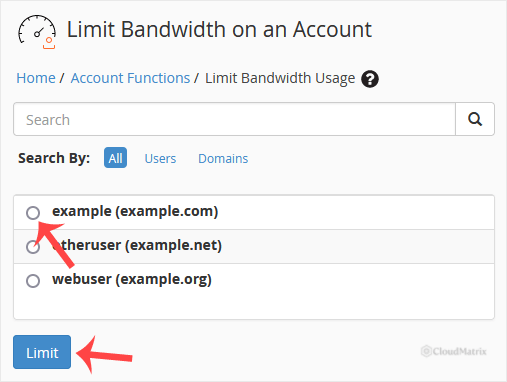
In the Search Box, type the cPanel username, or pick the account from the drop-down list. Then click Limit.
WHM shows a summary of the selected account first, including its IP address, owner, contact address, creation date, theme, package and disk usage. Check the username here before you change anything, because usernames on a busy server are often only a character or two apart.
4. Set the new limit and save
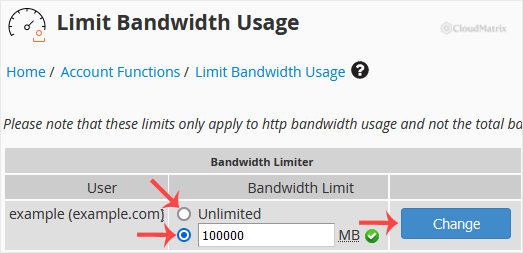
Under Bandwidth Limit, either tick the Unlimited option for an unmetered account, or type the new figure in megabytes into the text box. Click Change to save.
The new allowance applies to the current month and every month after it, until you change it again. Setting Unlimited removes the technical cap in cPanel only; the account is still bound by the terms of the hosting plan it sits on.
What Happens When the Limit Is Reached
Once an account passes its monthly figure, cPanel applies a bandwidth limitation automatically. This is not the same thing as suspending an account, and the difference matters when a customer is on the phone:
- Only web traffic stops. The limitation applies to services reached over
httpandhttps. Visitors to the account's websites get a bandwidth limit exceeded page instead of the site. - Email, FTP and WebDAV keep working. The account can still send and receive mail, and can still connect over FTP. That is why "my site is down but my email is fine" is so often a bandwidth limit rather than an outage or a suspension.
- Nothing is deleted. Files, databases and mailboxes are untouched. The limitation is a temporary block on serving the site, not a termination.
- It clears itself at the start of the next month. cPanel removes the limitation the first time it processes bandwidth statistics in the new month, at which point the account is no longer over its allowance.
Account suspension is a separate, manual action with different effects: a suspended site redirects to a suspension page, and the account's logins are locked. cPanel never suspends an account on its own for bandwidth. See How to Suspend a cPanel User in the WHM Account if suspension is what you actually want.
Lifting a Bandwidth Limitation Before Month End
If an account is already blocked and the customer needs the site back now, you have three options:
- Raise that one account's limit using the steps above. Set a figure above its current usage, not merely above the old limit.
- Raise the package limit under Packages >> Edit a Package if every account on that plan needs more. See How to Edit a Hosting Package in WHM.
- Clear every blocked account at once with Account Functions >> Unsuspend Bandwidth Exceeders. This releases all accounts currently held by a bandwidth limitation, so use it deliberately rather than as a routine fix.
The timing gotcha: cPanel only checks bandwidth limits once per day, in a run between midnight and 06:00. Raising a limit therefore does not always release a blocked site immediately. If the site is still showing the bandwidth page after you have raised the figure, use Unsuspend Bandwidth Exceeders to clear it straight away instead of waiting for the nightly run.
Per-Account Limit Versus Package Limit
An account's bandwidth normally comes from its hosting package. Limit Bandwidth Usage writes a per-account override on top of that, which is convenient but has two consequences worth knowing:
- WHM will flag the account as differing from its package. That is expected, not an error, but it makes the account harder to reason about later.
- Re-applying the package to the account, for example by changing its package and changing it back, overwrites your custom figure with the package value.
Use a per-account override for a one-off or a temporary reprieve. If several customers keep needing more bandwidth, change the package instead, or move them onto a larger plan.
Checking Usage Before You Set a Number
Pick the new figure from real numbers rather than guesswork. Account Information >> View Bandwidth Usage in WHM shows each account's transfer for the current month and its history, which tells you whether a spike is a one-off or a trend. Account holders can see their own figures from inside cPanel; see How to Check Disk and Bandwidth Usage in cPanel.
Bear in mind that WHM's totals and the figures in log analysers such as AWStats or Webalizer are measured differently and will not match exactly. WHM's number is the one that enforces the limit.
Troubleshooting
- Symptom: Limit Bandwidth Usage is missing from the WHM menu. The privilege is not enabled on your reseller account. Ask the server administrator to grant it under Resellers >> Edit Reseller Nameservers and Privileges.
- Symptom: the account is not in the list. Resellers only see accounts they own. Confirm the ownership of the account, or ask the server administrator to make the change.
- Symptom: the site is still blocked after raising the limit. The daily bandwidth check has not run yet. Use Unsuspend Bandwidth Exceeders to release it immediately.
- Symptom: the site is down but email still works. That pattern points to a bandwidth limitation rather than a suspension or a server fault. Check the account's usage under View Bandwidth Usage.
- Symptom: the account keeps hitting the limit every month. Look for the cause before raising the number again. Large uncompressed images and video served directly, hotlinked files, an unthrottled backup job pulling over HTTP, or aggressive bot traffic account for most surprise overages.
- Symptom: the custom figure reverted to the package value. The package was re-applied to the account. Set the value on the package itself, or re-apply the per-account override.
Related Articles
- How to Access the Web Host Manager or WHM
- How to Edit a Hosting Package in WHM
- How to Suspend a cPanel User in the WHM Account
- How to Check Disk and Bandwidth Usage in cPanel
If an account keeps exceeding its bandwidth and you want help working out what is consuming it, or you need a limit lifted outside the nightly check, open a ticket from the Noiz client area with the cPanel username and the Noiz support team will take a look with you.






