A package in WHM is a saved template of hosting limits and features: disk quota, monthly bandwidth, mailbox and database counts, the cPanel theme and the feature list. Editing a package changes that template, so every account you build from it afterwards is created to the new specification. This guide shows you where the interface lives on a Noiz cPanel server, what each section controls, the handful of settings WHM will not let you change once the package exists, and what an edit does and does not do to accounts that are already on the package.
This guide is written for server administrators with root access and for resellers whose WHM privileges include package management. Root lets you edit any package on the server. A reseller can only edit packages they own, and those are stored with the reseller username as a prefix, so Bronze created by a reseller is really yourreseller_Bronze. Packages are sometimes called plans or hosting plans in billing software. They are the same thing.
Last reviewed: 27 July 2026, against the current stable cPanel & WHM release. The Edit a Package interface described here is valid from cPanel & WHM version 118 through the latest release. This guide is written for Noiz hosting and is kept current against cPanel & WHM. It complements, and does not replace, the official cPanel documentation linked below. Field labels shift slightly between releases, so if a label on your screen differs from the one quoted here, the nearest equivalent is almost certainly the right one.
Official Documentation Reference
- WHM: Edit a Package (the vendor reference, field by field)
- WHM: Feature Manager (building the feature lists a package can point at)
- WHM: Upgrade/Downgrade an Account (reapplying a package to one existing account)
- WHM: Modify/Upgrade Multiple Accounts (doing the same in bulk)
- WHM: Packages (the whole packages section)
Prerequisites
- A WHM login on your Noiz cPanel server: either root, or a reseller account whose privileges include package management.
- At least one package that you own. If there is nothing to edit yet, start with How to Create a Hosting Package in WHM.
- The new limits decided before you open the form. It is far easier to type a considered set of numbers once than to keep saving and re-opening the package.
- If the package will point at a custom feature list, build that list first in Packages >> Feature Manager.
Edit a Package in WHM
1. Log in to your WHM account.
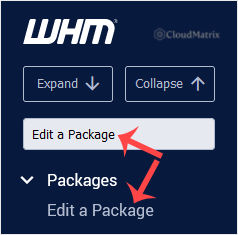
2. Go to Packages >> Edit a Package, or type Edit a Package into the menu filter box at the top of the left sidebar and click the result when it appears.
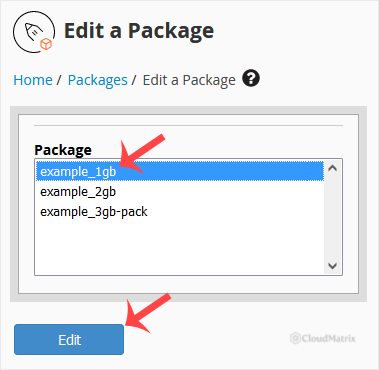
3. Select the package you want to change from the Package menu, then click Edit. Resellers see only their own prefixed packages here, so if the plan you are looking for is missing, it probably belongs to the server administrator rather than to you.
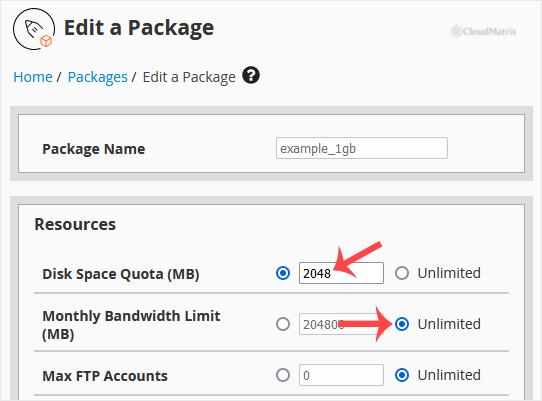
4. The full package form opens with the current values already filled in. Work down the Resources section to change disk space, monthly bandwidth, mailbox, database and domain limits, then the Settings section for shell access, the cPanel theme, the locale and the feature list. Any field with an Unlimited option can be set to a number instead, and vice versa.
5. Scroll to the bottom and click Save Changes. WHM confirms the update on screen. If you have made a mess of the form and want the previous values back, click Reset instead, which restores the stored settings without saving anything.
What You Cannot Change Once a Package Exists
Three things are fixed at creation time, and knowing which they are saves you hunting for a field that is not there.
- The package name. WHM has no rename. If the name is wrong, create a replacement package with the correct name and move the accounts onto it through Account Functions >> Upgrade/Downgrade an Account. This matters more than it sounds, because the package name is the value external billing and provisioning systems match against.
- Dedicated IP. This setting cannot be edited after the package is created. Changing it means building a new package.
- Which package extensions are attached. You can edit the values inside an extension the package already carries, but you cannot add or remove extensions from an existing package through the WHM interface. Use Packages >> Add a Package for a different set, or the WHM API. If an attached extension is no longer installed on the server, WHM shows a warning and blocks the edit until you either install it or tick Remove missing extensions from package and save.
Fields Worth a Second Look
Most of the form is self-explanatory. These are the ones that cause support tickets.
- Disk Space Quota (MB): covers files, mail and databases together. Take care when lowering it. An account already sitting above the new figure lands over quota the moment the change reaches it, and an over-quota account cannot write files, cannot receive mail, and will usually break any database-driven site on it. Check current usage under Account Information >> List Accounts before you cut a quota.
- Monthly Bandwidth Limit (MB): counts web, mail and FTP traffic together and resets at the start of each month. It is not the same thing as the transfer allowance quoted for the server itself.
- Max Quota per Email Address (MB): the ceiling a user may set on any single mailbox. Raising or lowering it does not touch mailboxes that already exist, only ones created afterwards, so an existing oversized mailbox will not shrink because you changed this.
- Maximum Hourly Email by Domain Relayed: the outbound mail brake, and the setting that stops one compromised script putting the whole server's IP address on a blocklist. You cannot set it higher than the server-wide Max hourly emails per domain tweak setting, though you can set it lower. A value of
0behaves as unlimited rather than as a block, which is the opposite of what most people expect. - Maximum Percentage of Failed or Deferred Messages a Domain May Send Per Hour: WHM looks at the previous hour of mail and temporarily stops a domain sending once it crosses the figure. A sensible percentage here catches a compromised contact form long before a human notices.
- Feature List: decides which cPanel tools accounts on this package can see. Click View next to the menu to jump straight to Feature Manager and check what a list actually contains before you assign it. Never assign the
disabledlist to a package. It is a server-level definition of features to switch off, not a list to hand to accounts, and assigning it produces a cPanel with almost nothing in it. - Shell Access: grants SSH access to every account on the package. Noiz recommends leaving it off at package level and granting shell per account only where it is genuinely needed, using a jailed shell rather than full shell.
- cPanel Theme: current cPanel & WHM releases ship
jupiteronly, since Paper Lantern was removed. A single entry in this menu is expected, not a fault.
What Happens to Accounts Already on the Package
This is the single biggest misunderstanding about packages, and it is worth being clear about before you edit anything. A package is a template that is applied at the moment an account is created. It is not a live policy that keeps enforcing itself afterwards. Editing the package does not retrospectively rewrite the limits of accounts that were already built from it.
So if you are correcting a plan that customers are already on, changing the package is step one of two:
- Edit the package, using the steps above, so new accounts are correct from here on.
- Reapply it to the existing accounts. For a single account, use Account Functions >> Upgrade/Downgrade an Account, which reapplies the package exactly as it stands today. For several at once, use Multi Account Functions >> Modify/Upgrade Multiple Accounts.
After either operation, confirm the result on one real account rather than assuming. Account Information >> List Accounts shows the package and the current limits per account, and that check takes a few seconds against the hours a silently unapplied quota change can cost you.
If You Sell Through Billing Software
Billing and provisioning systems join to WHM on the package name, and they keep their own copy of what the plan is supposed to include. Editing the package in WHM changes what the server hands out; it does nothing to the product description, the price or the advertised limits on the billing side. Update both in the same sitting, or the plan you sell and the plan you provision will drift apart, usually discovered by a customer rather than by you.
Troubleshooting
Symptom: Edit a Package is not in the WHM sidebar. On a reseller account the interface can be switched off by the server administrator through Resellers >> Edit Reseller Nameservers and Privileges. Ask for the package management privilege to be added.
Symptom: the package you want is not in the Package menu. Resellers see only their own packages, and those carry a username prefix. A package named starter owned by the server administrator and yourreseller_starter owned by you are two separate packages, and you cannot edit the first.
Symptom: there is no field to rename the package. Correct, WHM does not offer one. Create a replacement package and move the accounts across.
Symptom: a customer's limits did not change after you saved the package. Expected behaviour. Editing the package does not update accounts built from it. Reapply it through Upgrade/Downgrade an Account as described above.
Symptom: an account went over quota, and mail started bouncing, straight after an edit. The new disk quota is lower than what that account is already using. Raise the quota again to restore service, then work out what is consuming the space (old backups and mailboxes are the usual culprits) before you try lowering it a second time.
Symptom: the form refuses to save and complains about a missing extension. One of the package extensions attached to this package is not installed on the server. Install it, or tick Remove missing extensions from package and save again.
Symptom: Save Changes appears to do nothing. The confirmation is rendered in JavaScript, so a strict content blocker, a browser extension or a corporate proxy can swallow it. Reload Edit a Package, select the same package and check whether the values you entered are showing before you save a second time.
Related Articles
Need a Hand?
If a package edit has not reached the accounts you expected, or you would rather have someone check a set of limits before you push them onto live customers, open a ticket from your Noiz client area with the package name and the accounts involved. The Noiz support team can confirm what each account is actually provisioned with server side. On a managed Noiz plan the team will make the change and reapply it across the affected accounts for you.






