Suspending a cPanel account is the reversible way to take a hosting account offline. It is the standard response to non-payment, abuse, a compromised site, or a customer who has asked to pause their service. This guide shows you how to suspend an account from WHM, explains exactly what a suspension does to the websites, mail and FTP on that account, and covers the gotchas that catch resellers out.
If you are a Noiz reseller, you can suspend any cPanel account you own from your own WHM login. You do not need to contact Noiz support to do it, and nothing is deleted.
Last reviewed: 27 July 2026, against the current stable release of cPanel & WHM. This guide is written for Noiz hosting and is kept current against cPanel & WHM. It complements, and does not replace, the official cPanel documentation linked below.
Official Documentation Reference
- WHM: Manage Account Suspension
- WHM: List Suspended Accounts
- WHM: Unsuspend Bandwidth Exceeders
- WHM API:
suspendacct
Prerequisites
- A Noiz reseller account with WHM access. See How to Access the Web Host Manager or WHM.
- The account you want to suspend must be owned by your reseller account. WHM only lists accounts you own.
- The Suspend or Unsuspend Accounts privilege enabled on your reseller ACL. This is on by default on Noiz reseller plans.
What a Suspension Actually Does
Suspension is a lock, not a deletion. Every file, mailbox, database and DNS record stays exactly where it is. What changes is access:
- Websites: visitors no longer see the site. cPanel serves a suspended-account placeholder page instead of the document root, for the main domain and every addon domain, subdomain and parked domain on the account.
- Email: inbound mail for the account's domains is refused, and the account cannot send. Existing mailboxes and their contents are untouched, so nothing already delivered is lost. Mail that arrives during the suspension is rejected at the door rather than queued indefinitely, so senders will get a bounce.
- FTP and SSH: the underlying system user is locked. FTP logins fail, SFTP and SSH sessions are refused, and any active session is cut off.
- cPanel login: the account holder can no longer log in to cPanel or Webmail.
- Cron jobs: scheduled tasks owned by the account stop running. This matters for sites that rely on cron for queues, backups or scheduled publishing, because those jobs do not catch up when the account is restored.
- DNS: the zone stays live and the domain keeps resolving. That is why visitors reach a suspension page rather than a connection error.
- Databases: databases and their data are left intact.
Suspension is reversible. Termination is not. If there is any chance the customer will return, suspend the account and leave it suspended. Never terminate as a first step, because termination removes the account and its data permanently.
How to Suspend a cPanel Account in WHM
-
Log in to your WHM account.
-
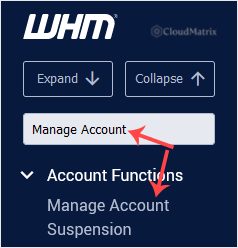
Go to Account Functions >> Manage Account Suspension, or type Manage Account into the menu filter box at the top left and click the result.
-
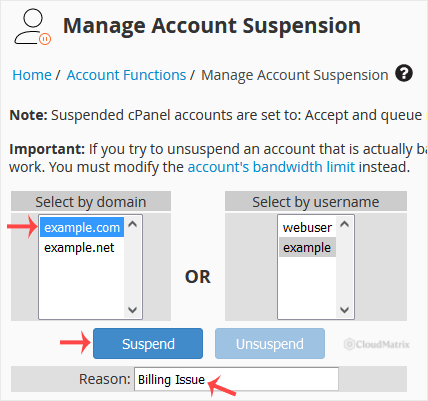
Choose the account you want to suspend. You can pick it under Select by domain or under Select by username, whichever you know. Both lists refer to the same accounts, so use the one that is quicker for you.
-
Type a suspension reason. This is optional, but always fill it in. The reason is stored against the account and shown to anyone in WHM who looks at it later, which is how you and your colleagues remember why an account was locked six months ago. Use something specific, such as
Unpaid invoice 10432, suspended 26 July 2026, rather thanoverdue. -
If the option to prevent automatic unsuspension is shown, tick it when the suspension must stay in place regardless of bandwidth resets. This stops WHM's automatic bandwidth-exceeder unsuspension from lifting a suspension you applied for a different reason, such as non-payment or abuse.
-
Click Suspend. WHM confirms with a suspension message and the account is locked immediately. There is no delay and no server restart involved.
Confirming the Suspension
- In WHM, open Account Information >> List Suspended Accounts to see every account you currently have suspended, along with the reason and the date. Review this list periodically so accounts do not sit suspended and forgotten while still consuming disk space.
- In Account Information >> List Accounts, suspended accounts are flagged in the account list.
- Load the customer's domain in a private browsing window. You should get the suspended-account page rather than the site.
Things Worth Knowing Before You Suspend
- Suspension does not free up resources. The account's files, mailboxes and databases remain on disk and still count towards your reseller disk allocation. If you are suspending to reclaim space, you are not going to.
- AutoSSL skips suspended accounts. A long suspension that spans a certificate renewal window can leave the domain with an expired certificate when the account is restored. If a suspension runs for weeks, check the certificate status after unsuspending.
- Check your backup policy. WHM's backup configuration has a setting that controls whether suspended accounts are included in backups. If it excludes them, a long-suspended account gradually loses its backup history. Confirm the setting before you suspend an account you may need to restore later.
- You cannot suspend part of an account. Suspension applies to the whole cPanel account, so every addon domain and subdomain on it goes down together. If a customer runs several sites under one account, suspending it takes all of them offline.
- Warn the customer first where you can. A suspension that arrives with no notice generates a support ticket within minutes, and inbound mail bounces immediately rather than waiting for the customer to notice. For non-payment, send a reminder with a date attached, then suspend on that date.
- Consider a bandwidth limit instead. Where the issue is a resource-hungry site rather than a policy or payment problem, capping the account may be a better answer than taking it offline. See How to Limit Bandwidth Usage of cPanel User From WHM.
Reversing the Suspension
Unsuspending restores everything at once: the website, mail, FTP, SSH, cPanel login and cron jobs all come back with no data loss. The steps are covered in How to Unsuspend cPanel User From WHM Account.
Troubleshooting
Symptom: the account you want does not appear in either drop-down list. You are logged in to the wrong reseller account, or the account is owned by a different reseller. WHM only shows accounts your login owns.
Symptom: Manage Account Suspension is missing from the menu, or the Suspend button does nothing. Your reseller ACL does not include the suspend privilege. Contact Noiz support to have it enabled.
Symptom: the site still loads after suspension. This is almost always caching. Test in a private browsing window, and if the domain is proxied through a CDN, purge the CDN cache. A CDN can keep serving a cached copy of the site long after the origin has been locked.
Symptom: mail is still being delivered. The domain's MX records point somewhere other than the hosting account, so mail never touches the suspended account. Suspension only stops mail that is handled on the server.
Symptom: the account was suspended automatically and you did not do it. Automatic suspensions come from bandwidth limits being exceeded. Check the account's bandwidth usage before unsuspending, or the same suspension will recur.
Symptom: you cannot find your own reseller account in the list. You cannot suspend the account you are logged in with. If a reseller account itself needs to be suspended, that has to be done at the server level by Noiz.
Need a Hand?
If an account will not suspend, a suspension is not behaving as expected, or you need a reseller privilege changed, open a ticket from the Noiz client area with the affected username and domain. Noiz support has server-level access and can confirm what state the account is actually in.






