If cPanel shows a disk space warning, or you want to know what is eating into your monthly bandwidth, cPanel has two built-in tools that break the numbers down for you. This guide shows you where to find Disk Usage and Bandwidth on Noiz hosting, how to read what they report, and the caveats worth knowing before you start deleting things.
Last reviewed: 27 July 2026, against cPanel & WHM (Jupiter interface, latest stable). This guide is written for Noiz hosting and is kept current against cPanel. It complements, and does not replace, the official cPanel documentation linked below.
Official Documentation Reference
Prerequisites
- A Noiz hosting account on a cPanel plan, and your cPanel login.
Check your disk usage
1. Log in to your cPanel account.
2. In the Files section, click Disk Usage.

3. The Disk Usage page lists how much space each directory in your home folder is using, so you can quickly spot the folders responsible for the bulk of your usage. The figures also include the size of your MySQL and PostgreSQL databases.
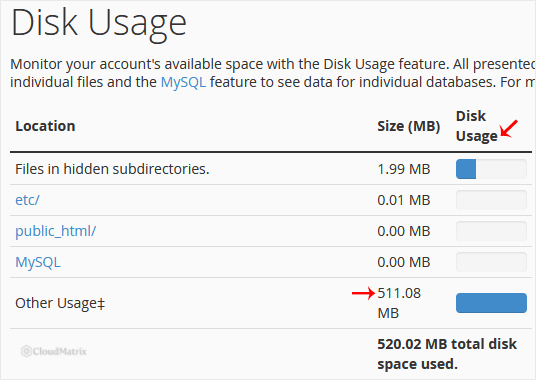
A few things worth knowing when you read this page:
- The mail store often accounts for far more space than people expect. Old messages, large attachments and full mailboxes all count towards your quota. For a per-mailbox breakdown, use the separate Email Disk Usage tool, also in the Files section.
- The totals can lag. cPanel notes that the figures may not reflect very recent changes, so if you have just deleted a large folder, give it a little time before the number catches up.
- Hidden folders and system directories (names beginning with a dot) are included in the totals even though they are easy to miss in File Manager.
Check your bandwidth usage
1. In the Metrics section, click Bandwidth.

2. The Bandwidth page shows the traffic your account has used, with a graph and a breakdown by service. cPanel measures bandwidth across HTTP (web), FTP, and email traffic, then adds them into a combined total.
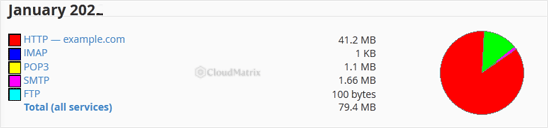
Keep in mind:
- The email figure counts sent mail (SMTP). Messages you download by POP3 or IMAP are not added to your bandwidth total, so heavy inbound email will not show here.
- Bandwidth is measured over a rolling period and resets on schedule, so a spike near the end of a period does not carry over indefinitely.
- Use the date and service filters at the top of the page to see whether a jump came from web traffic or from mail.
Troubleshooting
Disk usage looks higher than the files you can see: databases, the mail store and hidden dot-directories all count towards the total. Check Email Disk Usage and your database sizes before assuming the figure is wrong.
The number did not drop after deleting files: the Disk Usage figures can lag behind recent changes. Wait a short while and reload the page.
Bandwidth is climbing fast: filter the Bandwidth page by service to identify the source. A sudden rise in HTTP traffic can indicate a busy site or, occasionally, unwanted bot activity worth investigating.
If you are close to a limit and are not sure what is driving it, or you would like Noiz to review your usage with you, contact the Noiz support team and they will be glad to help.






