Every theme installed on your WordPress site is live PHP code sitting in wp-content/themes, whether it is active or not. Inactive themes still need updating, still take up disk space, and still count as attack surface if a vulnerability is published for one of them. Removing the themes you no longer use is one of the quickest security wins available to you.
This guide shows you how to delete a WordPress theme from the dashboard, explains exactly what deletion removes, and covers the two themes you should think twice about deleting.
Last reviewed: 27 July 2026, against WordPress 7.0.2 (latest stable). This guide is written for Noiz hosting and is kept current against WordPress. It complements, and does not replace, the official WordPress documentation linked below.
WordPress 7.0 refreshed the admin interface with a new "Modern" colour scheme, updated typography and smoother screen transitions, but no menus were moved and no settings were renamed. The screenshots below show the earlier styling; the menu paths, button labels and wording are the same in current WordPress.
Official Documentation Reference
- Appearance Themes Screen for the full reference on the theme management screen.
- Child Themes for how parent and child themes depend on each other.
- WordPress Backups for backup approaches before you make destructive changes.
Prerequisites
- Administrator access to the WordPress dashboard. See How to Log In to the WordPress Dashboard.
- A current backup of the site, or at minimum a copy of the theme folder. Theme deletion is permanent: there is no trash and no undo.
- The theme you want to delete must not be the currently active theme, and must not be the parent of the currently active theme.
Why Unused Themes Are Worth Removing
- Vulnerabilities do not care whether a theme is active. A theme flaw is a flaw in files that exist on disk. Some theme vulnerabilities are exploitable through files that can be requested directly, without the theme ever being activated.
- Inactive themes stop getting attention. People update the theme they can see and forget the three they cannot. An old, unpatched theme sitting quietly for two years is a classic entry point.
- Less to scan, less to back up, less to restore. Fewer files means faster malware scans, smaller backups and quicker migrations.
- Clarity. When something breaks, a themes screen with two entries is far easier to reason about than one with nine.
Before You Delete: What Actually Gets Removed
Deleting a theme through the dashboard removes the entire theme folder from wp-content/themes. Understand what that means before you click.
- Any edits you made to the theme files are gone. If someone edited the theme's PHP or CSS directly rather than using a child theme, those changes are deleted along with everything else. This is exactly why direct theme edits are a bad idea. See How to Install a WordPress Theme Manually if you need to keep a copy of the folder first.
- Your posts, pages, media and users are untouched. Content lives in the database and the uploads folder, not in the theme.
- Customiser settings survive in the database but become dormant. WordPress stores each theme's settings separately. Reinstalling the exact same theme later usually brings those settings back; installing a different theme will not inherit them.
- Menus and widget assignments reset. Menus themselves remain, but the locations they were assigned to belonged to the deleted theme.
- Premium themes need their original files again. If the theme was purchased, make sure you can still download the ZIP and that your licence is valid before deleting it.
If you are unsure whether anything depends on the theme, take a backup first. On a Noiz managed plan you can ask Noiz support to take a restore point before you start.
Delete a Theme From the WordPress Dashboard
1. Log in to the WordPress dashboard.
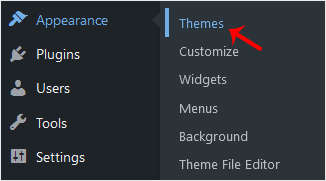
2. From the dashboard menu, go to Appearance and click Themes.
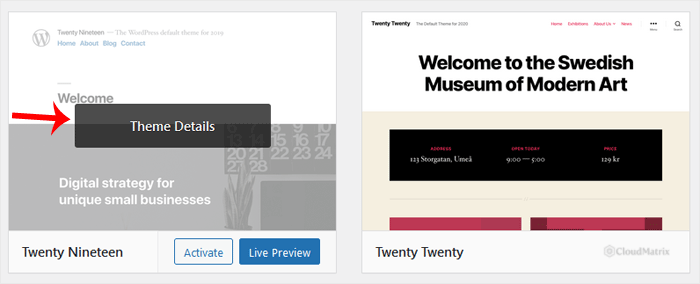
3. Hover your mouse over the theme you want to remove, then click Theme Details. The active theme is always shown first and does not offer a delete option, which is your safety net against removing the theme the site is running on.
4. In the theme details panel, click Delete in the bottom right corner, then confirm with OK in the browser prompt.
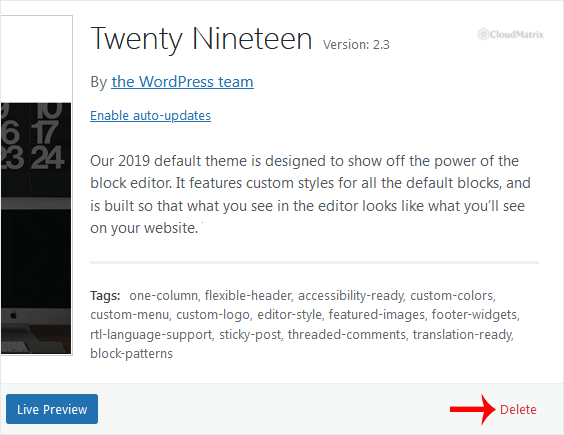
The theme disappears from the list and its folder is removed from the server. Repeat for each theme you no longer need.
Which Themes to Keep
Do not empty the themes folder completely. Keep the following:
- Your active theme. WordPress will not let you delete it from this screen, and you should not delete it any other way either.
- The parent theme, if you are running a child theme. A child theme is only a set of overrides; it inherits templates and functions from its parent. Delete the parent and the child stops working immediately. On the Themes screen a child theme shows the parent name in its details panel, so check there if you are not certain.
- One current default theme, such as the latest Twenty Twenty series theme. WordPress falls back to a default theme when the active theme is broken or missing, and recovery mode relies on having one available. Keeping a single default theme installed and updated costs you almost nothing and gives you a working site to fall back to when a theme update goes wrong.
Everything else is fair game. If you are trialling several themes, delete the ones you rejected rather than leaving them installed "just in case". Reinstalling a free theme from the WordPress theme directory takes under a minute. See How to Install a New WordPress Theme.
Deleting Themes on a Multisite Network
On a WordPress multisite network, themes are installed once and shared across every site in the network. Individual site administrators see no delete option at all. To remove a theme, log in as a network administrator and go to My Sites, then Network Admin, then Themes. From there you can select one or more themes and use the Delete bulk action.
Before deleting, confirm that no site in the network has the theme active. Removing a theme that a sub-site is running will break that sub-site, not just deactivate it.
Deleting a Theme Manually
If the dashboard is unreachable, or the theme itself is causing a fatal error that blocks the admin area, you can delete the folder directly instead.
- Open the File Manager in your Noiz hosting control panel, or connect over SFTP.
- Navigate to your WordPress installation, then to
wp-content/themes. - Delete the folder matching the theme's directory name, for example
oldtheme.
If you delete the folder of the theme that is currently active, WordPress falls back to an available default theme where one exists. If no theme remains, the front end will fail with a theme directory error until you upload one. That is the practical reason for the "keep one default theme" rule above.
Troubleshooting
- Symptom: there is no Delete link in the theme details panel. The theme is either the active theme or, on multisite, you are not in Network Admin. Activate a different theme first, or switch to the network administrator view.
- Symptom: WordPress asks for FTP or SSH connection details when you try to delete. WordPress cannot write to the themes directory as the web server user. This is a file ownership or permission problem on the account rather than something to solve by entering credentials. Contact Noiz support and it will be corrected on the server.
- Symptom: the site shows a blank page or a "stylesheet is missing" error after a deletion. The active theme's parent was deleted, or the active theme itself was removed manually. Reinstall the missing theme, or upload a default theme into
wp-content/themesand activate it. - Symptom: the theme reappears after deletion. Something is reinstalling it, most commonly a theme or plugin bundle that ships its own dependencies, or an installer profile that reprovisions the site. Check for any staging or auto-install tooling pointed at the site.
- Symptom: layout or menus look wrong after deleting an unrelated theme. Clear any caching plugin and your CDN or browser cache, then reload. Cached CSS referencing the removed theme is the usual cause.
Cleaning out unused themes pairs naturally with the same job on plugins. See How to Deactivate and Delete a WordPress Plugin, and the broader WordPress Security Checklist.
If you are not sure whether a theme is safe to delete, or a deletion has left the site in a bad state, open a ticket with Noiz support from your client area. On managed plans Noiz can check what the site depends on, take a restore point, and remove the theme for you.






