Plugins you no longer use are not harmless. Every installed plugin is code sitting on your Noiz hosting account, and an inactive one still ships whatever vulnerabilities it contains, still needs updating, and still appears in security scans. Clearing out the ones you have stopped using is one of the quickest wins available on any WordPress site.
This guide shows you how to switch a plugin off, and how to remove it from the server entirely. Those are two different actions with two very different consequences, and the difference is the part of this job people get wrong. Deactivating is reversible in one click. Deleting can take your settings and your content with it.
Last reviewed: 27 July 2026, against WordPress 7.0.2 (latest stable). This guide is written for Noiz hosting and is kept current against WordPress. It complements, and does not replace, the official WordPress documentation linked below.
Official Documentation Reference
- WordPress Documentation: Manage Plugins
- WordPress Documentation: Plugins screen
- WordPress Developer Handbook: Uninstall methods (what a plugin is allowed to delete)
- WP-CLI: wp plugin commands
Prerequisites
- A WordPress site on your Noiz hosting account.
- A dashboard login with the Administrator role. No other role can manage plugins, and on a multisite network only a Super Admin can delete plugin files.
- A recent backup, if the plugin you are about to delete holds anything you care about. Deleting is not undoable from inside WordPress.
Deactivate and Delete Are Not the Same Thing
Read this before you click anything, because the two words sit next to each other in the interface and do very different jobs.
Deactivating tells WordPress to stop loading the plugin. Its code stops running, its features disappear from the site, its menu items vanish from the dashboard, and its shortcodes stop rendering. Nothing is removed. The plugin files stay in place on the server and everything the plugin stored in the database stays exactly as it was. Reactivate it later and you pick up where you left off, with every setting intact. This is the safe, reversible action, and it is what you want when you are testing whether a plugin is causing a problem.
Deleting removes the plugin's folder and files from the server. The plugin is gone, and getting it back means installing it again from scratch. Whether your settings and content survive that depends entirely on how the plugin was written, which is covered in detail further down. WordPress will not let you delete an active plugin, which is why you always deactivate first.
A useful way to hold the two apart: deactivating changes what your site does, deleting changes what is on your server.
Step 1: Log In to the WordPress Dashboard
Go to https://yourdomain.com/wp-admin (replace yourdomain.com with your own domain) and sign in with an administrator account.
If you cannot remember the dashboard password, you do not necessarily need to reset it. The WordPress management tooling in your Noiz control panel lists each installed site and offers a one-click login that signs you straight in as an administrator.
Step 2: Open the Installed Plugins Screen
In the left-hand dashboard menu, click Plugins, then Installed Plugins.
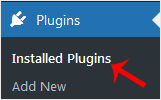
The table that opens lists everything installed on the site, active or not. Active plugins have a shaded row and a blue bar down the left edge. Inactive ones sit on a plain white background.
Above the table are filter links: All, Active, Inactive, and, when relevant, Update Available, Recently Active and Drop-ins. The Inactive filter is the one worth clicking first if you are doing a tidy-up, because it shows you exactly the dead weight you are carrying.
Step 3: Deactivate the Plugin
Find the plugin in the list and click Deactivate, which sits directly beneath the plugin's name.
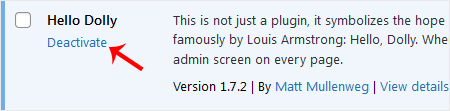
The screenshots here use Hello Dolly, the small sample plugin that has shipped with WordPress for years. If your install does not have it, the steps are identical for any other plugin in the list.
The page reloads, the row turns white, and the links underneath the name change to Activate and Delete. The plugin has stopped running. Nothing has been removed.
Load the front of your site and check it before going any further. If the plugin was doing something visible, this is the moment you find out what depended on it.
Step 4: Delete the Plugin
Only once the plugin is deactivated does the Delete link appear. Click it.
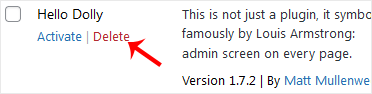
A browser confirmation dialogue asks whether you are sure. Confirm with OK. WordPress deletes the plugin's folder from wp-content/plugins/ and the row disappears from the table.
That is the end of it. There is no trash, no undo, and no restore button. If you delete a plugin by mistake, you reinstall it, and whether your old settings come back depends on the next section.
What Deleting Actually Leaves Behind
This is the part the interface does not explain, and it is the reason to think before confirming.
WordPress deletes the plugin's files. What happens to the plugin's data is entirely up to the plugin author, because WordPress simply calls the plugin's uninstall routine, if it has one, and lets it do as it pleases. There are three broad outcomes.
- The plugin cleans up after itself. A well-written plugin includes an uninstall routine that removes its own options, its custom database tables and its scheduled tasks. Delete it and it is genuinely gone. Reinstall it later and you start from a blank slate, with every setting back at its default.
- The plugin leaves everything behind. Many plugins deliberately keep their data so that reinstalling restores your configuration instantly. Convenient if you are troubleshooting, less convenient if you are trying to slim down a bloated database. Rows sit in
wp_optionsand custom tables stay in place indefinitely. - The plugin takes your content with it. This is the one that hurts. If a plugin created custom post types, and you have been putting real content into them, that content lives in the database as posts belonging to a post type that no longer exists once the plugin is gone. Form entries, gallery items, portfolio pieces, event listings, testimonials, product data from an e-commerce extension: all of it can become inaccessible or, if the plugin's uninstall routine is thorough, be deleted outright.
Some plugins offer a setting along the lines of "remove all data on uninstall", usually buried in an advanced or tools tab, and it is off by default. If you actively want the database cleaned, switch that on before you delete. If you want the data kept, make sure it is off.
The safe habit is simple. Before deleting a plugin that has been holding anything real, take a backup, and if the plugin has an export function, use it. A form plugin's entries and an e-commerce plugin's orders are worth exporting to CSV even if you are confident the deletion is clean.
Deactivating Several Plugins at Once
To act on more than one plugin, tick the checkbox at the left of each row, choose Deactivate from the Bulk actions drop-down above the table, and click Apply. The same menu offers Delete, which becomes available once the selected plugins are inactive.
Bulk deactivation is genuinely useful when you are chasing a fault. Switch every plugin off at once, confirm the problem disappears, then reactivate them one at a time, checking the site after each. The plugin that brings the fault back is the culprit. Ticking the checkbox in the table header selects everything on the page, so be deliberate about it.
Bulk delete is a different matter. There is one confirmation for the whole batch, so a mis-ticked checkbox removes a plugin you needed. Delete in small batches, or one at a time.
When You Cannot Reach the Dashboard
Occasionally a plugin breaks the site badly enough that /wp-admin will not load either, which leaves you unable to deactivate the thing that is causing it. You can still switch it off from outside WordPress.
Open File Manager in your Noiz control panel, or connect over SFTP, and browse to your site's wp-content/plugins/ directory. Rename the offending plugin's folder, for example from plugin-name to plugin-name-off. WordPress can no longer find the plugin, so it deactivates it automatically on the next page load and the dashboard comes back.
Renaming plugins itself to plugins-off deactivates every plugin at once, which is the faster route when you do not yet know which one is at fault. Create an empty plugins folder afterwards, then put the originals back one at a time.
Once you are back in the dashboard, the plugin shows as inactive and you can delete it properly from there. Renaming a folder is a deactivation, not an uninstall, so the plugin's database rows are all still present.
Doing It From the Command Line
If your Noiz plan includes SSH access and WP-CLI is available, run these from the site's root directory:
wp plugin list
wp plugin deactivate plugin-name
wp plugin delete plugin-name
Replace plugin-name with the plugin's folder slug, which is the value in the name column of wp plugin list. To switch everything off in one go while troubleshooting:
wp plugin deactivate --allWP-CLI runs the plugin's uninstall routine on delete exactly as the dashboard does, so the same warnings about data apply. This route is worth knowing when the dashboard is unreachable, or when you are applying the same clean-up across several sites.
Gotchas Worth Knowing
- Deactivating does not stop the update nagging. An inactive plugin still reports available updates and still shows in the update counter. That is by design, and it is a reminder that the code is still on the server. If you are not going to use it, delete it.
- Inactive plugins are still a security concern. The code is not executed by WordPress, but the files are reachable on the server and a vulnerability in a poorly written plugin file can sometimes be triggered directly. Unused plugins should be deleted, not just switched off.
- Shortcodes do not disappear gracefully. If the plugin provided a shortcode you used inside posts or pages, deactivating it leaves the raw shortcode text, such as
[contact-form-7 id="42"], visible to visitors. Remove those shortcodes from your content as part of the job. - Themes can depend on plugins. Some themes require a specific plugin for their page builder, their demo content or their slider. Deactivating it can strip layouts back to plain text. Check the front of the site immediately after deactivating, not the following week.
- Some plugins refuse to deactivate cleanly. A plugin that another plugin depends on may warn you or block the action. Deal with the dependent plugin first.
- Must-use plugins have no links at all. Anything in
wp-content/mu-plugins/appears under a Must-Use filter with no Deactivate or Delete option. Those are removed by deleting the file over SFTP or in File Manager. Do not remove one you did not put there without checking what it does first. - Deleting does not clear your cache. If a caching plugin or a CDN sits in front of the site, visitors can keep seeing output from a plugin you have already removed. Purge the cache afterwards and reload with a hard refresh.
- Scheduled tasks can outlive the plugin. A plugin that registered WP-Cron events without cleaning up leaves those events queued. They fail harmlessly, but they clutter the schedule.
- On multisite, network-activated plugins behave differently. They are managed from the Network Admin plugins screen, and an individual site administrator cannot deactivate or delete them.
- Deleting a plugin does not delete its uploads. Files a plugin placed in
wp-content/uploads/stay where they are. That is usually what you want, but it does mean disk usage may not drop as much as you expected.
Troubleshooting
Symptom: There is no Delete link under the plugin. The plugin is still active. Click Deactivate first, and the Delete link appears in its place.
Symptom: Plugins is missing from the dashboard menu entirely. Either your account is not an Administrator, or the site has DISALLOW_FILE_MODS set in wp-config.php, which hides plugin management from everyone. Check with the site owner before changing it.
Symptom: Deletion fails with a permissions or file-system error. WordPress could not remove the folder, usually because of incorrect file ownership. The guide on resetting WordPress file and directory permissions covers the fix, or contact Noiz support and the team will correct the ownership for you.
Symptom: The plugin's settings pages are still in the dashboard menu after deactivating. That is a cached admin menu or a stale browser cache. Reload with a hard refresh. If it persists, another plugin is registering that menu.
Symptom: The site broke the moment you deactivated. Reactivate the plugin to get the site back, then work out what depended on it before trying again. This is exactly why deactivation exists as a separate, reversible step.
Symptom: You deleted a plugin and now content is missing. It was a custom post type belonging to that plugin. The posts are usually still in the database but unreachable without the plugin. Reinstall the same plugin, check whether the content reappears, and export it before deleting again. If the plugin's uninstall routine removed it, restore from a backup.
Symptom: You reinstalled a plugin and all your old settings came straight back, which you did not want. The plugin left its options in the database on uninstall. Look for a "remove all data" or "reset" option in the plugin's own settings, use that, then delete it again.
Symptom: Deleting a plugin made no difference to the fault you were chasing. Then the plugin was not the cause. Deactivate the rest in bulk and reintroduce them one at a time.
Related Guides
- How to Install a WordPress Plugin
- How to Manually Install a WordPress Plugin
- How to Forcefully Update or Reinstall a WordPress Plugin
- When to Replace an Outdated or Abandoned WordPress Plugin
- WordPress Security Checklist
- How to Fix Common WordPress Errors
Need a hand?
Removing a plugin is a two-click job right up until it takes content with it. If you are on a managed Noiz plan and would like a backup taken before a risky deletion, an inherited site's plugin list audited and trimmed, or content recovered after a plugin was removed too enthusiastically, contact the Noiz support team through the client area with your domain name and the team will assist.






