When you buy a premium theme, download one from a marketplace, or receive a theme built for you by a designer, it arrives as a ZIP file rather than something you can pick from a list. This guide shows you how to upload that ZIP straight into your WordPress site on Noiz hosting, activate it, and avoid the handful of errors that catch most people out the first time.
This is sometimes called a manual theme install, a theme upload, or installing a theme from a ZIP. They all describe the same thing. If instead you want to browse the free themes built into WordPress, that is a different route: see How to Install a New WordPress Theme.
Last reviewed: 27 July 2026, against WordPress 7.0.2 (latest stable). This guide is written for Noiz hosting and is kept current against WordPress. It complements, and does not replace, the official WordPress documentation linked below.
Official Documentation Reference
- Using Themes: the full WordPress guide to finding, installing and switching themes.
- Appearance Themes Screen: what every button and panel on the Themes screen does.
- Child Themes: why a child theme is the correct place for your customisations.
- Block Themes: how block themes differ from classic themes, and what changes in the admin once one is active.
- Manually Installing and Updating Themes: the file-level method, for when the browser upload is not an option.
Prerequisites
- An administrator account on the WordPress site. Editors and authors do not see the Appearance menu. If you are not sure how to reach the admin area, see How to Log In to the WordPress Dashboard.
- The theme ZIP file saved on your computer, from a source you trust.
- A recent backup of the site, or at least a note of which theme is currently active. Switching themes changes how every page looks, and it is far quicker to switch back than to rebuild.
Check You Have the Right ZIP First
This single check prevents the most common failure. Premium theme purchases usually hand you a large bundle ZIP that contains the theme, a child theme, the licence, documentation, and sometimes a set of demo files. WordPress cannot install that bundle. It only accepts the theme ZIP itself.
Open the ZIP on your computer and look inside:
- Correct. The ZIP contains a single folder, and inside that folder are files including
style.css,index.phportemplates/, andfunctions.php. This is the file to upload. - Wrong. The ZIP contains items such as
documentation/,licensing/,psd/,demo-content/and a smaller ZIP named after the theme. Upload that inner ZIP instead, not the bundle.
Uploading the bundle is what produces the error "The package could not be installed. The theme is missing the style.css stylesheet." The upload worked perfectly; the file simply was not a theme.
On the trust question: only install themes from the WordPress.org directory, the developer who wrote them, or an established marketplace. Cracked or "nulled" copies of paid themes are one of the most reliable ways to get a site infected, because the code is modified before it is redistributed and the backdoor survives every theme update. See the WordPress Security Checklist for the wider picture.
Upload and Activate the Theme
- Log in to the WordPress dashboard as an administrator.
- In the left-hand menu, go to Appearance and click Themes.
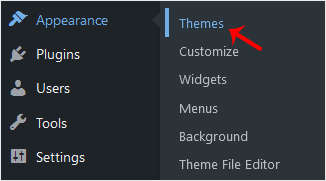
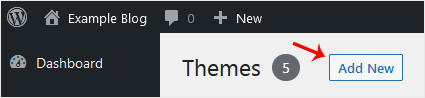
- Click Add New Theme at the top of the screen. On WordPress versions before 6.4 the same button is labelled simply Add New.
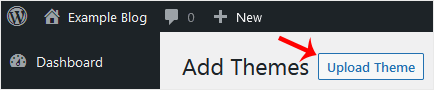
- On the Add Themes screen, click Upload Theme. The theme directory listing is replaced by a small upload panel.
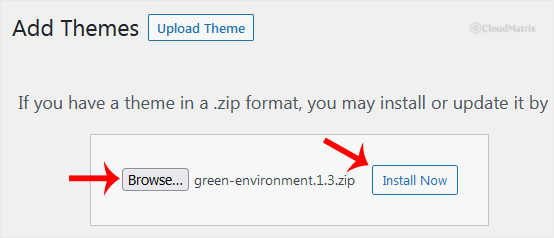
- Click Choose File, select the theme ZIP from your computer, then click Install Now. Depending on your browser the file button may read Browse or Choose file; it does the same job.
- Wait for the upload and extraction to finish. WordPress prints a short progress log ending in "Theme installed successfully." Click Activate to make it the live theme, or Live Preview to see it applied to your content without changing the public site.
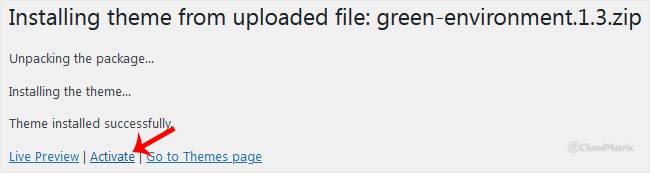
The theme is now installed and, if you clicked Activate, live. It also appears from now on under Appearance > Themes alongside the others, so you can switch back at any time.
Installing a Child Theme
If the download included a child theme, the order matters. Install and keep the parent theme, install the child theme second, and activate the child. Activating a child theme without its parent present gives the error "The parent theme is missing. Please install the parent theme."
Do not delete the parent afterwards, and do not activate it in place of the child. The parent supplies almost all of the code; the child only holds your changes, which is precisely what keeps those changes safe when the parent is updated. If you are planning to customise anything at all, read How to Safely Edit Your WordPress Theme before you start editing files.
Replacing a Theme You Already Have
Uploading a ZIP for a theme that is already installed no longer fails outright. WordPress compares the two and shows a table of the current version against the uploaded version, with a Replace current with uploaded button. That is the supported way to apply a manual update for a paid theme that has no automatic update channel.
Check the version numbers in that table before you confirm. It is easy to have downloaded an older ZIP than the copy already running, and the replace step will happily downgrade the site.
When the Upload Will Not Go Through
Large multipurpose themes routinely ship as 20 MB to 80 MB ZIP files, which is bigger than the default PHP upload limit on many WordPress installs. Two errors point at this:
- "The uploaded file exceeds the upload_max_filesize directive in php.ini": the file is larger than the per-file upload limit.
- "The link you followed has expired": misleading, but on a theme or plugin upload it almost always means the request exceeded
post_max_sizeormax_execution_time.
The current limit is shown on the upload panel itself, and again under Tools > Site Health > Info > Media Handling. Raise the PHP limits for the domain in your hosting control panel, or contact Noiz support and the team will lift them for you. As a guide, set upload_max_filesize and post_max_size comfortably above the size of the ZIP, and give max_execution_time at least 300 seconds for a big theme on a slow connection.
Uploading the Theme by File Manager or SFTP Instead
If the browser upload keeps timing out, or the ZIP is very large, put the files on the server directly. This produces exactly the same result, because the browser upload is only a wrapper around the same operation.
- Open the file manager in your hosting control panel, or connect over SFTP.
- Navigate to the site's
wp-content/themes/directory. - Upload the theme ZIP into that directory and extract it there. You should end up with one new folder, for example
wp-content/themes/yourtheme/, containingstyle.cssat its top level. - Delete the ZIP once it has been extracted, so it is not left sitting in a web-accessible directory.
- Back in WordPress, go to Appearance > Themes. The theme now appears in the list, ready to activate.
The one thing to watch is a doubled folder. If extracting produces wp-content/themes/yourtheme/yourtheme/style.css, WordPress will not see the theme. Move the inner folder up one level and remove the empty wrapper.
After You Activate
Switching themes changes presentation, not content. Your posts, pages, media and users are untouched. What does move around is anything the previous theme was responsible for displaying:
- Menus lose their positions. The menus themselves survive, but each theme defines its own menu locations. Reassign them under Appearance > Menus, or in the Site Editor for a block theme.
- Widgets may disappear from view. Themes define their own widget areas, and content in an area the new theme does not have is parked in Inactive Widgets rather than deleted.
- The admin menu changes shape. Activating a block theme replaces Appearance > Customise, Widgets and Menus with a single Editor entry, because headers, footers and menus are edited as blocks instead. This is expected, not a fault.
- Some settings are theme-specific. Logo, colours, homepage layout and typography usually live with the theme, so expect to set them again.
- Shortcodes from the old theme stop rendering. If the previous theme provided shortcodes or custom blocks, the raw text appears in your content once it is gone. Check your key pages after switching.
Clear any caching plugin and any server-side or CDN cache once you are happy, then load the site in a private browsing window to see what visitors see rather than a cached copy.
Old themes you are no longer using are worth removing, because an inactive theme still receives no attention and still ships code that can carry a vulnerability. Keep the active theme, its parent if it has one, and one current default theme such as Twenty Twenty-Five as a fallback for troubleshooting. See How to Delete a WordPress Theme.
Troubleshooting
Symptom: "The package could not be installed. The theme is missing the style.css stylesheet." You uploaded the wrong ZIP, almost always the marketplace bundle rather than the theme. Open the ZIP and upload the inner theme file. The same message appears if you re-zipped a theme folder in a way that buried style.css one level too deep.
Symptom: "Sorry, you are not allowed to install themes on this site." Either your account is not an administrator, or the install is a multisite network where themes are installed by the network administrator only. On a single site, the other cause is DISALLOW_FILE_MODS being set in wp-config.php.
Symptom: WordPress asks for FTP connection details before it will install anything. WordPress could not write to the themes directory as the web server user, so it falls back to asking for credentials. On Noiz hosting this should not happen; contact support rather than typing credentials into that form, because it points at file ownership or permissions needing correction.
Symptom: "The parent theme is missing. Please install the parent theme." You installed only the child theme. Install the parent, leave it installed, then activate the child.
Symptom: the theme installs but the site shows a white screen or a critical error after activation. The theme needs a newer PHP or WordPress version than the site is running, or it conflicts with a plugin. WordPress emails a recovery link to the admin address; use it, or switch back to a default theme, then check the theme's stated requirements. There is more on this in How to Fix Common WordPress Errors.
Symptom: the new theme looks nothing like the demo. That is normal. Demos are built with the theme plus its demo content, its required plugins and a page builder configuration. Import the demo content through the theme's own setup wizard if it has one, and accept that a demo import will add pages, menus and settings to your site.
Symptom: the theme uploaded fine but does not appear under Appearance > Themes. Check the folder structure on the server. A doubled folder, or a theme extracted somewhere other than wp-content/themes/, is the usual reason.
If the upload will not complete, the site breaks after activation, or you would simply rather have someone else handle the theme change, contact Noiz support with the site address and the theme ZIP and the team will install it for you.






