A WordPress theme controls how your site looks: the layout, fonts, colours and the styling of every page. Installing one from the WordPress dashboard takes a few clicks and needs no technical knowledge, because WordPress downloads and unpacks the theme files on the server for you. This guide shows you how to find, install and activate a theme from the WordPress Theme Directory on a Noiz hosting account, what actually changes on your site the moment you activate it, and how to fix the handful of errors that come up.
Last reviewed: 27 July 2026, against WordPress 7.0.2 (latest stable). This guide is written for Noiz hosting and is kept current against WordPress. It complements, and does not replace, the official WordPress documentation linked below.
Official Documentation Reference
Prerequisites
- A WordPress site on your Noiz hosting account.
- An administrator login for that site. Editor, author and contributor accounts cannot install themes.
- A recent backup of the site, or a staging copy, if the site is already live. Activating a theme changes the front end immediately.
Install a Theme From the WordPress Theme Directory
This method installs any of the free, licence-checked themes hosted on WordPress.org. It is the easiest and safest route, and it is the one to use unless you have bought a premium theme or been sent a ZIP file.
- Log in to your WordPress dashboard at
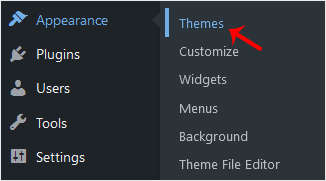
yourdomain.com/wp-admin, replacingyourdomain.comwith your own domain. - In the left-hand menu, go to Appearance and click Themes.
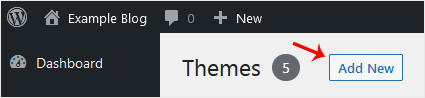
- Click Add New Theme at the top of the page. On older WordPress versions this button is labelled Add New.
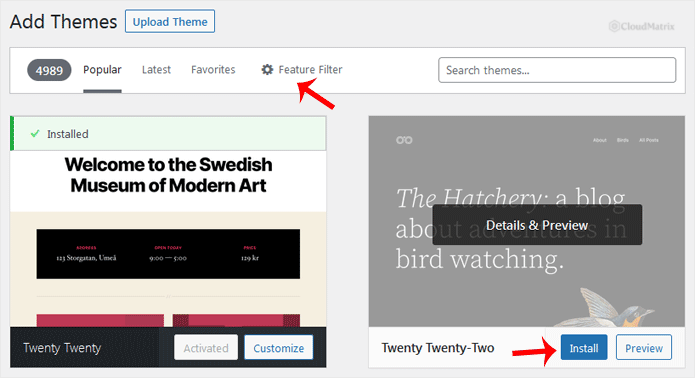
- Find a theme. You can type a keyword, theme name, author or tag into the search box, browse the Featured, Popular, Latest and Favorites tabs, or click Feature Filter to narrow by subject, features and layout.
- Hover your mouse over the theme you want and click Install. Click Preview first if you want a full-screen look at the theme demo before committing.
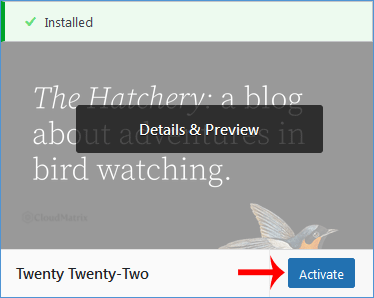
- Once the download finishes, the Install button becomes Activate. Click Activate to make the theme live on your site.
The theme is now installed and active. Visit your site in a new browser tab to see it. If you would rather install the theme now and switch to it later, stop after step 5: an installed but inactive theme sits harmlessly on the Appearance > Themes screen until you activate it.
Installing a Theme You Downloaded as a ZIP File
Premium themes and themes bought from third-party marketplaces are not in the WordPress Theme Directory, so they will not appear in the search results above. Those arrive as a .zip file that you upload yourself, either through the dashboard or over FTP. See How to Install a WordPress Theme Manually for that procedure.
One warning worth repeating: never install a "nulled" or cracked copy of a premium theme found on a file-sharing site. These are the single most common way WordPress sites on any host get compromised, because the pirated copy almost always carries injected backdoor code. If a paid theme is being given away free, the theme is not the product.
What Changes the Moment You Activate a Theme
Activating a theme does not touch your posts, pages, media or users. Those live in the database and in wp-content/uploads, entirely separate from the theme. What does change, often more than people expect:
- Menus. Every theme defines its own menu locations. Your navigation menu still exists under Appearance > Menus, but it will usually need reassigning to the new theme's menu location before it reappears.
- Widgets and sidebars. If the new theme has fewer sidebars, or none at all, widgets from the old theme are moved to the inactive widgets area. They are not deleted, and they come back if you switch the old theme on again.
- Theme settings. Logo, colour choices, header images and layout options are stored per theme. A new theme starts with its own defaults, so expect to set your logo and colours again.
- Homepage layout. Themes that rely on a demo homepage will not import that demo automatically. Your homepage will show whatever Settings > Reading is set to, which may look nothing like the theme's screenshot until you build the page.
- Shortcodes. Any shortcodes provided by the old theme, rather than by a plugin, will stop working and can leave visible
[bracketed_text]in your content. Search your pages for stray shortcodes after a switch.
Block Themes and Classic Themes
WordPress themes come in two families, and the difference determines how you will edit your site afterwards.
- Block themes support full site editing. After activating one, the Appearance menu shows Editor, and you edit the header, footer and templates visually in the same block editor you use for pages. All default themes from Twenty Twenty-Two onwards are block themes.
- Classic themes use the older model: the Customizer under Appearance > Customize, plus PHP template files for anything deeper.
Neither is wrong, and both are fully supported on Noiz hosting. Just be aware that tutorials written for one will not match the screens you see in the other, which is a frequent source of confusion when following a guide that does not say which it assumes.
Choosing a Theme That Will Not Cause Problems Later
Before you install, check these on the theme's directory listing. They take thirty seconds and save a great deal of trouble:
- Last updated. A theme not updated in two years or more is a poor bet. It may break on the next WordPress or PHP release and is unlikely to receive a security fix.
- Active installations. A large number is not proof of quality, but a widely used theme has had far more eyes on its bugs.
- Tested up to. Compare against the WordPress version your site runs, shown at Dashboard > Updates.
- Support and review threads. Unanswered support topics stretching back months tell you what happens when you need help.
Installing a handful of themes to compare them is fine, but do not leave them lying around. Every inactive theme still has to be kept updated, and an out-of-date inactive theme is just as exploitable as an active one. Delete the ones you rejected.
Try Before You Switch on a Live Site
If the site is already live and taking visitors, do not activate an unfamiliar theme on it directly. Two safer options:
- Live Preview. On the Appearance > Themes screen, hover over an installed but inactive theme and click Live Preview. This shows the theme running against your real content, visible only to you, and nothing changes until you click Activate.
- A staging copy. Clone the site to a subdomain such as
staging.yourdomain.com, switch the theme there, and rebuild the pages at your leisure. This is the right approach for a redesign rather than a quick swap.
Take a full backup either way. If you are on a Noiz managed plan and are unsure how to take one, open a ticket and Noiz will handle it for you before you begin.
Troubleshooting
Symptom: there is no Add New Theme button on the Themes screen. Either you are not logged in as an administrator, or file modifications have been disabled in wp-config.php with DISALLOW_FILE_MODS. On WordPress Multisite, themes are installed from the Network Admin dashboard and then enabled per site, not from the individual site's dashboard.
Symptom: WordPress asks for FTP connection details when you click Install. This means WordPress cannot write to the themes folder as the web server user, which is nearly always an ownership or permissions problem after files were uploaded or restored by a different account. Do not paste FTP credentials into that box as a workaround. Open a support ticket and Noiz will correct the ownership on the account.
Symptom: "Installation failed: Could not create directory" or "Download failed". Check your disk usage in your hosting control panel first, because a full account cannot unpack the theme. If there is space, this is again a filesystem permissions issue on wp-content/themes and one for Noiz support to fix.
Symptom: "The package could not be installed. The theme is missing the style.css stylesheet." This appears when you upload the wrong ZIP, typically the full marketplace download that contains the theme ZIP, documentation and licence files inside it. Unzip it on your computer and upload only the inner theme folder's ZIP. This applies to the manual upload route rather than the directory install above.
Symptom: the site shows a blank white page or a fatal error after activating. The theme is incompatible with your PHP version or with an active plugin. You can still recover: log in at yourdomain.com/wp-admin and switch back to a default theme. If the dashboard itself is unreachable, rename the active theme's folder in wp-content/themes using File Manager in your hosting control panel. WordPress will fall back to a default theme automatically and let you back in.
Symptom: the theme installs but your site looks nothing like the demo. This is normal and not a fault. Theme demos are built with imported demo content and configured widgets or block patterns. Follow the theme author's own setup documentation to reproduce the layout.
Need a Hand?
If a theme will not install, activation has broken your site, or you would like a redesign staged and tested before it goes live, the Noiz support team can help. Open a support ticket from the Noiz client area with your domain name and what you were doing when the problem appeared, and Noiz will take it from there.






