Two-factor authentication adds a second check to your cPanel login: after your username and password, cPanel asks for a six-digit code from an authenticator app on your phone. This guide shows you how to switch that second check off again, which you might need to do because you are replacing your phone, moving to a different authenticator app, handing the account over to someone else, or because the codes have stopped being accepted.
The removal itself is three clicks and takes under a minute. The parts worth reading are what to do before you remove it, why a rejected code usually does not mean you need to disable anything at all, and what to do if you have already lost the device and cannot get in to reach this screen.
Last reviewed: 27 July 2026, against cPanel & WHM with the Jupiter interface (current stable release). This guide is written for Noiz hosting and is kept current against cPanel. It complements, and does not replace, the official cPanel documentation linked below.
Official Documentation Reference
- cPanel Documentation: Two-Factor Authentication for cPanel
- cPanel Documentation: Two-Factor Authentication for WHM (server-side management and the Manage Users tab)
- cPanel Documentation: the Security section
- RFC 6238: TOTP, the time-based one-time password standard cPanel uses
Prerequisites
- A hosting account on a Noiz cPanel server, and your cPanel username and password.
- The ability to complete a cPanel login right now, including the current six-digit code. You cannot remove two-factor authentication from outside the account. If you have already lost access, skip to If You Have Lost the Device and Cannot Log In.
- The Two-Factor Authentication icon present in the Security section. If it is missing, the feature is not enabled on your hosting package and there is nothing to disable.
Before You Disable: Check Whether You Actually Need To
Most people who set out to disable cPanel two-factor authentication are doing it because their codes suddenly stopped working. In the majority of those cases the secret is fine and something simpler is at fault. Rule these out first, because if one of them applies, disabling and re-enabling is unnecessary work.
- Your phone's clock has drifted. Time-based one-time passwords are generated from the current time, so a phone whose clock is even a minute out will produce codes cPanel rejects as invalid. On the phone, turn on automatic date and time, or use the time correction option built into your authenticator app. This single fix resolves most "my codes stopped working" reports.
- You are typing a code that has already expired. Each code is valid for roughly thirty seconds. If you copy one just as the timer runs out, it will be refused. Wait for a fresh code and enter it straight away.
- You are reading the wrong entry. Authenticator apps fill up quickly, and several entries may carry similar labels. Confirm you are using the entry created for this cPanel account on this server, not one for a different account, for the client area, or for a website's own login.
- You are being prompted somewhere else entirely. cPanel, webmail, the Noiz client area and any two-factor plugin inside your website are separate systems with separate settings. Removing cPanel's will not stop a prompt coming from one of the others.
If you have worked through those and still want it off, or you are switching phones deliberately, carry on.
Step 1: Log In to cPanel
Sign in to cPanel as normal and complete the two-factor prompt with a current code. The quickest route is the single sign-on link in your Noiz client area, which takes you straight into the account without a separate password.
Step 2: Open Two-Factor Authentication in the Security Section
On the cPanel home screen, scroll to the Security section and click Two-Factor Authentication. If you would rather not scroll, type two-factor into the search box at the top of the page and the icon will filter into view.

Step 3: Click Remove Two-Factor Authentication
Because two-factor authentication is already configured, the page opens on the management view rather than the setup wizard. Click Remove Two-Factor Authentication.
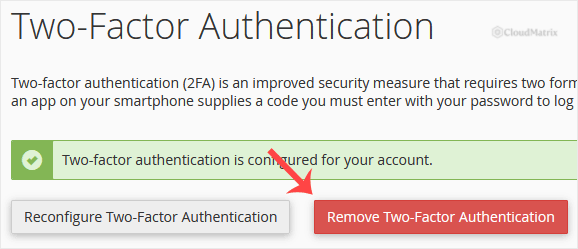
If what you see instead is a QR code and a Set Up or Configure button, two-factor authentication is not currently active on this cPanel account. Whatever is asking you for a code is coming from somewhere else. See the troubleshooting section below.
Step 4: Confirm the Removal
cPanel asks you to confirm, so that a stray click cannot quietly weaken the account. Click Remove.
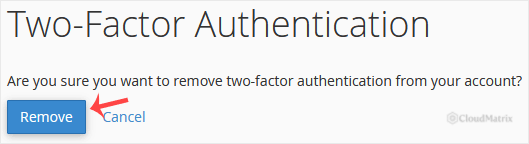
A green banner appears reading Success: The system removed the two-factor authentication from your account. That is the whole job. The next time you log in, cPanel will ask for your username and password only.
What Happens the Moment You Confirm
Understanding exactly what changed prevents two common misunderstandings.
- The shared secret is destroyed on the server. It is not parked somewhere for later. If you re-enable two-factor authentication afterwards, cPanel issues a brand new secret and a new QR code, and the old entry in your authenticator app will never produce a working code again.
- Your authenticator app is not told. The old entry stays on your phone, still counting down and still generating codes that now go nowhere. Delete it yourself, or you will be scrolling past a dead entry for years and, worse, may one day try to use it against a freshly enabled setup and conclude that cPanel is broken.
- Sessions already open stay open. Removing two-factor authentication does not sign anyone out. If you are removing it because you suspect somebody else has your credentials, that alone changes nothing for an intruder who is already logged in. Change your cPanel password as well, which does invalidate other sessions.
- Nothing else on the account is touched. Files, databases, email accounts, cron jobs, FTP users and SSL certificates are all unaffected. This setting governs the cPanel login and nothing more.
Switching to a New Phone or a Different Authenticator App
Removing and re-adding is the correct way to move two-factor authentication to a new device, and it is safer than trying to migrate the secret. Do it in this order, while you still have the old phone in your hand:
- Install and open the authenticator app on the new phone first, so it is ready.
- Log in to cPanel using a code from the old phone and remove two-factor authentication using the steps above.
- Immediately set it up again and scan the new QR code with the new phone. The guide for that is How to Enable the Two-Factor Authentication on Your cPanel Account.
- Log out and log back in once to prove the new codes are accepted before you wipe or hand on the old phone.
- Delete the stale entry from the old device.
The gap between step 2 and step 3 is the only window in which the account sits on password alone. Keep it to a couple of minutes rather than leaving it until the weekend.
Some authenticator apps now offer an encrypted cloud backup or an export-to-new-device transfer. Those work, and they save you this dance, but they also place the secret in the app vendor's hands. Whether that trade is acceptable is a decision for you. If you use it, protect the app account itself with a strong password and its own second factor.
If You Have Lost the Device and Cannot Log In
This is the situation that brings most people to this article, and it has an awkward shape: the screen that removes two-factor authentication sits behind the login that two-factor authentication is guarding. Stock cPanel issues no printed backup codes and offers no SMS fallback, so there is no self-service escape hatch inside the account.
What does work:
- Find the secret somewhere else. If you saved the QR code image or wrote down the alphanumeric key when you first set it up, enter that key manually into any authenticator app on any device and it will start producing valid codes again immediately. The secret is not tied to a particular handset.
- Check your other devices. If the authenticator app was ever installed on a tablet or a second phone, or if you had cloud sync switched on, the entry may still be sitting there.
- Ask for it to be cleared at server level. Two-factor authentication for a cPanel account can be removed from WHM by the administrator of the server, without needing your codes. On Noiz hosting that means opening a ticket from the client area. Because this bypasses a security control, expect to prove you are the account holder before it is actioned, which is exactly what you would want if somebody else were asking on your behalf.
Raise the request from the email address registered on the Noiz account and include your primary domain name. That single detail speeds up verification more than anything else you can send.
Think About What You Are Giving Up
A stolen or reused cPanel password is one of the more common ways a hosting account is taken over, and once someone is inside cPanel they have your files, your databases and your email. Two-factor authentication is what stops a leaked password on its own being enough. Turning it off is a real reduction in security, not a formality.
If you are disabling it permanently rather than as part of a device swap, put something in its place:
- Set a long, unique cPanel password that is used nowhere else, and store it in a password manager rather than in a browser or a note. See How to Reset Your cPanel Account Password.
- Keep two-factor authentication switched on for your Noiz client area, since that account can order services, change billing details and reach cPanel by single sign-on.
- Use SSH keys rather than passwords if your plan includes shell access, and remove keys belonging to anyone who no longer needs them.
- Review the account for things left behind by a previous holder or an intruder: unexpected email forwarders and filters, cron jobs you did not create, extra FTP users, and API tokens under Security then Manage API Tokens.
- If you are removing two-factor authentication because you are handing the site to someone else, change the password after the handover as well. Removing the second factor without rotating the password leaves the old holder with working access.
Re-enabling later is quick, and there is no penalty for switching it back on the moment your new phone is set up.
Troubleshooting
Symptom: There is no Two-Factor Authentication icon in the Security section. The feature is not included in the feature list applied to your hosting package, so it cannot be active on the account either. Whatever is prompting you for a code is a different system. Contact Noiz support if you believe it should be available on your plan.
Symptom: The page shows a QR code and a setup form instead of a Remove button. Two-factor authentication is not enabled for this cPanel account. Check whether the prompt you are trying to get rid of belongs to the Noiz client area, to webmail, to WHM if you hold a reseller account, or to a security plugin inside your website.
Symptom: You removed it, but a code is still requested at the next login. Three usual causes. The browser served a cached copy of the login page, so try a hard refresh or a private window. You are signing in to WHM rather than cPanel, and WHM keeps its own separate two-factor setting. Or you are going through a login page that is not cPanel's at all. Confirm the address in the browser bar before entering anything.
Symptom: Codes are rejected, so you cannot log in to reach the removal screen. Almost always clock drift on the phone. Enable automatic date and time, or use the app's built-in time correction, then try again. If that fails, follow the lost device section above.
Symptom: Remove Two-Factor Authentication is visible but nothing happens when you click it. The confirmation runs in JavaScript. A browser extension, a strict content blocker or a corporate proxy can interrupt it. Try a different browser or turn off extensions for the cPanel domain.
Symptom: You re-enabled two-factor authentication and the old entry in your authenticator app no longer works. That is expected. Re-enabling generates a new secret. Delete the old entry and scan the new QR code.
Symptom: The success banner never appeared and you are unsure whether it worked. Reload the Two-Factor Authentication page. If it now offers to set two-factor authentication up, the removal succeeded.
Related Guides
- How to Enable the Two-Factor Authentication on Your cPanel Account
- How to Reset Your cPanel Account Password
- How to Enable or Disable Mod Security in cPanel
Need a hand?
If you are locked out because the authenticator device is gone, or you are unsure whether the code prompt you are seeing even comes from cPanel, contact the Noiz support team through the client area with your primary domain name and a short description of what the login screen shows. Requests to clear two-factor authentication are verified against the registered account holder before being actioned, so send them from the email address on the account. If you are on a managed Noiz plan and would like the account hardened after a handover, including a password rotation and a check for leftover forwarders, cron jobs and API tokens, ask and the team will run through it with you.






