ModSecurity is the web application firewall that sits in front of your site and inspects every request before your website code ever sees it. Most of the time you never notice it. You notice it on the day a perfectly ordinary action, saving a WordPress post, submitting a contact form, uploading a file, suddenly returns 403 Forbidden for no obvious reason. This guide shows you how to switch ModSecurity off and on from cPanel, for every domain at once or for a single domain, how to confirm it is genuinely the thing blocking you, and why turning it off is a diagnostic step rather than a fix.
You will see the name written several ways. ModSecurity, Mod Security, mod_security and modsec all mean the same module. cPanel labels it ModSecurity, and that is the spelling used throughout this article.
Last reviewed: 27 July 2026, against cPanel & WHM version 134 (the current STABLE and LTS tier) and the 134 LTS release tier. The ModSecurity interface described here has been present in this form since cPanel version 82 and the steps have not changed across recent releases. This guide is written for Noiz customers and is kept current against cPanel. It complements, and does not replace, the official cPanel documentation linked below.
Official Documentation Reference
- cPanel: ModSecurity for the reference description of the interface itself.
- WHM: ModSecurity Tools if you have a VPS or dedicated server with WHM access and want to disable one rule rather than the whole module.
- OWASP Core Rule Set documentation for what the standard rule set actually blocks and why false positives happen.
Prerequisites
- Your cPanel username and password, and the login address for your server.
- The ModSecurity icon present in the Security section of cPanel. It is a feature that the server administrator can switch off per hosting package, so it is not on every account.
- The exact time, URL and action that triggered the block, if you are troubleshooting. That detail is what turns a guess into a diagnosis.
What ModSecurity Does and Why It Blocks You
ModSecurity reads each incoming request and compares it against a rule set, usually the OWASP Core Rule Set or a commercial equivalent. Requests that match a rule for SQL injection, cross-site scripting, remote file inclusion, command injection, known scanner signatures or malformed input are refused before they reach PHP. It is genuinely useful protection, and on a busy site it quietly turns away thousands of hostile requests a week.
The trade-off is false positives. The rules look at patterns, not intent, so legitimate content can look like an attack. The usual offenders are:
- Saving a WordPress post or page that contains code samples, SQL snippets, script tags or long base64 strings.
- Page builders and theme editors, which post large blocks of markup and serialised data.
- WooCommerce checkout and admin actions, plugin and theme file editors, and bulk import tools.
xmlrpc.phprequests from mobile apps and remote publishing tools.- Contact forms where somebody pastes a URL, an apostrophe-heavy sentence or a block of code.
When a rule fires, the visitor gets a 403 Forbidden, or occasionally a 406 Not Acceptable, and the page fails immediately rather than timing out. The tell-tale sign is that browsing the site works perfectly but one specific action, almost always a form submission or a save, fails every single time.
Check That ModSecurity Is Really the Cause
Before changing anything, spend two minutes confirming the diagnosis. Turning ModSecurity off will not fix a problem it is not causing, and you will have left your site unprotected for nothing.
Read Your Own Error Log
In cPanel, open Metrics and then Errors. That page shows the most recent Apache error log entries for your account. A ModSecurity denial is unmistakable and looks roughly like this:
ModSecurity: Access denied with code 403 (phase 2). Matched "Operator Rx" against variable "ARGS:content" [id "941100"] [msg "XSS Attack Detected"] [hostname "yourdomain.com"] [uri "/wp-admin/post.php"]Two fields matter. The id is the rule number, and the uri is the page that was blocked. Note both down. The rule ID is the single most useful piece of information you can give support, because it allows one rule to be excluded instead of the whole firewall being switched off.
Rule Out a Firewall IP Block
A repeatedly blocked IP address is a different problem with a different fix. ModSecurity refuses one request at a time and returns a web page saying access is forbidden. A firewall block drops your IP address entirely, so the symptoms are much broader:
- The whole site stops loading and eventually times out, rather than returning a 403 page.
- Webmail, FTP and cPanel itself become unreachable at the same time.
- The site loads normally on mobile data, on a VPN or from another location, because only your IP address is blocked.
If that is what you are seeing, disabling ModSecurity will change nothing. The block needs lifting at the firewall, which means opening a ticket with Noiz and quoting the public IP address you are connecting from.
How to Enable or Disable ModSecurity for All Domains
Noiz does not recommend leaving ModSecurity off. Use this to prove a point during troubleshooting, then put it back on. If a genuine application bug is being masked by the firewall, fixing the bug is the durable answer.
- Log in to your cPanel account.
- In the Security section, click ModSecurity.
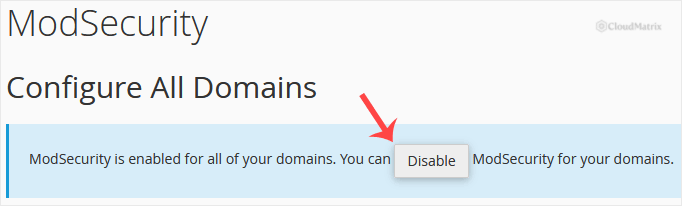
- Look at the Configure All Domains area at the top of the page. If ModSecurity is currently on, a Disable button is shown. Click it, then click Disable All in the confirmation box that appears. If ModSecurity is currently off, the button reads Enable instead, and clicking it switches it back on for every domain on the account.
The change is not instant. cPanel rewrites the Apache configuration for your domains and queues a graceful restart, which normally takes under a minute. If the site behaves exactly the same the second after you click, wait a moment and retest rather than clicking again.
Retest in a private or incognito browser window. A cached 403 response, from your browser or from a CDN in front of the site, will keep showing the old error long after the cause has gone.
How to Enable or Disable ModSecurity for a Single Domain
If you host several domains, there is no reason to strip protection from all of them because one is misbehaving. The same page lets you set each domain individually.
- Log in to cPanel, and in the Security section click ModSecurity.
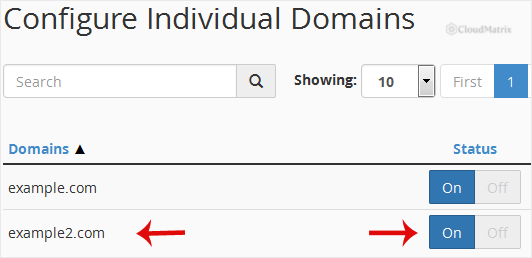
- Scroll down to Configure Individual Domains at the bottom of the page. Every domain, subdomain and addon domain on the account is listed there.
- Find the domain in the list and, in the Status column beside it, click On or Off.
Three things catch people out here:
- The global setting wins. ModSecurity has to be enabled under Configure All Domains before the per-domain settings do anything. If you disabled everything first, the individual toggles will not give you the result you expect until you enable globally again.
- A domain and its www version are one entry. They share a virtual host, so setting one covers both. Subdomains and addon domains are separate entries with separate settings.
- Off means completely off. A domain set to Off has no ModSecurity rules applied to it at all. It is not a reduced or relaxed mode.
A Better Fix Than Turning It Off
Disabling a web application firewall to get past one blocked form is like disconnecting a smoke alarm because the toast burned. It works, and it leaves you with no smoke alarm.
Once you have the rule ID from the error log, the surgical fix is to exclude that one rule, either globally or just for the URL where it misfires. Everything else in the rule set stays active. On shared hosting the interface for that lives in WHM, which end users do not have, so the route is to open a ticket with Noiz and include:
- The domain and the exact URL that was blocked.
- The date and time of the block, with your timezone.
- The rule ID and the
msgtext from the error log entry. - What you were doing when it happened, in one sentence.
With that, a single rule can be excluded for your account in minutes and your site keeps its protection. If you run a VPS or dedicated server with WHM access, you can do the same yourself under WHM and then Security Center and then ModSecurity Tools, where the Hit List shows recent triggers and lets you disable an individual rule.
If you do decide to leave ModSecurity off on a domain, treat it as a decision with consequences. That domain now depends entirely on your own code, your plugins and your update discipline to keep hostile requests out. Keep the application and its plugins patched, use strong administrator passwords with two-factor authentication, and set a reminder to switch protection back on once the underlying problem is fixed.
Troubleshooting
Symptom: there is no ModSecurity icon in the Security section. The feature has been removed from your hosting package's feature list, or the module is not installed on that server. It is not something you can restore from inside cPanel. Open a ticket and ask for the feature to be enabled on your account.
Symptom: the On and Off options under Configure Individual Domains do nothing, or the list appears inactive. ModSecurity is disabled globally. Enable it under Configure All Domains first, then set the individual domains you want switched off.
Symptom: the 403 error is still there after disabling ModSecurity. Give it a minute for the Apache configuration to rebuild, then retest in a private browsing window. If it persists, the block is coming from somewhere else. The usual candidates are a Deny or Require rule in .htaccess, hotlink protection, wrong file or directory permissions, a security plugin inside the application, or a CDN or proxy sitting in front of the site with its own firewall.
Symptom: the main domain works after disabling, but a subdomain or addon domain still fails. Each one is listed and controlled separately under Configure Individual Domains. Set the specific hostname that is failing, not just the primary domain.
Symptom: the whole site is unreachable, along with webmail, FTP and cPanel, but it loads on mobile data. That is a firewall block on your IP address rather than ModSecurity. Contact Noiz support with the public IP address you are connecting from and ask for it to be released.
Symptom: the block only happens on large uploads or long form submissions. ModSecurity has request body size limits alongside the rule set, and PHP has its own upload and post size limits. Check the error log entry: a size-related ModSecurity rule names the limit it hit, whereas a PHP limit produces a different error entirely.
Symptom: the toggle reverts to its previous state after you reload the page. The configuration change failed to save, which usually points to a problem on the server rather than with your account. Open a ticket rather than repeatedly retrying, and mention which domain and which direction you were trying to set.
Related Articles
- How to Block an IP Address in cPanel for stopping a specific visitor at the server rather than the firewall.
- How to Edit the .htaccess File in the cPanel File Manager for checking whether a rule in your own configuration is causing the 403.
- How to Enable Hotlink Protection in cPanel for another common source of unexpected Forbidden errors.
- How to Enable the Two-Factor Authentication on Your cPanel Account for hardening the account itself.
Getting Help
If a legitimate part of your site is being blocked and you would rather not run without a web application firewall, open a ticket in the Noiz client area with the domain, the blocked URL, the timestamp and the rule ID from your error log. On managed plans the Noiz team can review the trigger and exclude the specific rule for your account, so your site keeps working and keeps its protection. If your IP address has been blocked at the firewall, include the public address you are connecting from and it can be released for you.






