Two-Factor Authentication (2FA) adds a second check to your cPanel login. Even if somebody obtains your cPanel username and password, they still cannot get in without the six-digit code generated on your phone. This guide shows you how to turn 2FA on for your own cPanel account on Noiz hosting, what to expect at the next login, and the handful of things that catch people out.
cPanel uses the open TOTP standard (time-based one-time password), so any standard authenticator app works. There is no vendor lock-in and nothing to buy.
Last reviewed: 27 July 2026, against the current stable release of cPanel and WHM (the Jupiter theme, which is now the default). This guide is written for Noiz hosting and is kept current against cPanel. It complements, and does not replace, the official cPanel documentation linked below.
Official Documentation Reference
Prerequisites
- Access to your cPanel account. Your Noiz welcome email contains the login details.
- A phone or device with a TOTP authenticator app installed. Good free options include Google Authenticator, Microsoft Authenticator, Aegis, 2FAS and Authy. Password managers such as Bitwarden and 1Password can also store the code, and recent versions of iOS and Android can generate codes from the built-in password manager.
- The clock on that device set to update automatically. TOTP codes are derived from the current time, so a device with a drifting clock produces codes the server rejects.
Enable Two-Factor Authentication
- Log in to your cPanel account.
- In the Security section, click Two-Factor Authentication.

- Click Set Up Two-Factor Authentication. Under Step 1, scan the QR code with your authenticator app. If your app cannot scan QR codes, tap the option to add an account manually and type in the Account name and Key shown on the page instead.
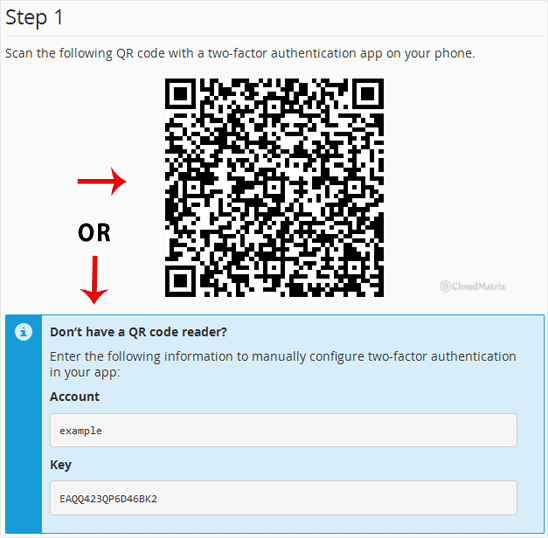
- Your app immediately starts producing a six-digit code that changes every 30 seconds. Under Security Code, type the code currently displayed and click Configure Two-Factor Authentication.
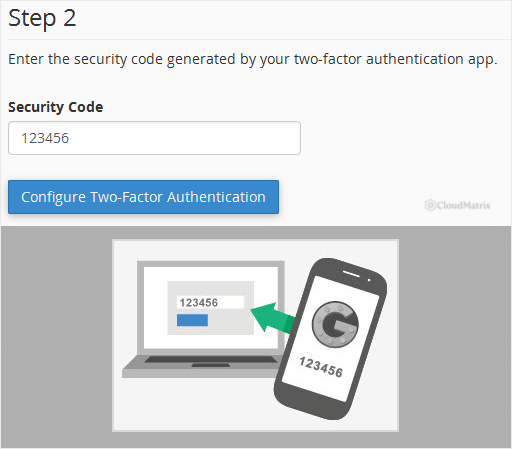
- cPanel confirms with Success: Two-factor authentication is now configured on your account. Two-factor authentication is live from this point on.
Before You Close the Setup Page
This is the step most people skip, and it is the one that saves you later. cPanel does not issue printed backup or recovery codes for 2FA. If you lose the device holding the code and you did not keep a copy of the secret, the only way back in is for the server administrator to clear 2FA from your account.
- Save the secret key. Copy the Key string shown next to the QR code into your password manager, alongside the cPanel login itself. With that string you can re-add the account to a new authenticator app on any device.
- Add it to a second device. Scanning the same QR code on a tablet or a second phone gives you an identical code generator and a working spare.
- Use a password manager that syncs. Storing the TOTP secret in Bitwarden or 1Password means a lost phone is an inconvenience rather than a lockout.
What Changes at Your Next Login
From the next sign-in onwards, cPanel asks for your username and password as usual, then presents a second screen requesting the current six-digit code. Enter it and you are in.
Worth knowing about the scope of the protection:
- 2FA applies to interactive logins to the cPanel interface. It is tied to the cPanel account, not to an individual domain, so it covers every domain and add-on domain in that account.
- Protocol-level services authenticate separately and are not covered by cPanel 2FA. FTP, SSH, and email clients connecting over IMAP, POP or SMTP still use their own credentials. Keep those passwords strong and unique, and disable any service you are not actually using.
- Turning 2FA on for your account does not turn it on for anyone else who has access. If a developer or agency has their own cPanel or FTP credentials on the account, review those separately.
Troubleshooting
- The code is rejected as invalid: check the clock on the phone. Set date and time to update automatically, then try the next freshly generated code. Clock drift of more than about a minute is the single most common cause of rejected TOTP codes.
- The code expired before you typed it: each code lives for 30 seconds. If the countdown ring is nearly finished, wait for the next code rather than rushing the current one.
- The Two-Factor Authentication icon is not in the Security section: the feature is switched on at server level. Contact the Noiz support team through the client area and ask for it to be enabled on your hosting package.
- You lost the phone and have no copy of the key: contact Noiz support from the email address registered on the account. After identity verification the support team can clear 2FA so you can log in and set it up again on your new device.
- You want to switch it off deliberately: see How to Disable the Two-Factor Authentication on Your cPanel Account.
Need a hand?
If you are on a managed Noiz plan, or you are locked out and need 2FA cleared from your account, contact the Noiz support team through the client area and the team will assist.






