This guide shows you how to compose and send an email message from Mozilla Thunderbird, the free desktop email client for Windows, macOS and Linux. Once your Noiz mailbox is set up in Thunderbird, you do not need to open webmail in a browser to send mail. Everything happens in the Thunderbird window, a copy of what you send is filed for you, and your address book and signature are available as you type.
The sending itself is about three clicks. Most of the trouble people actually hit is not the clicking: it is picking the wrong From address when several mailboxes share one Thunderbird profile, running into a message size limit with an attachment, or an outgoing server setting that only reveals itself the first time a message refuses to leave. Those are covered here too, so that your first message goes out cleanly and lands in the inbox rather than the spam folder.
Last reviewed: 27 July 2026, against Mozilla Thunderbird 153 (latest stable Release) and Thunderbird 140 ESR (Extended Support Release). This guide is written for Noiz hosting and is kept current against Thunderbird. It complements, and does not replace, the official Thunderbird documentation linked below. Thunderbird ships a new Release every month, so button wording and toolbar layout can shift slightly between versions and between the Release and ESR channels. Where a screen looks different from the screenshots here, the fields and the values you enter into them remain the same even when their arrangement moves.
Official Documentation Reference
- Send and receive messages in Thunderbird: Mozilla's reference for the Write window, recipient fields and the formatting bar.
- How to use attachments: attaching, removing and saving files.
- Filelink for large attachments: sending a link instead of a file when an attachment is too big for email.
- Cannot send messages: Mozilla's own diagnostic page for outgoing mail failures.
- Thunderbird keyboard shortcuts: the full list, including the compose and send shortcuts used below.
- Thunderbird Support: the official support hub, kept current with the latest release.
Prerequisites
- Thunderbird is installed on your computer. Download it from the official Thunderbird website and keep it updated, so you have current security fixes and the interface described here.
- Your Noiz mailbox is already added to Thunderbird. If it is not, set it up first: How to Add an Email Account in Mozilla Thunderbird. Thunderbird can only send through an account that has been configured with a working outgoing (SMTP) server.
- You know the recipient's email address, and you have an internet connection. Thunderbird will happily let you write a message offline, but it cannot deliver one.
Step 1: Open Thunderbird
Launch Thunderbird from your desktop, Start menu, Applications folder or app launcher.

If you have more than one account configured, Thunderbird opens on the folder pane with each account listed down the left side. Take note of which account is selected, because that selection decides which address a new message starts from.
Step 2: Open a New Message Window
On the toolbar at the top left, click New Message. A separate compose window (Thunderbird also calls it the Write window) opens.
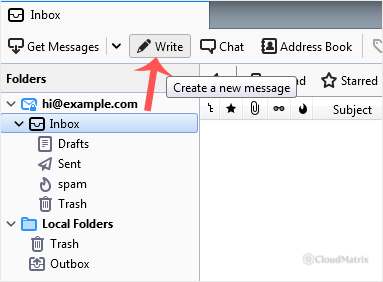
A note on the label. This button was called Write in older versions of Thunderbird, and that is what the screenshot above shows. Current versions label it New Message and put a + symbol on it. It is the same button in the same place, so use whichever wording your copy of Thunderbird displays.
Two faster routes to the same window:
- Press Ctrl + N (Cmd + N on macOS) while the mail window has focus.
- Click the small arrow beside New Message to choose which account the message should come from before the window even opens. This is the tidiest way to work if you juggle several addresses.
Step 3: Check the Address You Are Sending From
At the top of the compose window is a From row. If you only have one mailbox in Thunderbird, there is nothing to decide here. If you have several, click the From drop-down and pick the address the message should be sent from. Thunderbird pre-selects whichever account was highlighted in the folder pane, which is not always the one you meant.
Why this matters more than it looks. The From address does not only decide what the recipient sees. It also decides which outgoing server Thunderbird authenticates against. Sending a message stamped with one domain through the credentials of a different domain is exactly the pattern that anti-spoofing checks (SPF, DKIM and DMARC) are built to catch, so those messages are frequently rejected outright or filed as spam by the receiving side. Send each address through its own account, and delivery stays clean.
If you have set up alias identities on an account, they appear in the same drop-down. Choose the identity you want, and Thunderbird uses its signature and reply-to address as well.
Step 4: Address the Message
Click into the To field and type the recipient's email address, for example [email protected]. Press Enter or Tab after each address, which turns it into a recipient chip and gives you a fresh line for the next one. If the address is already in your address book, Thunderbird autocompletes it after a few characters.
To the right of the To field are the Cc and Bcc buttons, which reveal those extra recipient rows. Use them deliberately:
- To: the people the message is actually for, and who you expect to act on it.
- Cc (carbon copy): people who should see the message for information. Every recipient can see every Cc address.
- Bcc (blind carbon copy): copies that stay hidden from the other recipients. Use Bcc whenever you mail a group of people who do not know one another, otherwise you disclose everyone's address to everyone else.
Gotcha worth knowing. A message sent to a long list of addresses in To or Cc looks like bulk mail to receiving spam filters, and one careless Reply All then hits the whole list. For anything beyond a handful of people, put your own address in To and the rest in Bcc. If you send genuine bulk or marketing mail, use a proper mailing list service rather than a mail client, because sending large volumes from a normal mailbox harms the sending reputation of your domain.
Step 5: Write the Subject and the Message
Enter a clear subject in the Subject field, then press Tab or click into the large message pane below it and type your message.
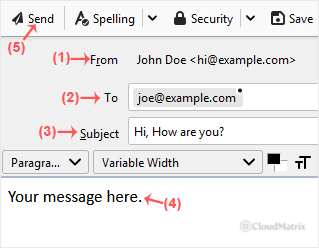
A few things that make the difference between a message that arrives and one that does not:
- Always write a subject. Empty subject lines are a well-known spam signal and score against your message at the receiving server. Thunderbird warns you if you try to send without one.
- Formatting. The formatting bar above the message pane provides bold, italic, lists, links, images and tables. This composes an HTML message. If you would rather send plain text, hold Shift while choosing New Message, or set the default per account under Account Settings and then Composition & Addressing.
- Signatures. If a signature is configured for the account, Thunderbird inserts it automatically. See How to Create a Professional HTML Email Signature in Thunderbird if you have not set one up yet.
- Autosave. Thunderbird saves a draft every five minutes by default, so a crash or an accidental close rarely loses your work. Look in the Drafts folder of the sending account to pick a message back up. You can change the interval under Settings and then Composition.
Attaching Files
Click Attach in the compose window toolbar and select your file, or simply drag the file from your desktop or file manager onto the message. Attachments are listed in a pane at the bottom of the compose window, where you can remove any you added by mistake.
The size limit nobody expects. Email attachments are encoded for transport, and that encoding inflates them by roughly a third. A 20 MB file therefore travels as about 27 MB. Both the sending server and the receiving server enforce their own maximum message size, and the smaller of the two wins, so an attachment that leaves your mailbox successfully can still be bounced by the recipient's provider. As a practical rule, keep total message size under about 10 MB, and send anything larger as a download link instead. Thunderbird's Filelink feature does this for you and prompts automatically for attachments over 5 MB.
Step 6: Send the Message
Click Send, or press Ctrl + Enter (Cmd + Enter on macOS). The compose window closes and a progress indicator appears briefly in the status bar at the bottom of the main window while Thunderbird hands the message to the outgoing server.
Two useful alternatives sit in the File menu of the compose window:
- Send Later queues the message in the Outbox folder instead of sending it now. Nothing leaves until you choose File and then Send Unsent Messages, which is handy when you are writing offline or want a moment to reconsider.
- Save as Draft stores the message so you can finish it later, without sending anything.
Once sent, it is gone. Email has no recall. Thunderbird cannot pull a message back after the outgoing server has accepted it, whatever any other mail system may claim. If that worries you, use Send Later as a deliberate pause before delivery.
Where Your Sent Message Goes
Thunderbird files a copy of every sent message in the Sent folder of the sending account. On an IMAP account, which is what Noiz recommends, that folder lives on the mail server, so the same copy appears in webmail and on your phone. On a POP account the copy is stored only on the computer that sent it, and no other device will ever see it.
If sent messages are not appearing where you expect, open Account Settings, then Copies & Folders for that account, and confirm that Place a copy in points at the Sent folder on the server rather than at Local Folders.
Troubleshooting
- Symptom: "Sending of the message failed" or "unable to connect to the outgoing (SMTP) server". Open Account Settings, scroll to Outgoing Server (SMTP) and check the entry for your account. It should use your mail hostname, port
465, connection security SSL/TLS, authentication method Normal password, and your full email address as the username. A username of just the part before the@is the single most common cause of this failure. - Symptom: Thunderbird asks for the outgoing server password repeatedly. The stored password is wrong or has been changed. Confirm the password by signing in to your webmail with the same details. If webmail also rejects it, reset the mailbox password where the mailbox was created, then update it in Thunderbird.
- Symptom: "Relaying denied" or the server refuses the recipient. The outgoing server is not authenticating you, or you are sending from an address that this account is not permitted to use. Check the From address in Step 3, and make sure the SMTP entry attached to that identity is the one belonging to that same mailbox.
- Symptom: the message sits in the Outbox and never leaves. Thunderbird is offline or the message was queued with Send Later. Click the connection indicator in the status bar to go back online, then choose File and Send Unsent Messages.
- Symptom: sending works on some networks but not others. Many mobile networks, hotel connections and corporate firewalls block outgoing mail ports. Test the same message on a different connection. If it sends elsewhere, the block is on the network, not on your mailbox.
- Symptom: the recipient's server rejects the message as too large. Remove the attachment and send a download link instead, or use Filelink. See the attachment guidance above for why the true size on the wire is larger than the file on your disk.
- Symptom: your messages land in the recipient's spam folder. Check that you are sending from the correct From address for the domain, that the subject is not empty, and that the message is not a single image or a bare link with no text. Persistent spam filing usually points at the domain's SPF, DKIM or DMARC records rather than at Thunderbird, and Noiz support can verify those for a domain hosted with Noiz.
Next Steps
Sending a new message is one of four things you will do constantly in Thunderbird. The other three are covered separately:
- How to Reply to Email in Mozilla Thunderbird
- How to Forward an Email in Mozilla Thunderbird
- How to Check for New Email in Mozilla Thunderbird
If a message still refuses to send after you have checked the outgoing server settings above, open a support ticket with the Noiz support team. Include the sending email address, the exact error text Thunderbird displays, and whether the problem affects one recipient or all of them. On Noiz managed plans the support team can check the mail server logs from the other side and tell you precisely which setting to correct.






