Mozilla Thunderbird is a free, open-source email client for Windows, macOS, and Linux. This guide shows you how to force Thunderbird to check your Noiz mailbox for new mail on demand, how to control how often it checks on its own, and what to do when a message you know was sent still refuses to appear. Thunderbird calls a manual check Get Messages; you may also see it described as polling, fetching, or receiving mail.
Last reviewed: 27 July 2026, against Thunderbird 153 ESR (the current Extended Support Release; the 140 ESR series remains supported during the changeover and behaves identically for everything described here). This guide is written for Noiz hosting and is kept current against Thunderbird. It complements, and does not replace, the official Thunderbird documentation linked below.
Official Documentation Reference
- Thunderbird Help (support.mozilla.org): the authoritative support knowledge base.
- Thunderbird ESR: what the Extended Support Release channel is and which version you should be running.
- Manual account configuration: server settings reference, useful if a failed check turns out to be a connection problem.
Prerequisites
- Thunderbird installed and your mailbox already added. If it is not, follow How to set up your existing email address in Thunderbird first.
- Your full email address and mailbox password, in case Thunderbird asks you to re-authenticate.
- A working internet connection. Thunderbird shows cached mail happily while offline, which is exactly why an offline session can look like a mail delivery failure.
Check for New Mail Right Now
- Open Mozilla Thunderbird.

- Look at the Folders pane on the left. Each account you have added is listed by its email address. Click the arrow beside an account, or double-click the account name, to expand it and reveal Inbox, Drafts, Sent, Spam, and Trash.
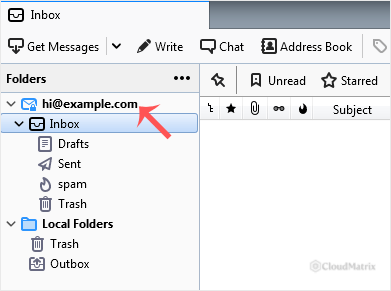
- Click the account or its Inbox so it is selected. Thunderbird checks the account you have selected, not every account at once, so this step matters when you have more than one mailbox set up.
- Click Get Messages in the toolbar above the message list. To check a different account without selecting it first, click the small arrow beside the button and pick either a specific account or Get All New Messages.
- Alternatively, right-click the account name in the Folders pane and choose Get Messages. The same command also lives under File → Get New Messages For.
Keyboard shortcuts: press F5 to check the currently selected account, or Shift + F5 to check every account. On a Mac you may need to hold fn as well, depending on your keyboard settings.
If the Get Messages button is missing: it lives in the unified toolbar, which is customisable and can be emptied by accident. Right-click an empty part of the toolbar, choose Customise, and drag Get Messages back into place.
How Often Thunderbird Checks on Its Own
You rarely need to click Get Messages at all. Out of the box Thunderbird checks when you open the program and then roughly every 10 minutes after that. Both behaviours are per account and both can be changed.
- Click the menu button (≡) at the top right and choose Account Settings, or right-click the account in the Folders pane and choose Settings.
- Select Server Settings beneath the account you want to change.
- Under Server Settings, tick Check for new messages at startup and Check for new messages every [ ] minutes, and set the interval you want.
- For an IMAP account, also tick Allow immediate server notifications when new messages arrive. This turns on IMAP IDLE, an open standard where the Noiz mail server pushes a notification the moment a message lands, so new mail usually appears within a second or two no matter what polling interval you set.
Why the polling interval is not the answer: people who feel their mail is slow often drop the interval to 1 minute. With IMAP IDLE enabled that gains you nothing, because push already beats any poll, and a very short interval across several accounts means constant reconnections that can trip server-side connection limits and slow everything down. Leave the interval at 5 to 10 minutes and rely on IDLE for immediacy.
POP3 accounts behave differently: POP3 has no push mechanism, so the polling interval genuinely is your check frequency. POP3 also downloads mail to one machine, which means a message already collected on your phone or another computer may no longer be on the server for Thunderbird to fetch. If you read mail on more than one device, use IMAP.
Troubleshooting: Mail That Will Not Appear
Before you change anything in Thunderbird, log in to your Noiz webmail and look for the message there. Webmail reads the mailbox directly on the server, so it settles the question of whether the message has been delivered at all. If webmail has it and Thunderbird does not, the fault is on your desktop. If webmail does not have it either, the message has not reached the server yet and nothing in Thunderbird will change that.
- Symptom: Get Messages does nothing and no error appears. Thunderbird is in offline mode. Go to File → Offline and untick Work Offline, then try again.
- Symptom: one account updates and the others do not. You checked only the selected account. Use the arrow beside Get Messages and choose Get All New Messages, or press
Shift+F5. - Symptom: the Inbox updates but a subfolder never does. By default Thunderbird only polls the Inbox. Right-click the folder, choose Properties, and tick When getting new messages for this account, always check this folder.
- Symptom: mail stopped arriving after a password change. Thunderbird prompts once for the new password, and if that prompt is dismissed it can stop checking quietly. Click Get Messages to trigger the prompt again and enter the current mailbox password.
- Symptom: the expected message is nowhere in the Inbox. Check the Spam or Junk folder, and check whether a message filter (in Thunderbird, or a server-side rule) has moved it into another folder.
- Symptom: an error about connecting to the server. Confirm the incoming server settings match your Noiz mailbox: IMAP on port
993with SSL/TLS, with your username set to your full email address, using the mail hostname from your welcome email (commonlymail.yourdomain.com, which you replace with your own domain). A firewall, VPN, or mobile hotspot blocking port 993 produces the same symptom, so test on another network before assuming the mailbox is at fault. - Symptom: the folder list looks wrong or folders are missing. Right-click the account, choose Subscribe, and confirm the folders you expect are ticked. Thunderbird only synchronises folders you are subscribed to.
Summary
Click Get Messages (or press F5) for an immediate check of the selected account, and Shift + F5 for every account. For day-to-day use, enable immediate server notifications on your IMAP accounts and leave the polling interval alone, so new mail lands in Thunderbird as soon as it reaches the Noiz mail server.
If mail is missing from webmail as well as from Thunderbird, the problem is on the delivery side rather than in your email client. Open a ticket from your Noiz client area with the sender's address and the approximate time the message was sent, and Noiz support can trace the delivery for you.






