This guide shows you how to reply to an email in Mozilla Thunderbird, the free desktop email client for Windows, macOS and Linux. Replying looks like a single button, and most of the time it is, but the choice between Reply and Reply All, and the question of which of your addresses the reply is sent from, are where mistakes actually happen. This article covers the basic procedure and then the handful of details worth knowing so your replies go to the right people, from the right address, every time.
Last reviewed: 27 July 2026, against Mozilla Thunderbird 140 ESR and the current monthly Release channel. This guide is written for Noiz hosting and is kept current against Thunderbird. It complements, and does not replace, the official Thunderbird documentation linked below. Thunderbird's interface was rebuilt in the 115 "Supernova" release and continues to be refined, so if a button sits somewhere slightly different from the screenshots, the names and behaviour are unchanged.
Official Documentation Reference
- Thunderbird Support (Mozilla): the official support hub, kept current with the latest release.
- Thunderbird keyboard shortcuts: the full list, including the reply shortcuts mentioned below.
Prerequisites
- Thunderbird installed on your computer, with your Noiz mailbox already added. If you have not added the account yet, start with How to Add an Email Account in Mozilla Thunderbird.
- A working outgoing (SMTP) server on that account. Receiving mail and sending mail are two separate connections, so an account can happily download your inbox and still fail when you press Send.
- An email in your inbox that you want to answer.
Reply to an Email
- Open Mozilla Thunderbird.

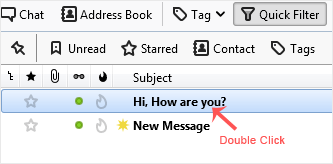
- Double-click the message you want to answer. It opens in its own tab.
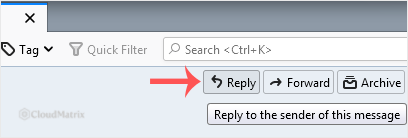
- In the message header area at the top of the open message, click Reply.
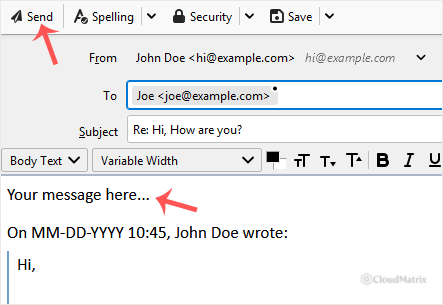
- Type your message in the compose window and click Send.
You do not have to open the message first. Selecting it once in the message list shows it in the preview pane, and the same Reply button appears there. Opening in a tab is useful for long threads, but for a quick answer, click the message once and press Ctrl + R (Cmd + R on macOS).
Reply, Reply All or Reply List
The arrow beside the Reply button hides the options that matter most. Choosing the wrong one is the single most common email mistake, and it cannot be undone once the message has left your outbox.
- Reply (
Ctrl + R): answers the sender only. Everyone else who was copied in is dropped. This is the safe default. - Reply All (
Ctrl + Shift + R): answers the sender plus every address in the original To and Cc fields. Use it deliberately, when the whole group genuinely needs the answer. - Reply List (
Ctrl + Shift + L): appears when the message came from a mailing list, and sends your answer back to the list address rather than to the individual who posted.
Anyone who was in Bcc on the original stays hidden, so they receive nothing from either Reply or Reply All. Before you send, read the To and Cc lines in the compose window rather than trusting the button you pressed. Removing a recipient is as simple as clicking the small x on their address pill.
Check Which Address You Are Replying From
If you have more than one mailbox in Thunderbird, which is normal once you have a personal address and one or more addresses on your own domain, look at the From line at the top of the compose window. Thunderbird picks the identity that the original message was addressed to, which is usually correct, but it gets this wrong when a message arrived at an alias or was forwarded internally.
Click the From dropdown to change it before you start typing. Getting this right matters more than it looks:
- Sending from an address that does not belong to the account you are authenticated on will usually be rejected outright by the outgoing server, or delivered and then filed as spam by the recipient. SPF and DKIM checks are done against the sending domain, so a mismatched From address fails them.
- The reply carries the signature attached to that identity, so switching the From address after typing your message can silently swap or drop your signature.
Useful Things to Know About Replies
Quoting Only the Part You Are Answering
Select a sentence or paragraph in the original message before you click Reply, and Thunderbird quotes only that selection instead of the entire message. On long threads this is the difference between a clear answer and a wall of quoted history.
Where Your Text Goes
By default Thunderbird places your cursor above the quoted original, which is what most business correspondence expects. If you prefer to answer beneath the quote, or point by point inside it, change it per account under Account Settings then Composition & Addressing, where you can set the reply to start below the quote. You can also simply click into the quoted text and type between the lines, which Thunderbird handles correctly.
Attachments Are Not Carried Over
A reply deliberately leaves the original attachments behind, because the sender already has them. If you need to send a file back with the thread intact, use Forward rather than Reply, or attach the file to your reply yourself. See How to Forward an Email in Mozilla Thunderbird.
Drafts and Sending Later
Thunderbird autosaves a reply to your Drafts folder every few minutes, so closing the compose window by accident is recoverable. If you would rather queue a message instead of sending it now, use File then Send Later. The message waits in Outbox and goes out the next time you choose File then Send Unsent Messages.
Replies Land Back in the Thread
Your sent reply keeps the thread's message identifiers, so it appears in the same conversation for the recipient and in your own Sent folder. If the mailbox is set up with IMAP, which is the recommended setup on Noiz hosting, that Sent copy is stored on the server, so the reply is also visible from webmail and from your phone. Nothing extra needs to be configured for this to work. On a POP account the sent copy stays only on the computer that sent it.
Troubleshooting
Symptom: the reply is addressed to somebody other than the person who wrote to you. The original message carried a Reply-To header, which Thunderbird honours by design. This is normal for newsletters, ticket systems and shared team mailboxes. If you meant to answer the individual, correct the To field manually before sending.
Symptom: the reply sits in Outbox and never leaves. Thunderbird is in offline mode. Go to File then Offline and choose Work Online, then File then Send Unsent Messages.
Symptom: sending fails with an authentication or connection error, even though new mail arrives fine. The outgoing server settings are wrong or the password was never saved for it. Check Account Settings then Outgoing Server (SMTP): the username must be your full email address, not just the part before the @, and the connection should use SSL/TLS on port 465 with normal password authentication.
Symptom: your reply bounces, or the recipient says it went to their spam folder. Confirm the From address is a mailbox that genuinely exists on the account you are sending through. Replying from an address on a domain whose DNS is not pointed at Noiz mail will fail SPF and DKIM checks at the receiving end.
Symptom: your formatting, colours or signature image vanish for the recipient. Either their client is set to display plain text, or your account is set to compose in plain text. The composition format is set per account under Account Settings then Composition & Addressing.
Symptom: the Reply button is greyed out or missing. You are looking at a folder summary or a message that is still downloading rather than at the message itself. Click the message body once, or wait for the download to finish, and the buttons return.
Related Guides
- How to Send an Email Using Mozilla Thunderbird
- How to Forward an Email in Mozilla Thunderbird
- How to Create a Professional HTML Email Signature in Thunderbird
- The Best Thunderbird Settings to Configure First
If your replies are not arriving, or the outgoing server rejects them, contact Noiz support with the exact error text Thunderbird shows and the address you were sending from, and the team will check the mailbox and mail routing for you.






