File Transfer Protocol (FTP) lets you upload, download and manage the files in your hosting account from a desktop FTP client such as FileZilla. Your main cPanel login already has FTP access to the whole account, but you will often want a separate FTP account that is restricted to a single folder, for example to give a developer or a client access to one website without exposing the rest of your account. This guide shows you how to create an additional FTP account in cPanel and connect to it.
Last reviewed: 27 July 2026, against the current cPanel Jupiter interface. This guide is written for Noiz hosting and is kept current against cPanel. It complements, and does not replace, the official cPanel documentation linked below.
Official Documentation Reference
Prerequisites
- An active Noiz cPanel hosting account and your cPanel login details.
- A desktop FTP client (such as FileZilla) if you intend to connect straight away.
Create an FTP Account
- Log in to your cPanel account.
- In the Files section, click FTP Accounts.

Under Add FTP Account, complete the following fields:
- Log In: Enter a username for the account, for example
new-user(no spaces). cPanel automatically appends your domain, so the full username becomes[email protected]. - Domain: If your account hosts more than one domain, choose the one this FTP account belongs to.
- Password: Enter a strong password, or click Password Generator. A long, random password matters here, because FTP logins are a common target for brute-force attempts.
- Directory: This is the only folder the account can reach, and it cannot move above it. Enter
public_htmlto grant access to the whole website, or a subfolder such aspublic_html/new-userto limit the account to one area. - Quota: Set a storage limit in MB, or choose Unlimited.
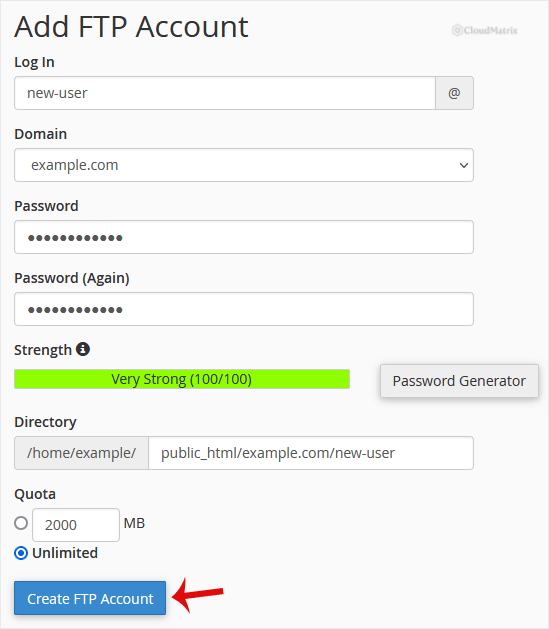
Click Create FTP Account. The new account is added to the FTP Accounts list lower down the same page.
Connect With Your FTP Client
Once the account exists, open your FTP client and enter the following:
- Host: Your website address, for example
ftp.yourdomain.comoryourdomain.com. If your domain is not yet pointing to Noiz, use the server hostname or IP address from your Noiz welcome email instead. - Username: The full FTP username, for example
[email protected]. - Password: The password you set when creating the account.
- Port:
21for FTP (the default).
On the FTP Accounts page you can also click Configure FTP Client next to any account to view its exact settings or download a ready-made configuration file for FileZilla.
Use a Secure Connection
Plain FTP on port 21 sends your username and password across the network in clear text. Where the server supports it, set your FTP client to Require explicit FTP over TLS (FTPS) so the session is encrypted. If SSH is enabled on your plan, SFTP (port 22) is another secure option; it uses your SSH access rather than a cPanel FTP account.
Troubleshooting
- Login fails: Make sure you are using the full username including the domain (
[email protected]), not just the login name. - Cannot connect at all: Confirm the host address resolves to Noiz. If the domain is new or was just moved, use the server hostname or IP from your welcome email until DNS propagates.
- Connection times out: Switch your FTP client between active and passive mode. Most home and office networks require passive mode.
- Files upload but the website does not change: Check the account's Directory. Files must go into
public_html(or the correct subfolder) to appear on the site.
Related Articles
- How to Change the Password of the FTP Account in cPanel
- How to Change the FTP User Quota in cPanel
- How to Delete an FTP User Account From cPanel
If you are unsure which directory to use, or you need an FTP account set up for a developer, the Noiz support team is happy to help. Open a ticket from your client area and Noiz will take care of it.






