Every cPanel account has a main FTP login plus any number of additional FTP accounts you create for specific folders or users. This guide shows you how to reset the password on an additional FTP account. To change the main FTP login, change your cPanel account password instead, because the main FTP login and your cPanel account share the same credentials.
Last reviewed: 27 July 2026, against the current cPanel & WHM Jupiter interface. This guide is written for Noiz hosting and is kept current against cPanel. It complements, and does not replace, the official cPanel documentation linked below.
Official Documentation Reference
- cPanel FTP Accounts: the full reference for creating, editing and removing FTP accounts.
Prerequisites
- Access to your cPanel account, reached from the Noiz client area or the link in your hosting welcome email.
- An existing additional FTP account whose password you want to change.
- A strong replacement password ready, or use the built-in generator described below.
Change an FTP account password
- Log in to your cPanel account.
- In the Files section, click FTP Accounts.

- Under the list of FTP Accounts, find the account you want to update and click Change Password. Type a new password, or click the password generator to create a strong one.
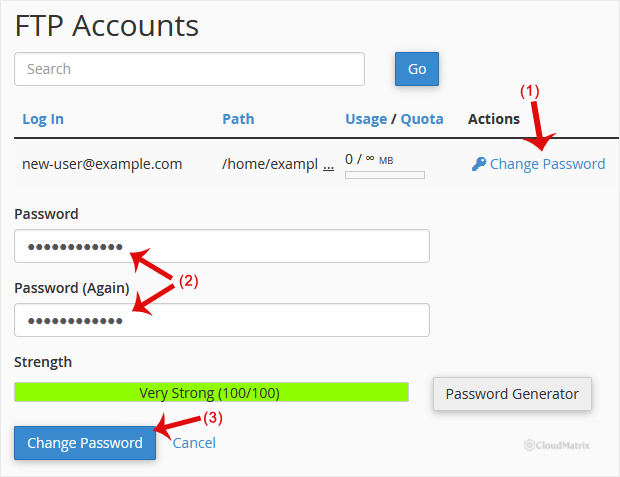
- Click Change Password to save.
The new password takes effect immediately. Update it everywhere that account is used, including your FTP client, any upload scripts, and any scheduled backup or deployment jobs, or those connections will start to fail.
A note on FTP security
Plain FTP sends your username and password across the network in clear text. Where your plan and FTP client support it, choose FTP over TLS (FTPS) or connect over SFTP instead, so your credentials and files are encrypted in transit.
Troubleshooting
- You cannot see FTP Accounts: the tile may be hidden on your plan. Confirm your plan includes FTP, or ask Noiz support to enable it.
- The password is rejected as too weak: cPanel enforces a minimum password strength score. Use the password generator, or lengthen the password and mix upper and lower case, digits and symbols.
- You still cannot connect after changing the password: check that you are using the full username (usually
[email protected]), the correct host and port, and that your FTP client is not reconnecting with a saved copy of the old password.
Now you can access FTP with the new password. If you would rather not do this yourself, or you want help switching an account to a secure connection method, open a ticket from your Noiz client area and support will assist.






