On Noiz DirectAdmin hosting that runs CloudLinux, the Select PHP Version tool lets you raise or lower PHP's post_max_size yourself, without editing a php.ini file or opening a support ticket. This guide shows you where the setting lives in DirectAdmin, what it genuinely controls, and why it almost never does its job on its own.
The tool goes by more than one name. Select PHP Version is the DirectAdmin menu label, PHP Selector is CloudLinux's own product name, and the page you need is its Options tab. They all mean the same thing.
post_max_size is the largest total body PHP will accept from a single POST request. Every file being uploaded, every text field, every hidden token and all of the multipart encoding overhead is counted together against this one figure. It is not a per-file limit. That is upload_max_filesize, and the two settings only work when they are set in the right relationship to each other, which is what most people get wrong.
Last reviewed: 27 July 2026, against the current DirectAdmin release with its default Evolution interface, the current CloudLinux PHP Selector, and the PHP branches the PHP project currently supports (8.2, 8.3, 8.4 and 8.5). This guide is written for Noiz hosting and is kept current against DirectAdmin and CloudLinux. It complements, and does not replace, the official documentation linked below.
Official Documentation Reference
- PHP Manual: post_max_size: the authoritative definition of the directive, its shorthand notation (
8M,1G) and the fact that it is set per directory rather than at runtime. - PHP Manual: common file upload pitfalls: why an oversized POST arrives with empty
$_POSTand$_FILESarrays instead of a clear error. - CloudLinux OS Components: PHP Selector: how the Selector packages the alternative PHP builds and stores a separate set of options for each version.
- DirectAdmin: PHP: how DirectAdmin serves PHP, the handlers involved, and where per-domain PHP configuration sits.
- DirectAdmin: the Evolution interface: reference for the menu layout and the navigation filter box used in the steps below.
Prerequisites
- A Noiz DirectAdmin hosting account and its login details.
- An account set to a numbered PHP version rather than native. The Options tab only exists on the alternative (alt-php) builds. See How to Change the PHP Version via CloudLinux Selector in DirectAdmin if you need to switch first.
- The size of the largest upload you actually need to accept, plus a margin. Guessing produces either a limit that still fails or one that is needlessly generous.
- A note of the current values of both
post_max_sizeandupload_max_filesize, so you can put them back.
Change post_max_size
1. Open Select PHP Version
Log in to your DirectAdmin account. In the Extra Features section of the menu, click Select PHP Version. If you cannot see the entry, type Select PHP into the navigation filter box at the top of the menu and click the result that appears.

2. Open the Options tab
Click Options. This tab lists the PHP directives you are allowed to change for the PHP version currently selected on your account, each with its present value.

Note: if the Options tab is empty or shows an error mentioning the native PHP version, your account is set to native. That build is managed by the server rather than by the Selector, so it exposes no editable options. Select a numbered version first, then come back to Options.
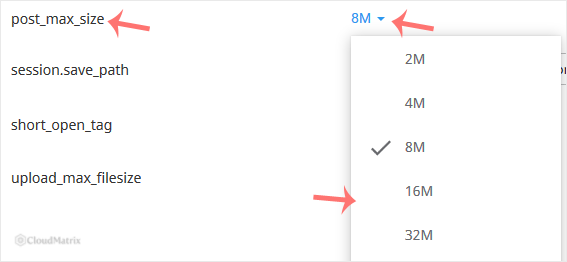
3. Set post_max_size
Find post_max_size in the list and open the drop-down beside it, then choose the value you need. The Selector saves the change as soon as you select it, and it applies to new PHP requests straight away. There is nothing to restart and no separate save button to press.
4. Check upload_max_filesize on the same page
Do not leave the Options tab yet. While you are here, look at upload_max_filesize immediately above or below it and make sure the two values are in the right relationship, explained in the next section. Changing one without the other is the single most common reason this procedure appears not to work.
5. Confirm it took effect
Reload the page you were troubleshooting and retry the upload or form submission that failed. If your application has a system information screen, read the value there rather than trusting the drop-down: WordPress shows the effective figure under Tools then Site Health then Info then Media, and most other platforms have an equivalent panel. That reading is the one that matters, because it reports what PHP is genuinely enforcing for your site.
post_max_size and upload_max_filesize Work as a Pair
This is the part worth understanding properly, because it explains nearly every "I raised the limit and nothing changed" ticket.
upload_max_filesizecaps one file. A single file larger than this figure is rejected on its own merits, no matter how generouspost_max_sizeis.post_max_sizecaps the whole request. All files in the submission, plus all the ordinary form fields, plus the multipart encoding overhead, are added together and measured against it.post_max_sizemust be larger thanupload_max_filesize. If it is equal or smaller, the per-file limit becomes unreachable: a file right at the file limit still fails, because the request carrying it is slightly bigger than the file itself.- Leave real headroom, not a token amount. A practical rule is to set
post_max_sizeat least a few megabytes aboveupload_max_filesize, and higher again if the form allows several files at once or carries a lot of other data. - Applications report the smaller of the two. WordPress's "Maximum upload file size" figure on the media screen, and the equivalent notice in most other platforms, is calculated from whichever of the two settings is lower. If that number refuses to move after you raise one setting, the other one is what is holding it down.
A worked example. To accept a 64 MB video reliably, set upload_max_filesize to 64M and post_max_size to 96M or 128M. Setting both to 64M looks tidier and will fail on the very files it was meant to allow.
What Failure Actually Looks Like
Exceeding post_max_size does not produce a helpful message, and this is why the setting is so often misdiagnosed as a broken plugin or a server fault.
- PHP discards the entire request body. When the incoming POST is larger than the limit,
$_POSTand$_FILESboth arrive empty. The script still runs, but with nothing to work on. - The visible symptom is silence. The upload bar reaches the end, the page reloads, and either nothing has happened or the application reports a validation error about a missing field, because from its point of view the form was submitted blank.
- The application's own error message is usually misleading. Content management systems commonly report a missing nonce, an expired session or a failed security check, all of which are just the consequence of an emptied POST body.
- Check the PHP error log, not the application log. PHP records a warning that the POST content length exceeds the limit. That entry is the definitive confirmation, and it names both the size sent and the limit in force.
Choosing a Sensible Value
- Size it for the largest legitimate submission, not the largest imaginable one. A media library that handles photographs needs far less than one accepting video, and raising the figure past what you actually use only widens the window for abuse.
- Account for multiple files. Drag-and-drop uploaders that send several files in one request need the total, not the size of the biggest file.
- Never set
0, even if the option is offered. Zero means unlimited, which removes the only guard against a single request tying up your account's resources. - Prefer chunked uploads for genuinely large files. Many modern uploaders split files into small pieces and reassemble them server side. That approach keeps every individual request small, which is more reliable over consumer connections than pushing one enormous POST through a timeout window.
- Put it back down when the job is done. If you raised the limit for a one-off migration or bulk import, return it to a normal value afterwards.
Things That Catch People Out
- The value is stored per PHP version. Each version keeps its own set of Options values. Change your PHP version later and the new version starts on its own defaults, so your tuned
post_max_sizedoes not travel with it. Re-check the Options tab immediately after any version change. - The setting is account-wide, not per-domain. The CloudLinux Selector applies one configuration to the whole DirectAdmin user account, so every domain and subdomain under it shares the value. Sites that genuinely need different limits belong in separate accounts.
- Your code cannot change it at runtime.
post_max_sizeis read while the request body is being parsed, which happens before your script executes. Anini_set('post_max_size', ...)call in PHP will run without error and have no effect whatsoever. - An
.htaccessline is probably doing nothing. Under the PHP handlers used alongside the CloudLinux Selector, aphp_value post_max_sizedirective in.htaccessis typically ignored, and a strayphp.iniin your web root may be ignored or may conflict with the Selector. Set the value in one place, the Selector, and remove the leftovers. - Your application may impose its own ceiling. WordPress multisite carries a separate network-level upload limit, and many form and gallery plugins have a maximum size of their own. Those are enforced in application code and are unaffected by anything you do in the Selector.
- The web server can reject the request before PHP ever sees it. A 413 Request Entity Too Large response, or an upload that dies at exactly the same point every time regardless of the PHP setting, points at a request body limit above PHP rather than inside it. Open a ticket with Noiz support with the domain name and the size you are trying to send.
- Time limits bite before size limits on slow connections. A large upload that fails part-way through, rather than at the very end, is more often
max_execution_timeormax_input_timerunning out thanpost_max_sizebeing exceeded. Both are on the same Options tab. - The drop-down offers fixed choices, not free text. If the exact figure you want is not listed, take the next value up. If the option is greyed out or missing entirely, the value is locked at plan level and only Noiz support can change it.
- Change one directive at a time. The obvious exception is this pair: change
post_max_sizeandupload_max_filesizetogether, deliberately, then retest before touching anything else on the page.
Troubleshooting
- Symptom: the upload completes, then the form comes back blank or reports a missing field. The POST exceeded
post_max_sizeand PHP emptied the request body. Raise the value, and confirm it is comfortably aboveupload_max_filesize. - Symptom: the reported maximum upload size will not budge. The other half of the pair is the constraint. Raise whichever of
post_max_sizeorupload_max_filesizeis currently the lower figure, since applications display the smaller of the two. - Symptom: a file just under the file size limit is still rejected.
post_max_sizeis equal to or only marginally aboveupload_max_filesize, leaving no room for the encoding overhead and the rest of the form. Add several megabytes of headroom. - Symptom: the Options tab is empty or shows an error about the native PHP version. The account is on the server's native PHP build, which exposes no editable options. Switch to a numbered version, then return to Options.
- Symptom: 413 Request Entity Too Large. The rejection happened above PHP, so the Selector value is not the constraint. Contact Noiz support with the domain and the request size.
- Symptom: it worked, then reverted weeks later for no obvious reason. The account's PHP version was changed in the meantime and the new version started on its own defaults. Re-apply both values on the version you are now running.
- Symptom: the change works on one site but not another on the same account. The Selector setting is account-wide, so the difference is in the application. Check that site's own upload limit and any plugin enforcing one.
Related Guides
- How to Increase PHP's upload_max_filesize Value Using CloudLinux Selector in DirectAdmin: the per-file half of the pair, and the setting you almost certainly need to change alongside this one.
- How to Enable or Disable PHP Extensions Using the CloudLinux Selector in DirectAdmin
- How to Increase or Decrease PHP Memory Limit via CloudLinux Selector in DirectAdmin
If an upload still fails after both values are set correctly, open a ticket with Noiz support. Include your domain name, the two values you set, the size of the file you are sending, and the exact error text or the URL that fails. On managed plans, Noiz will confirm which limit is actually being reached and tune it for you.






