upload_max_filesize is the PHP directive that sets the largest size a single uploaded file may be. Anything bigger is rejected by PHP before your application ever sees it, which is why a failed upload so often produces a blank screen or a vague "file too large" message rather than anything useful.
On Noiz DirectAdmin hosting running CloudLinux, you set this value yourself from the Select PHP version tool, usually called the CloudLinux PHP Selector. No support ticket and no server-level access are needed. This guide shows you where the setting lives, and, more importantly, why raising it on its own frequently changes nothing.
Last reviewed: 27 July 2026, against the current DirectAdmin release with the Evolution interface, and the current CloudLinux PHP Selector release. This guide is written for Noiz hosting and is kept current against DirectAdmin and CloudLinux. It complements, and does not replace, the official documentation linked below.
Official Documentation Reference
- PHP: Description of core php.ini directives: the authoritative definitions of
upload_max_filesize,post_max_size,max_file_uploadsandmemory_limit, including their defaults and where each one may be changed. - PHP: Common Pitfalls with File Uploads: PHP's own account of why uploads fail, including the interaction between the size directives and the execution time limits.
- PHP: Handling file upload errors: what
UPLOAD_ERR_INI_SIZEandUPLOAD_ERR_FORM_SIZEactually mean when your application reports them. - CloudLinux OS Components: PHP Selector: how the Selector stores per-account, per-version PHP settings, and what it cannot do.
- DirectAdmin documentation: reference for the DirectAdmin user interface itself.
Prerequisites
- A Noiz DirectAdmin hosting account and its login details.
- An account set to a numbered CloudLinux PHP version rather than native. If yours is still on native, change it first using How to Change the PHP Version via CloudLinux Selector in DirectAdmin.
- The actual size of the file you are trying to upload. Guessing leads to raising the limit twice.
Read This First: One Setting Is Rarely Enough
The single most common reason this procedure appears not to work is that upload_max_filesize is only half of the limit. Three directives govern an upload, and they are checked in a particular order:
post_max_sizecaps the total size of the entire POST request: every file in the form, plus every other field, plus the multipart encoding overhead.upload_max_filesizecaps each individual file inside that request.memory_limitcaps how much memory the script handling the upload may use. It is usually irrelevant, because PHP streams uploads to a temporary file rather than into memory, but an application that reads the whole file back in for processing (image resizing is the usual culprit) will hit it.
The lower of the two size values is the one that wins. Setting upload_max_filesize to 256M while post_max_size sits at 8M gives you an effective ceiling of 8 MB, and PHP will not warn you about the mismatch. Raise both together, and make post_max_size comfortably larger than upload_max_filesize, not merely equal to it. A request also carries form fields and encoding overhead, and a multi-file form carries several files at once.
A workable pattern for a single 64 MB file:
upload_max_filesize = 64M
post_max_size       = 128M
memory_limit        = 256M
Set post_max_size in the same Options tab used below, or follow How to Increase PHP's post_max_size Value Using CloudLinux Selector in DirectAdmin.
One further limit catches people out on galleries and bulk importers: max_file_uploads caps how many files may be sent in a single request, and defaults to 20. Selecting 50 images at once silently drops everything past the twentieth, whatever the size settings say.
Raise upload_max_filesize
1. Open Select PHP version
Log in to your DirectAdmin account. In the Extra Features section of the dashboard, click Select PHP version. If the section is collapsed or the icon is not where you expect it, type Select PHP into the navigation filter box and click the result when it appears.

2. Open the Options tab
The PHP Selector opens with its own navigation bar: My domains, Extensions and Options. Click Options.

Note: if the Options tab is empty or shows an error mentioning the native PHP version, check the Current PHP version displayed on the page. When an account is set to native, the server manages PHP directly, the Selector cannot edit its directives, and there is nothing for the Options tab to show. Switch to a numbered version first, then return here.
3. Set the value
Find upload_max_filesize in the directive list and click the drop-down beside it. Choose the size you need.
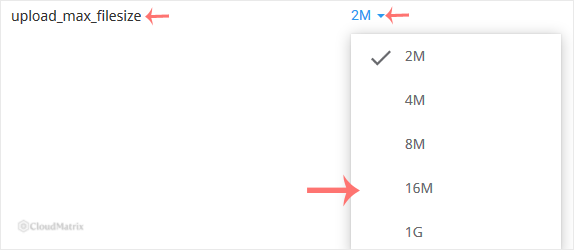
The Selector offers a fixed list of values rather than a free-text box, and that list is bounded by a server-level ceiling. If the size you need is not offered, it is not available to change from your side. Pick the largest value on the list and open a ticket with Noiz support if it still is not enough.
4. Set post_max_size while you are here
Scroll to post_max_size in the same list and set it higher than the value you just chose. Skipping this step is the reason most people repeat this procedure a second time.
5. Let the change save
The Selector saves each directive as you change it, so there is no separate submit button. Wait for the on-screen confirmation before navigating away and give it a few seconds to apply. Nothing needs restarting from your side.
Confirm the New Limit
Do not trust the drop-down alone. Create a file called phpinfo.php in your public_html directory containing:
<?php phpinfo();Load https://yourdomain.com/phpinfo.php in your browser, replacing yourdomain.com with your own domain, and search the page for upload_max_filesize. The Local Value column is the one that applies to your site. Check post_max_size on the same page while it is open.
Delete the file as soon as you have read it. A phpinfo() page left in place publishes your full server configuration, module list and filesystem paths to anyone who finds the URL, and automated scanners look for exactly that filename.
Things Worth Knowing Before You Raise It Further
- The setting is per PHP version, not per account. The Selector stores directive values separately for each PHP version. Change your PHP version later and the new version starts from its own defaults, so a carefully raised limit can quietly revert. Re-check the Options tab after every version change.
- Your code cannot change it.
upload_max_filesizeis aPHP_INI_PERDIRdirective, soini_set('upload_max_filesize', '64M')inside a script has no effect at all. On a PHP-FPM setup, aphp_valueline in.htaccesswill not work either and may produce a 500 error. The Selector is the supported route. - Your application probably has its own limit on top. PHP sets the outer boundary; the software sets its own inside it. WordPress reports the effective limit on the media upload screen and multisite installations impose a separate per-site cap. Web application firewalls and upload plugins frequently add their own ceiling as well. If
phpinfo()shows the value you set but the application still refuses the file, the limit is coming from the application. - Time limits bite before size limits on slow connections. A 200 MB upload on a slow line can exceed
max_input_timeormax_execution_timeand fail partway through, which looks identical to a size rejection from the browser's point of view. Both are adjustable in the same Options tab. - Very large files do not belong in an HTTP form. Browser uploads have no resume, so a dropped connection at 90 per cent means starting again. For backups, video and archives, use FTP or the DirectAdmin File Manager instead of raising PHP limits until the form cooperates.
- Do not raise it further than you need. The limit is a guard rail. A large ceiling on a site with an upload form open to the public invites disk-filling abuse, and every accepted upload consumes account storage and processing time.
Troubleshooting
- Symptom: the value was raised but the effective limit did not change.
post_max_sizeis still lower thanupload_max_filesize. The lower value wins. Raisepost_max_sizeabove it. - Symptom: the Options tab is empty or errors about the native PHP version. The account is running native PHP, which the Selector does not manage. Change to a numbered PHP version and try again.
- Symptom:
phpinfo()still reports the old value. Confirm that the version shown in the Selector is the version your site actually runs. Editing directives while a different version is selected is the usual cause. Clear any opcode or full-page cache, then check again. - Symptom: the size you need is missing from the drop-down. A server-level ceiling applies. Select the largest available value and open a ticket if that is insufficient.
- Symptom: the upload fails with a "413" or "request entity too large" error. That is the web server rejecting the request before PHP is reached, so no PHP directive will fix it. Open a ticket with Noiz support quoting the error and the file size.
- Symptom: only the first 20 files of a bulk upload arrive.
max_file_uploadsis capping the count, not the size. Upload in smaller batches or raise that directive too. - Symptom: the upload starts, runs for a while, then dies with no error. Look at
max_execution_time,max_input_timeandmemory_limitrather than the size settings. This pattern is a timeout or an out-of-memory condition, not a rejected file.
Related Guides
- How to Increase PHP's post_max_size Value Using CloudLinux Selector in DirectAdmin
- How to Enable or Disable PHP Extensions Using the CloudLinux Selector in DirectAdmin
- How to Change the PHP Version via CloudLinux Selector in DirectAdmin
If the largest value on offer is still too small, or an upload keeps failing after both size directives have been raised and verified, open a ticket with Noiz support. Include your domain name, the PHP version shown in the Selector, the size of the file and the exact error text. On managed plans, Noiz will check the limits above PHP as well and confirm where the request is actually being stopped.






