PHP's display_errors directive decides whether PHP writes its warnings, notices and fatal error messages into the page your visitors see, or keeps them out of the browser and sends them to a log file instead. Turning it on is the fastest way to find out why a page has gone blank or why a plugin has stopped working. Leaving it on is one of the more common ways a small site quietly hands an attacker everything needed to break into it.
On Noiz DirectAdmin hosting that runs CloudLinux, you control this setting yourself from the Select PHP version tool. That tool goes by more than one name: Select PHP version is the label on the DirectAdmin icon, PHP Selector is CloudLinux's own product name for it, and the page you actually need is its Options tab. They all mean the same thing.
Read this before you switch it on. display_errors should be off on any site the public can reach. A single PHP warning printed into a page routinely exposes the absolute filesystem path of your account, the name of your database and database user, fragments of connection strings, and the file and line number of the code that failed. Scanners look for exactly that output because it turns a guess into a targeted attack. If you need error output on a live site, switch it on, reproduce the fault, capture the message, and switch it straight back off.
Last reviewed: 27 July 2026, against the current DirectAdmin release with the Evolution interface and the CloudLinux PHP Selector, and against the PHP branches the PHP project currently supports (8.2, 8.3, 8.4 and 8.5). This guide is written for Noiz hosting and is kept current against DirectAdmin, CloudLinux and PHP. It complements, and does not replace, the official documentation linked below.
Official Documentation Reference
- PHP Manual: display_errors: the authoritative description of the directive, its accepted values, and the manual's own warning against enabling it in production.
- PHP Manual: log_errors and error_log: the two directives that send the same messages to a file rather than to the browser.
- PHP Manual: .user.ini files: how a file in your document root can override what you set in the Selector.
- CloudLinux OS Components: PHP Selector: how the Selector stores per-account PHP settings, and which configurations it supports.
- DirectAdmin: Multiple PHP versions: how DirectAdmin's own per-domain PHP version handling works, which is a separate mechanism from the Selector.
- DirectAdmin: Securing PHP: the wider hardening context that error output sits inside.
Prerequisites
- A Noiz DirectAdmin hosting account and its login details.
- An account set to a numbered CloudLinux PHP version rather than native. The Options tab only exists on the alternative PHP builds. If you need to switch first, see How to Change the PHP Version via CloudLinux Selector in DirectAdmin.
- A plan for switching it off again. Decide before you start whether you are testing for five minutes or an hour, and set yourself a reminder.
Enable or Disable display_errors
1. Open Select PHP version
Log in to your DirectAdmin account. In the Extra Features section, click Select PHP version. If that section is not where you expect it, type Select PHP into the navigation filter box and click the entry that appears. The filter box is the quickest route regardless of which DirectAdmin skin your account uses.

2. Open the Options tab
The PHP Selector opens on its own navigation bar. Click Options. This tab lists the PHP directives your account is allowed to change, each with its current value, for the PHP version shown on the page.

Note: if the Options page shows an error mentioning the native PHP version, or shows nothing at all, your account is set to native PHP. That build is managed by the server rather than by the Selector, so it exposes no editable directives and there is nothing for this tab to show. Change to a numbered PHP version first, then come back.
3. Toggle display_errors
Find display_errors in the list. Tick the checkbox to enable it, or clear the checkbox to disable it.
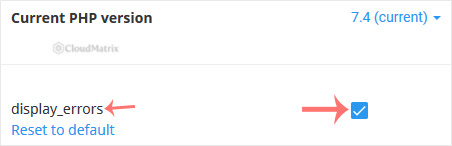
4. Let the change save, then verify it
The Selector saves each directive as you toggle it and confirms on screen, so there is no separate submit button and no service restart to request. Give it a few seconds, then reload the failing page in a fresh browser tab. If you enabled the setting and the page is still blank, work through the troubleshooting section below rather than assuming the toggle did not apply.
Two Different PHP Tools, One Account
This is the single biggest source of confusion on DirectAdmin, because the panel has its own PHP handling that sits alongside the CloudLinux plugin.
- DirectAdmin's own PHP version handling lets you pick, per domain, from the PHP versions the server administrator compiled. It sets which interpreter runs your site. It does not give you a list of editable PHP directives.
- Select PHP version (the CloudLinux PHP Selector) applies to the whole account and offers the alternative PHP builds along with the extensions and directives you can change yourself.
display_errorslives here.
If the Selector's Options tab is empty, or your changes appear to save but have no effect on the site, the usual explanation is that the domain is being served by a PHP version the Selector is not managing. Change the account onto a numbered Selector version, confirm which version the Options tab is showing, and try again.
What This Setting Actually Changes
None of the following is visible on the Options tab, and all of it generates support tickets.
- It applies to the whole account, not to one domain. Every domain, subdomain and add-on domain under the account shares the setting. You cannot print errors on a staging subdomain while keeping them hidden on the live site in the same account.
- Options are stored separately for each PHP version. Change the account's PHP version later and the new version starts on its own defaults. Your careful
display_errorschoice does not travel with you. That cuts both ways: a version change can silently switch error output back on, in public, without anyone touching this page. Re-check the Options tab after every version change. - It only controls where messages go, not which ones exist.
error_reportingdecides which severities PHP generates in the first place. Iferror_reportingexcludes notices and deprecations, enablingdisplay_errorswill not make them appear. Both directives sit on the same Options tab. - Startup errors are governed separately. Faults raised while PHP itself is starting, such as a broken or missing extension, are controlled by
display_startup_errors. A blank page with nothing in the log is often this rather thandisplay_errors. - Your application can overrule the Selector. A call to
ini_set('display_errors', ...)in code, a.user.iniorphp.inifile in the document root, or a framework's own environment handling all win at runtime. WordPress is the usual case:WP_DEBUGandWP_DEBUG_DISPLAYinwp-config.phpdecide error display for the whole site regardless of what you tick here.
The Safer Way to Debug a Live Site
Printing errors into the page is the blunt instrument. On a site with real visitors there is nearly always a better option.
- Read the log instead of the page. Leave
display_errorsoff, make surelog_errorsis on, and read the resulting file. The same messages land there with timestamps, and nobody browsing the site sees them. DirectAdmin exposes your domain's error log from its site logs page, usually grouped with the site statistics. - Send errors somewhere you control. The
error_logdirective on the same Options tab sets the destination file. Pointing it at a path inside your account, outside the web root, keeps the output readable by you and unreachable over HTTP. - Reproduce it on a copy. If you keep a staging copy of the site under a separate account, enable error output there and leave the live account alone entirely.
- Use the application's own debug mode. WordPress, Laravel and most modern frameworks can write a detailed log without exposing anything publicly, and their output is usually more useful than raw PHP warnings.
- Keep the window short. If you genuinely must enable it on a live site, reproduce the fault immediately, copy the message somewhere safe, and turn it off. Minutes, not days.
Troubleshooting
- Symptom: the Options tab shows an error about the native PHP version, or is empty. The account is on the server's native PHP build, which the Selector does not manage. Switch to a numbered version and return to the tab.
- Symptom: display_errors is ticked but the page is still blank. Either the fault is a startup error, in which case check
display_startup_errors, or the application is overriding the value. Look forWP_DEBUGinwp-config.php, a.user.iniorphp.iniin the document root, and anyini_set()call in the application's bootstrap. - Symptom: the checkbox saves, but nothing changes on the site. Check which PHP version the Options tab is showing against the version the domain is actually served with. Editing directives on a version your site is not running is the most common cause on DirectAdmin. Clear any opcode or full-page cache afterwards.
- Symptom: errors appear, then vanish again days later. The account's PHP version was changed and the new version started on its own defaults. Re-check the Options tab for the version you are now on.
- Symptom: enabling it breaks an API endpoint, a login, or file downloads. This is expected behaviour, not a bug. Output written before the headers are sent produces "headers already sent" failures, and any warning printed into a JSON or file response corrupts it. Turn the setting off and read the log instead.
- Symptom:
display_errorsis not in the list, or refuses to save. Some server configurations restrict which directives an account may edit. Open a ticket with Noiz support stating the setting you need and the value you want. - Symptom: you enabled it, saw a database credential or a full server path in the output, and the site is public. Disable it immediately, then change the database password and update the application's configuration file. Assume the credential was seen and act accordingly.
Related Guides
- How to Change the PHP Version via CloudLinux Selector in DirectAdmin
- How to Enable or Disable PHP Extensions Using the CloudLinux Selector in DirectAdmin
If the Options tab is missing, if the toggle will not stick, or if you switched display_errors on and something you were not expecting appeared in the page, open a ticket with Noiz support. Include your domain name, the PHP version shown in the Selector, and the exact error text. On managed plans, Noiz will read the error log with you, identify what is actually failing, and get the setting back to a safe state on the live site.






