On Noiz cPanel hosting that runs CloudLinux, the Select PHP Version tool (commonly called the CloudLinux PHP Selector) lets you raise post_max_size yourself, without editing a php.ini file or opening a support ticket. This guide shows you where the setting lives, what it actually controls, and why it almost always has to be changed together with upload_max_filesize.
post_max_size is the maximum size of an entire POST request body that PHP will accept. That is not just the file being uploaded. It covers every uploaded file in the form, every text field, every hidden field, and the multipart encoding overhead that wraps them. If you upload one 60 MB file through a form that also carries a title, a description and a security token, the request on the wire is slightly larger than 60 MB, and it is that larger figure that post_max_size is measured against.
Last reviewed: 27 July 2026, against cPanel & WHM version 134 (the stable and LTS tier in cPanel's own wording) with the Jupiter interface, and against the current CloudLinux PHP Selector. This guide is written for Noiz hosting and is kept current against cPanel and CloudLinux. It complements, and does not replace, the official documentation linked below.
Official Documentation Reference
- PHP Manual: post_max_size: the authoritative definition of the directive, its shorthand notation (
8M,1G) and its interaction withmemory_limit. - PHP Manual: Common Pitfalls in File Uploads: why an oversized POST arrives as an empty
$_POSTand$_FILESrather than as an error. - PHP Manual: upload_max_filesize: the companion directive that caps each individual file.
- CloudLinux OS Components: PHP Selector: how the Selector stores per-version settings and where its limitations lie.
- cPanel: MultiPHP INI Editor: the separate cPanel-native editor that some accounts have instead of, or alongside, the CloudLinux Selector.
Prerequisites
- A Noiz cPanel hosting account and its login details.
- A note of the current
post_max_sizeandupload_max_filesizevalues before you change anything, so you can put them back. - The largest single upload you actually need to support, and a rough idea of how many files a single form submission may carry.
Change post_max_size
1. Open Select PHP Version
Log in to your cPanel account, scroll to the Software section, and click Select PHP Version. If you cannot see it, type PHP into the search box at the top of the cPanel home page.

2. Open the Options tab
Click Options. This tab lists the PHP directives you are allowed to change for the version currently selected on your account.

Note: if the Options tab shows an error mentioning the native PHP version, switch to a numbered (alt-php) version first. The native build is managed by the server, so the Selector cannot edit its directives. See How to Change the PHP Version via CloudLinux Selector in cPanel.
3. Set post_max_size
Find post_max_size in the list, open the drop-down beside it, and choose the value you need. The change saves as soon as you select it and applies to new PHP requests immediately. There is no restart to perform and no confirmation button to press.
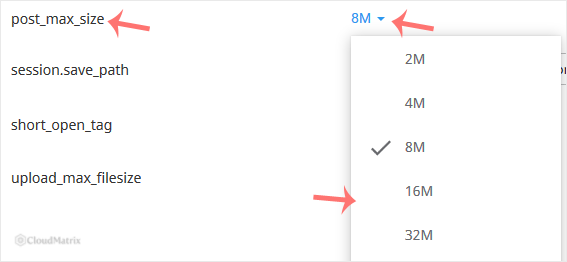
4. Set upload_max_filesize in the same visit
While you are on the Options tab, check upload_max_filesize too. Changing only one of the pair is the single most common reason this procedure appears not to work. The next section explains how the two relate.
5. Confirm it took effect
Reload the page you were troubleshooting and retry the upload. If your application has a system information screen, read the value there rather than trusting the drop-down: WordPress shows it under Tools then Site Health then Info then Server, and most other platforms have an equivalent panel. That reading reports what PHP is genuinely enforcing.
How post_max_size and upload_max_filesize Work Together
These two directives are not alternatives, and they do not do the same job. Getting the relationship right is most of the work.
upload_max_filesizecaps each individual file. One file larger than this figure is rejected, even if the request as a whole is small.post_max_sizecaps the whole request. Every file plus every form field plus the encoding overhead, added together.- The effective ceiling for a single-file upload is the lower of the two. Setting
upload_max_filesizeto256Mwhilepost_max_sizestays at8Mgives you an 8 MB limit, not a 256 MB one. This is exactly why raising one alone changes nothing. - Always keep
post_max_sizecomfortably larger thanupload_max_filesize. A useful rule of thumb is a few megabytes of headroom, or roughly a quarter more for forms that carry a lot of text. For a 64 MB file limit,post_max_sizeof96Mor128Mis a sensible pairing. - Multiple files in one submission are added together. A gallery uploader sending six 20 MB images in a single request needs
post_max_sizeabove 120 MB, even though no single file comes nearupload_max_filesize. Uploaders that send each file as its own separate request, as the WordPress media library does by default, do not have this problem. - The figure your application advertises is derived, not configured. When a CMS displays a maximum upload size, it is normally reporting the lower of these two directives back to you. If that displayed number will not move, you have changed one of the pair and not the other.
What Happens When a Request Exceeds post_max_size
This behaviour is the reason post_max_size problems are so much harder to diagnose than upload_max_filesize problems, and it is worth understanding before you start guessing at values.
When a request body is larger than post_max_size, PHP discards the entire body. $_POST and $_FILES both arrive empty. Your application is not told that a file was too large, because from its point of view nothing was submitted at all. Nothing is shown in the browser and no upload error code is set, so the only trace is usually a line in the PHP error log noting that the POST content length exceeded the limit. That log entry is the quickest way to confirm you are looking at this failure rather than another one.
The practical symptoms are distinctive once you know them:
- The form appears to submit, then simply reloads itself blank, with no message and no saved record.
- The file "vanishes" with no upload error shown anywhere.
- An AJAX uploader shows a generic HTTP error, or hangs at 100 per cent and never completes.
- Small files work perfectly and only large ones fail silently.
Contrast that with an over-large single file under upload_max_filesize: the request still arrives, $_FILES is populated, and the entry carries error code 1 (UPLOAD_ERR_INI_SIZE), which is why applications can show a tidy "file exceeds the maximum upload size" message in that case. A clear error message points at upload_max_filesize. Silence points at post_max_size.
Choosing a Sensible Value
- Start from the largest file you genuinely need to accept, then add headroom for the rest of the form. Do not start from the largest figure the drop-down offers.
- Raise in steps. Move up one or two increments, retest with a real file, and stop when it works. Jumping to the maximum removes the diagnostic signal you were using.
- Bigger is not free. A very high limit lets a single request tie up a PHP worker, disk space in the temporary upload directory and account bandwidth for a long time. On a site with a public upload form it also widens the surface for abuse, so cap it at what your workload actually needs.
- Do not choose
0if the option appears. Zero means no limit at all, which removes a genuinely useful safety valve. - Very large files are usually the wrong tool for a web form. Multi-gigabyte transfers belong in FTP, SFTP or the cPanel File Manager rather than a browser upload, which has to survive the whole transfer inside one HTTP request.
Things That Catch People Out
- The value is stored per PHP version. Each version keeps its own set of Options values. If you later change your PHP version, the new version starts on its own defaults and your tuned
post_max_sizedoes not follow it across. Re-check the Options tab immediately after any version change. - The setting is account-wide, not per-domain. The CloudLinux Selector applies one configuration to the whole cPanel account, so every domain, subdomain and add-on domain in it shares the value. Sites needing genuinely different limits belong in separate cPanel accounts.
memory_limitcan undercut it. Historically PHP expectedmemory_limitto be larger thanpost_max_size, which in turn is larger thanupload_max_filesize. Modern PHP streams uploads to a temporary file rather than holding them in memory, so a large upload no longer requires a matching memory allowance by itself. What does still consume memory is whatever your application does with the file afterwards, such as resizing an image or parsing a spreadsheet. If large uploads arrive intact and then fail during processing, the constraint is memory, not this directive. See How to Increase or Decrease PHP Memory Limit via CloudLinux Selector in cPanel.- Time limits bite before size limits on slow connections. A 200 MB upload over a modest domestic uplink can take several minutes. If
max_execution_timeormax_input_timeexpires first, the upload fails regardless of how generouspost_max_sizeis. Both appear on the same Options tab. - Some applications impose their own cap on top. Content management systems, form plugins and file manager plugins frequently carry a separate maximum of their own, set in their admin screens or in a configuration file. If PHP now allows 128 MB and the application still refuses at 32 MB, the remaining limit is in the application.
- A custom
php.inior.htaccessentry may be doing nothing. Under the PHP handlers used with the CloudLinux Selector,php_value post_max_sizelines in.htaccessare typically ignored, and a strayphp.iniin your web root may be ignored or may conflict with the Selector. Set the value in one place, in the Selector, and remove the leftovers. max_file_uploadsis a separate ceiling. It limits how many files one request may contain, commonly 20. A bulk upload of 50 small files can fail on the count while sitting far below every size limit.- Command-line and cron runs are separate. A script run through cron or PHP CLI does not necessarily inherit the same values as a web request. If a scheduled import behaves differently from the same task in the browser, that difference is the first thing to check.
- The drop-down offers fixed choices, not free text. If the exact figure you want is not listed, pick the next value up. If the option is greyed out or missing entirely, the value is locked at plan level, and only Noiz support can change it.
Troubleshooting
- Symptom: the upload form submits and returns to a blank or empty page, with nothing saved and no error. This is the classic
post_max_sizefailure. The whole POST body was discarded. Raisepost_max_sizeabove the total size of the request, not just the file. - Symptom: a clear "file is too large" message naming a size. That is
upload_max_filesizerejecting the individual file, and the message usually names the current limit. Raise that directive, then confirmpost_max_sizeis still comfortably above it. See How to Increase PHP's upload_max_filesize Value Using CloudLinux Selector in cPanel. - Symptom: the advertised maximum upload size in the application will not change. You have raised one of the pair and not the other. The displayed figure is the lower of
post_max_sizeandupload_max_filesize. - Symptom: the change saved but the site still reports the old value. Confirm the account is on the PHP version you edited, not a different one, and clear any full-page or object cache in the application before re-reading the figure.
- Symptom: the Options tab is empty or shows an error. The account is on the native PHP build. Switch to a numbered version first, then return to Options.
- Symptom: the upload runs for a while, then times out or drops near the end. That is a time limit or a connection problem rather than a size limit. Check
max_execution_timeandmax_input_time, and test the same file over a faster connection before raising sizes further. - Symptom: the file uploads, then the page errors or dies during processing. The upload succeeded and the application ran out of memory or time handling it. Raise
memory_limitrather thanpost_max_size.
Related Guides
- How to Increase PHP's upload_max_filesize Value Using CloudLinux Selector in cPanel
- How to Increase or Decrease PHP Memory Limit via CloudLinux Selector in cPanel
- How to Change the PHP Version via CloudLinux Selector in cPanel
If large uploads still fail after raising both directives, open a ticket with Noiz support. Include your domain name, the values you set, the size of the file you are uploading and the exact behaviour you see, including whether an error message appears at all. On managed plans, Noiz will identify which limit is actually being reached and tune it for you.






