On Noiz cPanel hosting that runs CloudLinux, the Select PHP Version tool (commonly called the CloudLinux PHP Selector) lets you raise upload_max_filesize yourself, without editing a php.ini file or opening a support ticket. This guide shows you where the setting lives, what it genuinely controls, and the companion setting that silently caps it if you leave it behind.
upload_max_filesize is the largest size a single uploaded file may be in one HTTP request. It is not your disk quota, it is not a monthly transfer allowance, and it is not the total size of the request. If a visitor or an editor tries to upload a file bigger than this figure, PHP discards it before your application ever sees it, which is why the failure so often shows up as a vague browser error rather than a useful message.
Last reviewed: 27 July 2026, against cPanel & WHM version 134 (the stable and LTS tier in cPanel's own wording) with the Jupiter interface, and against the current CloudLinux PHP Selector. This guide is written for Noiz hosting and is kept current against cPanel and CloudLinux. It complements, and does not replace, the official documentation linked below.
Official Documentation Reference
- PHP Manual: upload_max_filesize: the authoritative definition of the directive and its shorthand notation (
64M,1G). - PHP Manual: POST method uploads: how PHP receives, buffers and hands over an uploaded file, and which directives take part.
- PHP Manual: Common file upload pitfalls: the interaction between
upload_max_filesize,post_max_sizeand the execution time limits. - CloudLinux OS Components: PHP Selector: how the Selector stores per-version settings and where its limitations lie.
- cPanel: MultiPHP INI Editor: the separate cPanel-native editor that some accounts have instead of, or alongside, the CloudLinux Selector.
Prerequisites
- A Noiz cPanel hosting account and its login details.
- The actual size of the largest file you need to accept. Check it on your own machine first, because "about 50 MB" is usually 60-something.
- A note of the current
upload_max_filesizeandpost_max_sizevalues before you change them, so you can put them back.
Raise upload_max_filesize
1. Open Select PHP Version
Log in to your cPanel account, scroll to the Software section, and click Select PHP Version. If you cannot see it, type PHP into the search box at the top of the cPanel home page.

2. Open the Options tab
Click Options. This tab lists the PHP directives you are allowed to change for the version currently selected on your account.

Note: if the Options tab shows an error mentioning the native PHP version, switch to a numbered (alt-php) version first. The native build is managed by the server, so the Selector cannot edit its directives. See How to Change the PHP Version Using the CloudLinux Selector in cPanel.
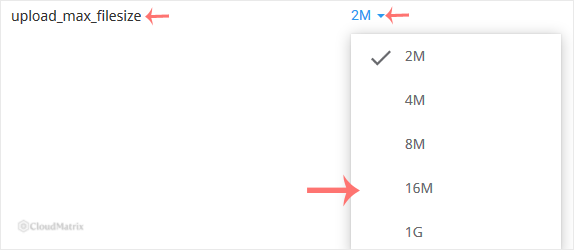
3. Set upload_max_filesize
Find upload_max_filesize in the list and open the drop-down beside it, then choose the value you need. The change saves as soon as you select it and applies to new PHP requests immediately. There is no restart to perform and no confirmation button to press.
4. Raise post_max_size in the same visit
This is the step that gets skipped, and it is the reason most people conclude the setting "did not work". Stay on the Options tab, find post_max_size, and set it at least as high as the figure you just chose. The detail is explained in full below.
5. Confirm it took effect
Reload the page you were troubleshooting. In WordPress, Media then Add New prints the effective ceiling directly on the screen as Maximum upload file size, and Tools then Site Health then Info then Server shows both Upload max filesize and Max size of post data allowed. Most other platforms have an equivalent system information panel. That reading is the one that matters, because it reports what PHP is genuinely enforcing rather than what the drop-down displays.
upload_max_filesize and post_max_size Move Together
These two directives are not alternatives and they are not independent. They describe different things, and the lower of the two wins.
upload_max_filesizelimits one file.post_max_sizelimits the entire POST request: every file in it, plus the form fields, plus the multipart encoding overhead.
Setting upload_max_filesize to 256M while post_max_size stays at 64M gives you a 64 MB ceiling. The browser will still start the upload, the server will still accept the connection, and the request will still fail, which is precisely why the symptom is so confusing. Set post_max_size higher than upload_max_filesize, not merely equal to it: a comfortable margin, say upload_max_filesize of 128M with post_max_size at 160M, leaves room for the form fields travelling alongside the file and for the encoding overhead, which typically adds a few per cent.
If a form accepts several files at once, post_max_size has to cover their combined size, not just the biggest one. A gallery uploader taking ten 20 MB images needs a post_max_size above 200 MB even though no single file comes close to it.
The full walkthrough for the companion setting is in How to Increase PHP's post_max_size Value Using CloudLinux's Selector in cPanel.
The Other Limits in the Chain
An upload has to survive several separate ceilings. Raising the one you have heard of does nothing if a different one is the actual constraint.
memory_limitmatters when your application does something with the file after it arrives, such as resizing an image or parsing a spreadsheet. The upload itself is written to a temporary file on disk rather than held in memory, so a large upload does not automatically need matching memory, but the processing step frequently does. See How to Increase or Decrease PHP Memory Limit via CloudLinux Selector in cPanel.max_file_uploadscaps how many files a single request may carry, commonly at 20. Select forty images in one go and the excess is dropped silently, with no error to explain the missing files.max_execution_timeandmax_input_timedecide how long the request may take. A 500 MB file over a slow domestic upstream connection can exceed a time limit long before it exceeds a size limit, which produces a timeout rather than a size complaint.- The web server in front of PHP enforces its own request body limit. On shared hosting this is usually set generously and is not the thing stopping you, but if you have raised every PHP directive and still get a
413 Request Entity Too Large, that is the layer to ask Noiz support about. - Your disk quota stops an upload just as effectively as any directive. The file has to fit twice for a moment: once in the temporary location and once at its destination. An account close to its quota fails uploads with errors that look nothing like a quota problem.
- Your application's own limit sits on top of all of this. WordPress Multisite has a network-level Max upload file size in megabytes that overrides the PHP figure downwards, and many forms, plugins and themes impose their own cap.
Choosing a Sensible Value
- Size it to the job, not to the maximum available. Photographs and documents rarely need more than
64M. Video, design source files, database dumps and full-site backup archives are the usual reasons to go higher. - A high limit is a security and stability consideration on public forms. Any upload field open to unauthenticated visitors becomes a way to fill your disk. Raise the PHP limit for your editors by all means, then keep the public-facing form restricted at application level.
- Large uploads through a browser fail more often than they succeed. Beyond a few hundred megabytes, a dropped connection near the end means starting from zero. Use FTP or the cPanel File Manager for one-off transfers of big archives, and reserve the HTTP upload path for the sizes it handles reliably.
- The drop-down offers fixed choices, not free text. If the exact figure you want is not listed, pick the next value up. If the option is greyed out or missing, the value is locked at plan level and only Noiz support can change it.
Things That Catch People Out
- The value is stored per PHP version. Each version keeps its own set of Options values. If you later change your PHP version, the new version starts on its own defaults and your tuned figures do not follow it across. Re-check the Options tab immediately after any version change.
- The setting is account-wide, not per-domain. The CloudLinux Selector applies one configuration to the whole cPanel account, so every domain, subdomain and add-on domain in it shares the value. Sites needing genuinely different limits belong in separate cPanel accounts.
- A custom
php.inior.htaccessentry may be doing nothing. Under the PHP handlers used with the CloudLinux Selector,php_value upload_max_filesizelines in.htaccessare typically ignored, and a strayphp.iniin your web root may be ignored or may conflict with the Selector. Set the value in one place, in the Selector, and remove the leftovers. - Units are required and are not decimal-friendly. PHP reads
64Mas 64 megabytes; a bare number is interpreted as bytes, and fractional values such as1.5Gare not reliably parsed. The Selector's drop-down keeps you out of this trap, which is a good reason to use it rather than hand-editing a file. - Browsers report the failure badly. Exceeding the limit usually surfaces as a stalled progress bar, a generic "HTTP error" in the WordPress media library, or a page that simply reloads empty. Do not read those as a broken site before you have checked the numbers.
Troubleshooting
- Symptom:
The uploaded file exceeds the upload_max_filesize directive in php.ini. The clean case, and the one this guide fixes. Raise the drop-down, then raisepost_max_sizeabove it. - Symptom: you raised
upload_max_filesizebut the reported maximum did not move.post_max_sizeis lower and is now the binding limit. Raise it too. - Symptom: the upload fails with an empty
$_POSTand$_FILES, or the form submits as though no data was sent. The request exceededpost_max_size, so PHP discarded the whole body including the ordinary form fields. This is why an over-sized upload can look like a broken form rather than a rejected file. - Symptom:
413 Request Entity Too Large. The request was stopped by the web server before PHP was involved. PHP settings will not change this. Contact Noiz support with the domain and the file size you are attempting. - Symptom: the upload runs for a while, then stops with a timeout or a 5xx error. A time limit rather than a size limit. Check
max_execution_timeandmax_input_time, and consider FTP for files of this size. - Symptom: several files were selected but only some arrived, with no error. You hit
max_file_uploads. Upload in smaller batches or raise that directive. - Symptom: the change saved but the site still reports the old value. Confirm the account is on the PHP version you actually edited, not a different one, and clear any full-page or object cache in the application before re-reading the figure.
- Symptom: the Options tab is empty or shows an error. The account is on the native PHP build. Switch to a numbered version first, then return to Options.
Related Guides
- How to Increase PHP's post_max_size Value Using CloudLinux's Selector in cPanel
- How to Increase or Decrease PHP Memory Limit via CloudLinux Selector in cPanel
- How to Change the PHP Version Using the CloudLinux Selector in cPanel
If uploads still fail after raising both values, open a ticket with Noiz support. Include your domain name, the two figures you set, the size and type of the file, and the exact error text or the URL that fails. On managed plans, Noiz will identify which limit in the chain is actually being reached and either tune it or advise on the plan that fits your workload.






