The ionCube Loader is a PHP extension that lets your server run PHP files which have been protected with the ionCube Encoder. Plenty of commercial PHP software ships this way, including billing systems, licensed themes, and paid plugins, and that software will simply refuse to start if the Loader is missing. On Noiz cPanel hosting that runs CloudLinux, you can switch the Loader on yourself from the Select PHP Version tool, without waiting on a support ticket.
The tool goes by a few names depending on where you read about it: Select PHP Version is the cPanel icon label, PHP Selector is the CloudLinux product name, and the extension itself appears in the list as ioncube_loader. They all refer to the same thing.
Last reviewed: 27 July 2026, against cPanel & WHM version 134 (the stable and LTS tier in cPanel's own wording) with the Jupiter interface, and against the current CloudLinux PHP Selector. This guide is written for Noiz hosting and is kept current against cPanel, CloudLinux, and ionCube. It complements, and does not replace, the official documentation linked below.
Official Documentation Reference
- CloudLinux OS Components: PHP Selector: what the Selector is and the limitations it carries.
- CloudLinux OS Components: PHP Extensions: how per-version extension sets are packaged and enabled.
- ionCube: Loaders: the vendor's own Loader downloads and the PHP versions each build supports.
- ionCube: Loader documentation: how the Loader works and what its error messages mean.
- cPanel: MultiPHP Manager: the separate, cPanel-native tool that some accounts have instead of the CloudLinux Selector.
Prerequisites
- A Noiz cPanel hosting account and its login details.
- The PHP version your application runs on. Extension settings are stored per PHP version, so you need to know which one you are editing before you start.
- The Loader requirement from your software vendor, if they publish one. Some encoded applications state a minimum ionCube Loader version rather than just "ionCube required".
Enable the ionCube Loader
1. Open Select PHP Version
Log in to your cPanel account, scroll to the Software section, and click Select PHP Version. If you cannot see the icon, type PHP into the search box at the top of the cPanel home page.

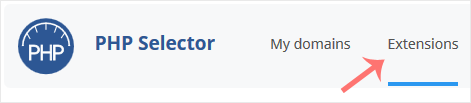
2. Open the Extensions tab
Click the Extensions menu. This lists every PHP extension available for the version currently selected on the account, with a tick box beside each one.
Note: if the Extensions page shows an error mentioning the native PHP version, the account is set to native, which is the server's own system PHP rather than a CloudLinux build. The Selector cannot manage extensions on that build. Change Current PHP version to a numbered version first, then come back to the Extensions tab.
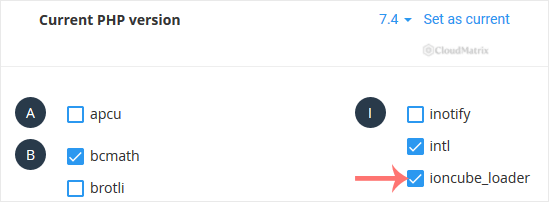
3. Tick ioncube_loader
Find ioncube_loader in the list and tick its box. The setting saves as soon as you tick it, so there is no separate Save button to hunt for.
4. Check the confirmation
A success message appears confirming that the ionCube Loader module has been saved. If you do not see it, the change did not apply, so reload the page and check whether the tick box is still ticked.

Confirm the Loader Is Actually Running
A ticked box means the setting was accepted, not that your application can see the Loader. Confirm it properly before you go back to the software that needed it.
- Create a temporary file in your site's document root containing
<?php phpinfo();, load it in a browser, and look near the top for a line reading with the ionCube PHP Loader in the Zend Engine block, or for an ionCube Loader section further down. Delete the file as soon as you are done, because it exposes a lot of detail about your server. - Alternatively, many encoded applications have an installer or system health page that reports Loader status directly. If it now reports ionCube as present, you are finished.
What to Know Before You Rely on It
These are the points that generate follow-up tickets, and none of them are visible from the tick box itself.
- Extension settings are per PHP version. Ticking
ioncube_loaderon PHP 8.2 does nothing for PHP 8.3. If you later change the account's PHP version, the extension list resets to that version's own defaults and you will need to tick ionCube again. This catches people out weeks after the fact, when a routine PHP upgrade suddenly breaks an encoded application. - The setting is account-wide. The CloudLinux Selector applies one configuration to the whole cPanel account, so every domain, subdomain, and add-on domain in that account gets the Loader. You cannot enable it for one site and not another within the same account.
- The newest PHP branch is not always covered. ionCube publishes Loader builds per PHP branch, and support for a brand-new branch arrives after that branch is released, not on the same day. If
ioncube_loaderis not in the Extensions list at all, the version you have selected has no Loader build available on the server. Drop the account back to the previous PHP branch and check again. - Encoder version beats Loader version. A file encoded with a newer ionCube Encoder needs a Loader that is at least as new. If your vendor has just re-encoded their product, ticking the box will not help, because the Loader package installed on the server is what has to be updated. That is a server-side job, so raise it with Noiz support and quote the exact version the error asks for.
- Command line PHP is configured separately. Cron jobs and command line scripts do not necessarily run under the same PHP configuration as your website. A cron task that calls an encoded script can still fail with an ionCube error after the web side is working. Note the failing command and raise it with Noiz support rather than re-ticking the box.
- Do not stack competing loaders. ionCube, Zend Guard Loader, and SourceGuardian all hook PHP in the same way and can conflict when enabled together. Enable only the one your application actually needs.
Troubleshooting
- Symptom: the Extensions tab shows an error about the native PHP version. The account is on native. Set a numbered PHP version under Current PHP version, then return to the Extensions tab.
- Symptom:
ioncube_loaderis not in the list. There is no Loader build for the PHP version currently selected. Try the previous PHP branch, and if the application requires both a specific PHP version and ionCube, contact Noiz support with both requirements. - Symptom: the site reports "the file was encoded by the ionCube Encoder ... and requires a newer Loader". The installed Loader is older than the Encoder your vendor used. This cannot be fixed from cPanel. Open a ticket with Noiz support and include the full error, which names the version needed.
- Symptom:
phpinfo()still does not list ionCube. Confirm you are looking at the same PHP version you edited, reload with a hard refresh, and clear any full page or object cache in the application. If the page is served through a caching layer, that layer may still be serving the pre-change output. - Symptom: the application worked yesterday and now reports a missing Loader. Check whether the account's PHP version changed. A version switch resets the extension list, so re-tick
ioncube_loaderon the version now in use. - Symptom: Select PHP Version is missing from the Software section. Some hosting configurations manage PHP centrally and hide the Selector. Contact Noiz support and state which extension you need enabled and on which domain.
Related Guides
- How to Enable or Disable PHP Extensions Using the CloudLinux Selector in cPanel: the general method, for any extension in the list.
- How to Change the PHP Version via CloudLinux Selector in cPanel: how to switch branches, and what resets when you do.
If an encoded application still refuses to run after the Loader is enabled, open a ticket with Noiz support. Include your domain name, the PHP version the account is set to, and the exact error text the application prints, since it usually names the Loader version required. On managed plans, Noiz will check the server side Loader package and get the application running for you.






