Every mailbox on a DirectAdmin hosting account has its own disk quota, which is separate from the disk space of the hosting account as a whole. When a mailbox reaches that quota it stops accepting new mail, and senders start getting bounce messages. This guide shows you how to change the disk quota on an individual email account in DirectAdmin, and explains what the quota actually controls so you can choose a sensible figure rather than guessing.
Last reviewed: 27 July 2026, against the current DirectAdmin release and its Evolution interface. This guide is written for Noiz hosting and is kept current against DirectAdmin. It complements, and does not replace, the official DirectAdmin documentation linked below.
Official Documentation Reference
- DirectAdmin Docs: E-mail covers how DirectAdmin stores and serves mail behind the panel.
- DirectAdmin Docs: E-mail Troubleshooting is the reference for diagnosing delivery failures, including over-quota rejections.
Prerequisites
- Your DirectAdmin username and password for the hosting account that holds the domain.
- At least one mailbox already created on the domain. If you have not created one yet, see How to Create an Email Account in DirectAdmin.
- Enough unused disk space on the hosting plan to cover the larger quota you intend to set.
What the Mailbox Quota Actually Controls
The quota is a storage ceiling on the messages held on the server for that one mailbox. It is worth understanding what happens at the ceiling before you change the number:
- Incoming mail bounces. Once the mailbox is full, the mail server rejects new deliveries and the sender receives a bounce message along the lines of "mailbox is full" or "quota exceeded". The message is not held and delivered later, and it is not silently discarded either. It goes back to whoever sent it, which is why a full mailbox is usually reported to you by a frustrated customer rather than noticed by the mailbox owner.
- Sending often still works. Because outbound mail does not need space in the inbox, the account holder can frequently still send email while quietly receiving nothing. That is what makes a full mailbox so easy to miss.
- Everything stored counts, not just the inbox. If the mailbox is connected over IMAP, the Sent, Drafts, Junk and Trash folders all live on the server and all consume the quota. Emptying Trash and Junk is usually the fastest way to recover space without buying more.
- The quota lives inside the plan. A mailbox quota carves space out of the hosting account's total disk allowance. Raising one mailbox to a very large figure, or to unlimited, does not create extra space. It simply lets that mailbox consume the whole plan and starve the website and the other mailboxes.
- Storage and sending are two different limits. The disk quota governs how much mail can be stored. The number of messages an account may send per day is a separate setting. If your problem is outbound rather than inbound, see How to Change the Email Sending Limit in DirectAdmin.
Changing the Quota in DirectAdmin
-
Log in to your DirectAdmin account.
-
In the E-mail Manager section, click E-mail Accounts. If you cannot see the section, type
E-mail Accountsinto the navigation filter box at the top of the menu and click the result when it appears.
-
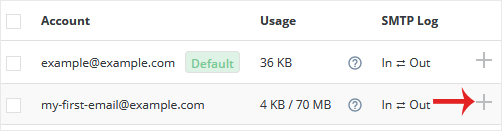
The Account list shows every mailbox on the domain, along with how much space each one is currently using against its quota. Find the address you want to change. A plus icon sits at the right-hand side of its row.
-
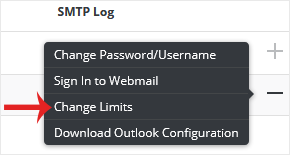
Click the plus icon and choose Change Limits from the menu that opens.
-
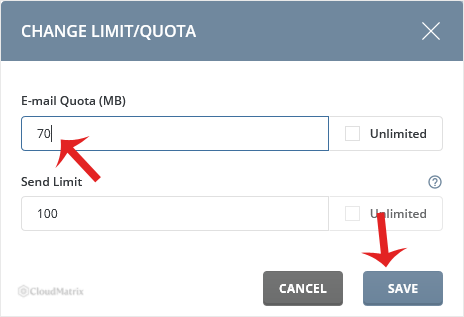
Set the E-mail Quota field to the size you want, in megabytes. If your hosting plan allows it, an Unlimited option is offered here as well. Read the note below before choosing it.
-
Click Save.
The new limit applies immediately. There is no mail server restart and no waiting period, so a mailbox that was rejecting mail because it was full will start accepting deliveries again as soon as the larger quota is saved. Senders whose earlier messages already bounced will need to send those again, because a bounced message is gone rather than queued.
Choosing a Sensible Quota
- Do not simply set everything to unlimited. An unlimited mailbox will happily grow until it consumes the entire hosting plan, at which point the website can no longer write files, logs stop rotating and backups start failing. A generous fixed number gives you a warning shot instead of an outage. Reserve unlimited for accounts you actively monitor.
- Lowering a quota does not delete mail. If you set a quota below what the mailbox is already storing, nothing is erased, but the mailbox is instantly over its limit and stops accepting new mail until enough is removed. Clear the mailbox down first, then lower the number.
- Watch the POP3 trap. A mail client set up as POP3 with "leave a copy of messages on the server" enabled will download mail and still leave it on the server forever. The user sees a tidy inbox on their laptop while the server-side mailbox quietly fills. If a mailbox keeps hitting its quota for no obvious reason, this is the usual cause.
- Large attachments are the real consumer. Sorting the mailbox by size and clearing a handful of old attachment-heavy threads usually frees more space than deleting hundreds of ordinary messages.
Troubleshooting
Symptom: the quota is saved but the mailbox still rejects mail. Confirm the mailbox is genuinely under its new limit by checking the usage figure in the Account list. If usage is still at or above the quota, the mailbox needs space cleared. Also check that the hosting account as a whole is not out of disk space, because a full account blocks delivery regardless of the individual mailbox quota.
Symptom: the Unlimited option is not offered. The hosting plan does not permit unlimited mailbox quotas. Set the largest fixed figure the plan will accept, or contact Noiz about a plan with more disk space.
Symptom: the quota will not save, or the panel rejects the value. The figure requested exceeds the disk space remaining on the hosting account, or exceeds a limit set on the package. Free space elsewhere on the account or lower the requested figure.
Symptom: mail disappeared after the quota was raised. Raising a quota never removes mail. Check the mail client instead, particularly whether it is configured as POP3 without leaving copies on the server, which moves mail off the server to a single device.
Need a Hand?
If a mailbox keeps filling faster than you can raise the quota, or you are not sure whether the hosting plan has room for the size you need, open a support ticket from the Noiz client area with the domain and the mailbox address. The Noiz support team can check the account's real disk usage and advise on the right quota rather than leaving you to guess.






