Changing the password on a mailbox is one of those jobs that is easy in the panel and then catches people out everywhere else. This guide shows you how to set a new password for an email account on your Noiz hosting account in DirectAdmin, and, just as importantly, what else has to be updated the moment you do it so that your mail does not stop working on your phone and desktop.
Do this whenever a password has been shared, guessed, or found in a breach, when someone leaves the organisation, or when a mailbox starts sending spam. Changing the mailbox password is the single fastest way to cut off an attacker who has been logging in and sending mail as you.
Last reviewed: 27 July 2026, against the current DirectAdmin release and its Evolution interface. This guide is written for Noiz hosting and is kept current against DirectAdmin. It complements, and does not replace, the official DirectAdmin documentation linked below.
Official Documentation Reference
- DirectAdmin: E-mail
- DirectAdmin: system email accounts
- DirectAdmin: autodiscover information for mail clients
- DirectAdmin: webmail
Prerequisites
- An active Noiz hosting account with DirectAdmin access, and your DirectAdmin username and password.
- The mailbox you want to change already created on the account. If it does not exist yet, see How to Create an Email Account in DirectAdmin.
- Access to every device and mail client that currently collects mail from that address, because each one needs the new password before it will connect again.
- Somewhere safe to store the new password, ideally a password manager rather than a note or a spreadsheet.
Change the Mailbox Password
1. Log in to DirectAdmin
Sign in to your DirectAdmin account with the username and password on your Noiz welcome email.
2. Open E-mail Accounts
In the E-mail Manager section, click E-mail Accounts. If the section is collapsed or you cannot see the entry, type E-mail Accounts into the navigation filter box at the top of the menu and the option will appear. Click it.

If your account holds more than one domain, check the domain selector at the top of the page before you go any further. The list only shows mailboxes on the domain currently selected, and it is easy to change the password on the right username at the wrong domain.
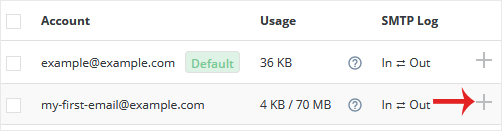
3. Find the mailbox in the account list
The Account list shows every mailbox on the selected domain. At the right-hand end of each row is a small control that opens the actions for that mailbox, shown here as a plus icon.
4. Choose Change Password/Username
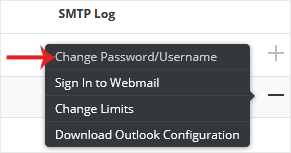
Click the icon and choose Change Password/Username from the menu that opens.
The same screen handles both jobs. Change only the password field and leave the username alone unless you genuinely want to rename the address, which has consequences of its own. See How to Rename an Email Address in DirectAdmin if that is what you are actually after.
5. Enter the new password
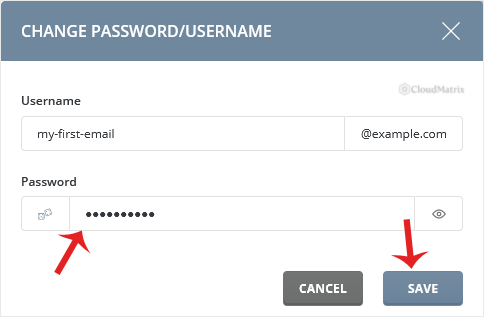
In the Password field, type the new password, or click the Generate Random Password icon to have DirectAdmin create a strong one for you. The strength indicator next to the field tells you whether what you have typed will be accepted.
6. Save
Click Save. If you used the generator, the password is shown to you in a pop-up box. Copy it somewhere safe before you close that box, because DirectAdmin will not show it to you again. Nobody, including Noiz support, can read an existing mailbox password back out of the server; it can only be set to something new.
The change takes effect immediately. There is no propagation delay and no need to restart anything.
Update the Password Everywhere the Mailbox Is Used
This is the step that generates most of the support tickets. The server now expects the new password, and every client that still holds the old one will keep trying it. Work through all of them straight away:
- Phones and tablets. Mail apps on iOS and Android hold the password in the account settings and retry silently in the background. Update the password in the account entry rather than deleting and re-adding the account, which risks removing locally stored mail.
- Desktop mail clients. Outlook, Thunderbird, Apple Mail and the rest each store the password separately, and several store it twice, once for incoming mail and once for outgoing. If mail arrives but will not send after a password change, the outgoing entry is the one still holding the old password.
- Webmail. Nothing to update, but you will be asked to log in again with the new password.
- Websites and applications that send mail through the mailbox. Contact forms, WordPress SMTP plugins, shop order confirmations, invoicing systems and monitoring scripts all authenticate as a mailbox. Any of these configured with the old password will stop sending, usually silently.
- Other people. If a shared mailbox is collected by more than one person, everyone needs the new password at the same time, otherwise the ones who have not been told will lock themselves out.
Repeated failed logins from a device still holding the old password can get that device's IP address blocked by the server's brute force protection. If a phone or laptop stops connecting entirely a few minutes after a password change, that is usually what has happened. Correct the password first, then contact Noiz support if the connection is still refused.
Choosing a Password That Holds Up
Mailbox credentials are attacked constantly and automatically, because a working mailbox login is worth money to a spammer. Treat it as seriously as a banking password.
- Use the Generate Random Password option unless you have a good reason not to. It produces something no dictionary attack will reach.
- If you type your own, make it long. Length beats complexity: a four-word passphrase is stronger and easier to type on a phone than eight characters of punctuation.
- Never reuse a password from another service. Credential stuffing, where breached passwords are replayed against mail servers, is one of the most common ways mailboxes are compromised.
- Do not build the password from the address, the domain or the business name. Those are the first things tried.
- Store it in a password manager. A mailbox password that has to be memorable enough to remember is usually weak enough to guess.
Things Worth Knowing
- The mailbox password and your DirectAdmin login are different things. Changing a mailbox password here does not change your DirectAdmin account password, and changing your DirectAdmin password does not change the passwords on mailboxes you have created.
- The mailbox that matches your DirectAdmin username is a special case. DirectAdmin always keeps a system email account named after your DirectAdmin username, and it cannot be deleted because system messages such as cron output are delivered to it. Its mail login is the bare username with your DirectAdmin account password, so it is not changed from this screen.
- Changing the password does not sign out an existing session. An attacker with a mail session already open may stay connected until that session drops. If you are changing the password because a mailbox has been compromised, check the account afterwards for forwarders, filters and autoresponders that were not put there by you. Attackers routinely add a hidden forwarder so they keep receiving mail after being locked out.
- Sent mail, folders and settings are untouched. A password change does not affect stored mail, folder structure, forwarders, autoresponders or quota. Only the credential changes.
- Aliases and forwarders have no password of their own. If an address forwards elsewhere rather than storing mail, there is nothing to change; the password belongs to the destination mailbox.
- Whoever knew the old password can still see the mail already delivered if they had it downloaded to their own device. Changing the password stops future access, it does not recall what has already been collected.
Troubleshooting
- Symptom: DirectAdmin rejects the new password. It has not met the minimum strength the server requires. Make it longer, mix in numbers and symbols, or use Generate Random Password.
- Symptom: mail arrives but will not send. The outgoing server settings in the mail client still hold the old password. Update the outgoing entry as well as the incoming one; they are stored separately in most clients.
- Symptom: a client keeps prompting for the password and refuses the new one. Check for the password saved in the operating system's keychain or credential store, which can be handed back to the client automatically and override what you typed. Remove the stored entry, then enter the new password once.
- Symptom: the device connected fine, then stopped connecting a few minutes after the change. Repeated failed logins have most likely triggered a temporary IP block. Fix the password on every client on that connection first, then contact Noiz support if it does not clear.
- Symptom: you closed the pop-up before copying the generated password. It cannot be retrieved. Repeat the procedure and set the password again.
- Symptom: the mailbox is not in the list. You are looking at the wrong domain. Change the domain selector at the top of the page.
- Symptom: the mailbox still sends spam after the password change. The credential was probably not the only route in. Check for unfamiliar forwarders and filters on the account, change the password on any website or script that sends through the mailbox, and open a ticket with Noiz support so the mail logs can be examined.
Related Guides
Need a Hand?
If a mailbox will not accept the new password, a device has been blocked after repeated failed logins, or you suspect the account has been compromised and want the mail logs checked, open a ticket with Noiz support. Include the email address concerned and the device or client that is failing, and the support team will take it from there.






