Database privileges control what a MySQL or MariaDB user is actually allowed to do inside a database: read rows, write rows, create tables, drop them. This guide shows you how to change the privileges held by an existing database user on your Noiz DirectAdmin hosting account, and how to decide which privileges that user genuinely needs.
You would typically do this when an application installer fails part way through, when a plugin or theme update cannot create its tables, or when you want to tighten a user down to read-only access for a reporting tool or an external integration.
Last reviewed: 27 July 2026, against the current DirectAdmin release. This guide is written for Noiz hosting and is kept current against DirectAdmin. It complements, and does not replace, the official DirectAdmin documentation linked below.
Official Documentation Reference
- DirectAdmin Docs: MariaDB and MySQL
- MySQL Reference Manual: Privileges Provided by MySQL
- MariaDB Knowledge Base: GRANT and privilege levels
Prerequisites
- Your DirectAdmin login details for your Noiz hosting account.
- An existing database and at least one database user attached to it. If you still need to create one, see How to Create a New Database User in DirectAdmin.
- A rough idea of what the application connecting with this user has to do. The next section covers that.
Grant Only What the Application Needs
The principle to work to is least privilege: a database user should hold the smallest set of privileges that still lets its application function. If that user's credentials ever leak, through a compromised plugin, a stale backup file, or a config file left in a public folder, the damage is capped by what the user was allowed to do. A user with SELECT only cannot be used to wipe your tables.
Privileges in DirectAdmin are set per user, per database. Changing them for one user does not affect any other user attached to the same database, and does not affect that same user's access to a different database.
As a practical starting point:
- A CMS running normally (WordPress, Joomla, Drupal and similar) needs
SELECT,INSERT,UPDATEandDELETEfor day to day page loads, logins and comments. - A CMS being installed, updated, or having plugins and themes added also needs
CREATE,ALTER,DROP,INDEXand oftenCREATE TEMPORARY TABLES, because those operations add and reshape tables. - A reporting tool, dashboard, or read-only integration needs
SELECTand nothing else. - A migration or import job usually needs the full structural set for the duration of the job, after which you can tighten it back down.
The most common self-inflicted problem here is stripping a live site's user back to read and write only, then wondering months later why an update fails silently or a plugin refuses to activate. If the site is under active maintenance, leaving the structural privileges in place is the pragmatic choice; if the credentials are handed to a third party or an external service, tighten them.
Modify a Database User's Privileges
1. Log in to your DirectAdmin account.
2. In the Account Manager section, click MySQL Management. You can also type MySQL Management into the navigation filter box and click the result when it appears.

3. From the list of databases, click the database whose privileges you want to change. Database names are prefixed with your account username, in the form youruser_dbname.
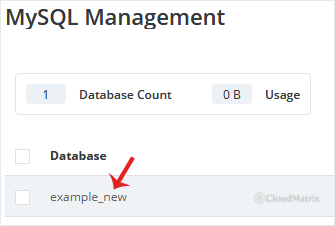
4. Under the Users list you will see every database user attached to that database. Find the user you want to change and click Modify Privileges.
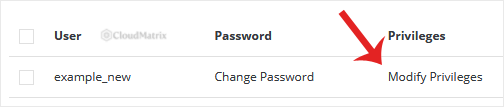
5. Tick or untick privileges to suit the application, then click Change.
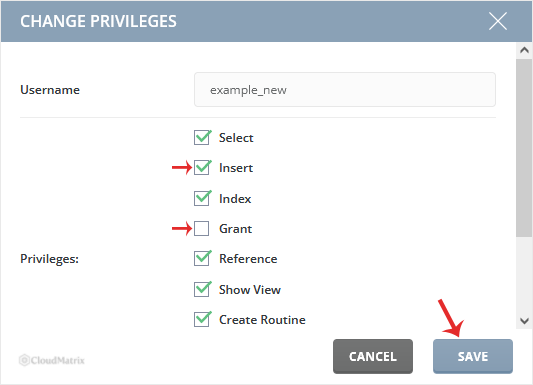
DirectAdmin applies the change immediately, so there is nothing to restart. The new privileges take effect on the application's next database connection. A site using persistent connections may hold an existing connection open for a short time, so if you are testing a tightened user, load the site in a fresh browser session or wait a moment before drawing conclusions.
Note that this screen governs privileges on the selected database only. Server-wide privileges such as SUPER, FILE and PROCESS are not available on shared hosting, by design, and are not needed by normal web applications.
After You Change Privileges
- Load the affected site or application and exercise the parts that write data, not just the home page. A privilege problem often shows up only on a form submission or an admin action.
- If you tightened a user in preparation for handing credentials to a third party, confirm the credentials in the application's configuration file still point at the user you edited. Editing privileges does not change the password or the username.
- Take a database backup before large privilege changes on a production site, so you have a rollback point if an application misbehaves.
Troubleshooting
Symptom: the application returns an error such as CREATE command denied to user 'youruser_dbuser'@'localhost' for table 'wp_options'. The error names the exact privilege that is missing. Return to Modify Privileges, tick that privilege, and click Change.
Symptom: a plugin, theme, or core update fails, stalls, or rolls itself back. This is nearly always missing CREATE, ALTER, DROP or INDEX. Restore the structural privileges, run the update, and tighten again afterwards if you want to.
Symptom: the user you want to edit is not listed under the database. That user is not linked to this database. Create or attach a user for it using How to Create a New Database User in DirectAdmin.
Symptom: the change appears to have made no difference at all. Check the application's configuration file to confirm which database user it actually connects as. Sites migrated between hosts frequently still reference a legacy username. If the credentials are wrong rather than the privileges, see How to Change a Database Password in DirectAdmin.
Symptom: you locked a user down and now the site shows a database connection or permission error you cannot pin down. Restore the full set of privileges for that user to get the site working again, then remove them one group at a time, testing after each change.
Need a Hand?
If you are unsure which privileges an application requires, or a site has stopped working after a privilege change, open a ticket from the Noiz client area with the database name, the database username, and the exact error text. The Noiz support team can review the grants on your account and put the user back into a working state.






