Changing a database user's password is one of the fastest ways to lock an attacker out of a compromised site, and it is also the change most likely to take a working site offline by accident. This guide shows you how to reset a MySQL/MariaDB user password from MySQL Management in DirectAdmin on Noiz hosting, and, just as importantly, what you must update immediately afterwards so your website keeps connecting.
The password you are changing belongs to a database user, not to the database itself. Databases have no password of their own. A user account holds the credentials, and the database grants that user access.
Last reviewed: 27 July 2026, against the current DirectAdmin release. This guide is written for Noiz hosting and is kept current against DirectAdmin. It complements, and does not replace, the official DirectAdmin documentation linked below.
Official Documentation Reference
- DirectAdmin Docs: MariaDB and MySQL
- DirectAdmin Docs: phpMyAdmin
- DirectAdmin Docs: MariaDB/MySQL Troubleshooting
Prerequisites
- Your DirectAdmin login details for your Noiz hosting account.
- An existing database and database user. If you have not created one yet, start with How to Create a Database in DirectAdmin.
- File Manager or FTP access, so you can edit your application's configuration file straight after the change.
- A password manager or another safe place to store the new password before you leave the page.
Before You Change Anything: Read This
The new password takes effect the moment you save. There is no grace period and no fallback to the old password. Any live website, cron job, or script still using the old credentials will start failing immediately, typically with Error establishing a database connection or Access denied for user.
Two habits make this painless:
- Open your configuration file first. Have the file ready to edit in another browser tab before you save the new password, so the gap between the two changes is seconds rather than minutes.
- Remember the change is per user, not per database. If the same database user has access to several databases, every one of those connections now needs the new password. Check each application that uses that user, not just the site you had in mind.
Change the Database Password in DirectAdmin
-
Log in to your DirectAdmin account.
-
In the Account Manager section, click MySQL Management. If you cannot see it, type
MySQL Managementinto the navigation filter box at the top of the sidebar and the option will appear. Click it.
-
From the list of databases, click the one you want to work with. Database names on DirectAdmin are prefixed with your account username, so they look like
youruser_wordpressrather than justwordpress.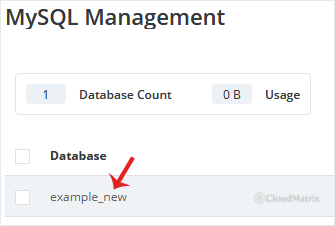
-
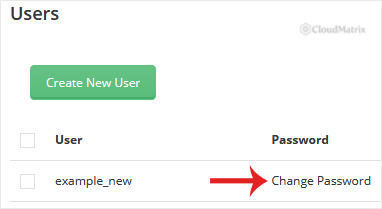
Under the Users list you will find the database users attached to that database. Click Change Password next to the user whose password you want to reset.
-
Enter your new password, or click the generate password icon to have DirectAdmin create a strong random one for you. Confirm with Save.
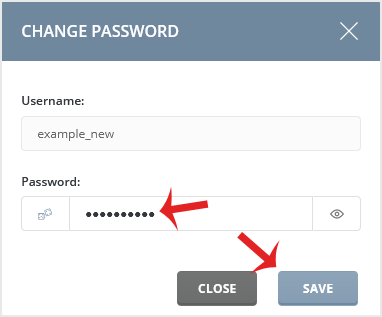
Copy the new password somewhere safe before you close the dialog. DirectAdmin will not show it to you again, and there is no way to read an existing MySQL password back out of the server. If you lose it, your only option is to set another new one and update your configuration again.
Update Your Application Configuration Immediately
This is the step people skip, and it is the reason a routine password change turns into an outage. Your website stores the old database password in a plain configuration file on the server. Until you edit that file, your site is broken.
Open File Manager in DirectAdmin (or connect over FTP/SFTP), find the file for your application, and replace the old password value with the new one:
- WordPress:
wp-config.phpin the site root. Update theDB_PASSWORDline. - Joomla:
configuration.phpin the site root. Updatepublic $password. - Drupal:
sites/default/settings.php. Update thepasswordkey inside the$databasesarray. - Laravel and most modern PHP frameworks: the
.envfile. UpdateDB_PASSWORD. - Magento 2:
app/etc/env.php. Update thepasswordvalue in thedbsection. - Custom or in-house scripts: check for an includes, config, or connection file. Search your site files for the old password string if you are not sure where it lives.
Save the file, then load your website in a fresh browser tab to confirm it connects.
Two Gotchas Worth Knowing
- Special characters can break config files. A generated password containing a backslash, a single quote, a dollar sign, or a hash can be mangled depending on how your configuration file quotes strings. In a PHP double-quoted string a
$is interpreted as a variable. In a.envfile a#can start a comment and spaces can truncate the value, so wrap the value in double quotes. If you hit an unexplained authentication failure straight after editing, this is usually the cause. Regenerating a password that avoids awkward characters is a legitimate fix. - Caching plugins and object caches can mask the result. A heavily cached site may keep serving pages for a while after the credentials break, so a page loading correctly is not proof that the new password works. Load the admin area or a logged-in page to test a real database connection.
Troubleshooting
Symptom: The site shows Error establishing a database connection after the change. The configuration file still holds the old password, or the edit was not saved. Re-open the file, confirm the new password is present and correctly quoted, and save again.
Symptom: Access denied for user 'youruser_dbuser'@'localhost'. The username or the host is wrong as well as the password. Confirm the exact username in MySQL Management, remembering the account prefix, and confirm the host in your configuration is localhost for a site hosted on the same server.
Symptom: One site works but another has broken. That second site shares the same database user. Update its configuration file with the new password too.
Symptom: phpMyAdmin will not let you in with the new password. Log out fully and clear the phpMyAdmin session cookie, or use a private browsing window. An old session can hold stale credentials.
Symptom: The user can connect but cannot read or write data. That is a privileges problem, not a password problem. The password change does not alter grants, so review the user's permissions in MySQL Management.
Related Guides
Need a Hand?
If your site is down after a password change and you would rather not go hunting through configuration files, open a support ticket from your Noiz client area. The Noiz support team can identify which files hold the credentials, apply the new password, and confirm the site is connecting again.






