WHM lets you decide exactly which tools appear inside your customers' cPanel accounts. If you would rather not expose the PHP version selector, SSL/TLS tools, cron jobs or any other feature to a particular set of accounts, you control that from Feature Manager by ticking or unticking features on a feature list.
This guide covers editing an existing feature list to enable or disable individual features. It is written for resellers and server administrators who manage cPanel accounts through WHM.
Last reviewed: 27 July 2026, against the current stable cPanel & WHM release. This guide is written for Noiz hosting and is kept current against cPanel & WHM. It complements, and does not replace, the official cPanel documentation linked below.
Official Documentation Reference
- cPanel documentation: WHM Feature Manager (full reference for every feature that can be toggled)
- cPanel documentation: Edit a Package (how a feature list is attached to a hosting package)
- cPanel documentation: Add a Package
Prerequisites
- WHM access with reseller or root privileges.
- At least one feature list to edit. WHM always ships with the default list; to build your own first, see How to Create a Feature List in WHM.
- An understanding of which hosting package the affected accounts use, because that is what links an account to a feature list.
How Feature Lists Actually Apply
Editing a feature list does not target a single customer. The chain works like this:
- A cPanel account is created from a package.
- Each package names one feature list.
- The feature list decides which icons and tools that account can see.
So a tick or an untick propagates instantly to every account whose package points at that list. Two consequences are worth knowing before you save anything:
- The default list is shared. Any account whose package has no specific list assigned falls back to default. Editing default therefore changes those accounts too, which is rarely what you want when you are trying to restrict one customer tier. Create a separate list for that tier instead.
- The disabled list wins over everything. WHM reserves a list named disabled. Anything ticked there is switched off server-wide, no matter what the account's own feature list says. If a feature stubbornly refuses to appear after you enable it, check disabled first.
A reseller can only hand out features that their own reseller account holds. If a feature is missing from the Feature Manager screen entirely, it is either not installed on the server or not part of your own privileges, and the server administrator needs to enable it upstream.
Enable or Disable Features in Feature Manager
1. Log in to WHM
Sign in to WHM with your reseller or root credentials.
2. Open Feature Manager
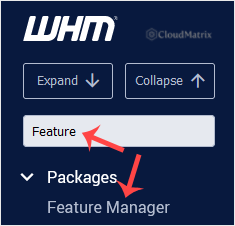
Go to Packages >> Feature Manager, or type Feature Manager into the menu filter box at the top left and click the result that appears.
3. Choose the feature list to edit
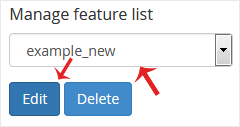
Under Feature Manager List, select the list you want to change from the drop-down menu, then click Edit.
Confirm you have picked the right list before continuing. If you are unsure which list a customer is on, check the package assigned to their account under Packages >> Edit a Package, which names the feature list it uses.
4. Tick or untick features, then save
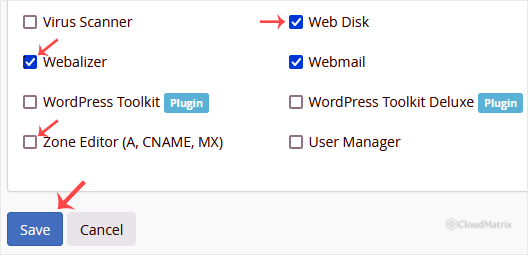
Tick the checkbox next to any feature you want to enable, and clear the checkbox next to any feature you want to disable. The list is long, so use the search box on the page to jump straight to a feature by name. When you are happy with the selection, click Save.
5. Verify the result from the customer's side
Changes take effect immediately, with no need to recreate accounts or repackage anything. To confirm, go to Account Information >> List Accounts, click the cPanel icon beside an affected account to log in as that user, and check that the feature has appeared or disappeared. A customer with cPanel already open in a browser tab may need to refresh or sign out and back in before the change shows.
What Disabling a Feature Does and Does Not Do
- It hides the interface, it does not delete data. Disabling cron jobs, for example, removes the icon from cPanel but leaves existing cron jobs scheduled and running. The same applies to email accounts, databases and redirects. If the intent is to remove something, remove it explicitly before hiding the tool that manages it.
- It is a scoping tool, not a security boundary. cPanel refuses most API calls for features that are switched off, but a feature list is meant to shape what a hosting tier offers, not to contain a hostile account. Use quotas, permissions and account-level limits for anything security critical.
- It applies to every account on that list. There is no per-account override inside Feature Manager. If one customer needs something different, put them on a package that uses a different feature list.
Troubleshooting
- Symptom: a feature is still missing after you ticked it. Check that it is not ticked in the disabled list, which overrides all other lists, and confirm the account's package really points at the list you edited.
- Symptom: the change did not reach the customer. Confirm which list their package uses under Edit a Package. Editing the wrong list is by far the most common cause.
- Symptom: the feature you want is not listed at all in Feature Manager. The related service or plugin is not installed on the server, or your reseller account does not hold that feature. Ask the server administrator to enable it.
- Symptom: the customer still sees the old cPanel layout. Ask them to refresh the page or sign out and back in, since cPanel caches the interface for the length of a session.
Related Articles
If you are unsure which feature list a hosting package should use, or you need a feature enabled that does not appear in WHM at all, open a ticket from the Noiz client area and the Noiz support team will take a look with you.






