This guide shows you how to create a feature list in WHM on your Noiz reseller or server account. A feature list is a saved set of tick boxes that decides which tools appear inside a cPanel account. Create one when you want a plan that exposes only certain features, for example a budget package with no cron jobs and no SSH access, or a developer package with everything switched on.
Two terms are easy to confuse. A package (also called a hosting plan) sets the numbers: disk space, bandwidth, how many databases and email accounts an account may have. A feature list sets the tools: whether the account holder can see and use Cron Jobs, Backups, Terminal, Softaculous, and so on. Every package points at exactly one feature list, so the two work together rather than replacing each other.
Last reviewed: 27 July 2026, against current stable cPanel & WHM, where this interface is WHM » Packages » Feature Manager. This guide is written for Noiz hosting and is kept current against cPanel & WHM. It complements, and does not replace, the official cPanel documentation linked below.
Official Documentation Reference
Prerequisites
- A WHM login for your Noiz reseller or server account. Your Noiz welcome email contains the details, and you can also reach WHM from the Services area of the Noiz client area.
- The Feature Manager privilege on your account. Resellers only see this interface if the privilege has been granted; if it is missing from your menu, open a ticket with Noiz support.
- A clear idea of which features the plan should expose. It is worth listing them before you start, because the selection screen is long.
Create the Feature List
1. Log in to WHM
Sign in to WHM with your reseller or server credentials.
2. Open Feature Manager
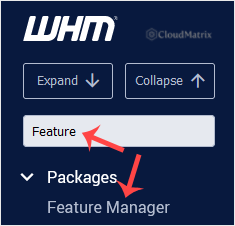
Go to Packages » Feature Manager. If you prefer, type Feature Manager into the menu filter box at the top left of WHM and click the result when it appears.
3. Name and add the list
In the Add a new feature list field, type a name for the list, then click Add Feature List.
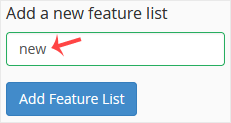
Choose a name that still makes sense to you in a year, because you will pick it from a drop-down list when you build packages. Something descriptive such as starter-plan or developer-plan beats list2. Keep it to plain letters, numbers, hyphens and underscores, and avoid spaces and punctuation, which can cause problems when the name is passed around the system.
4. Choose the features and save
WHM now shows the full list of available features with a tick box beside each one. Tick the features you want the plan to include, or tick Select all features to enable everything at once and then untick the few you want to withhold. When the selection is right, click Save.
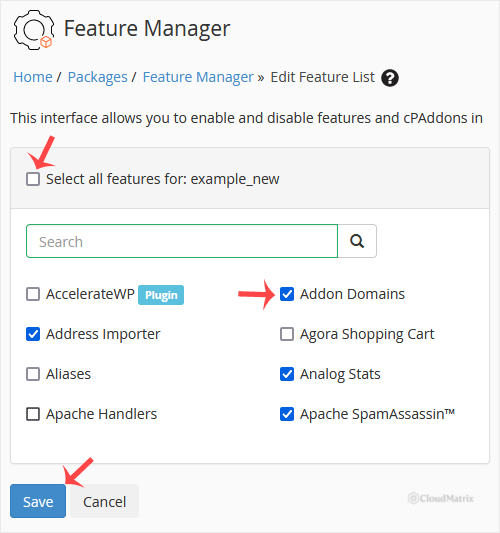
The list is long, so use your browser's find function (Ctrl+F, or Cmd+F on a Mac) to jump to a specific feature name rather than scrolling. Go through the whole list before saving; anything left unticked will simply not appear in the cPanel accounts that use this list, and the account holder will not be told why.
Your feature list is now created and ready to use.
Put the Feature List to Work
Creating a list changes nothing on its own. It only takes effect once a package points at it, or once you apply it to an individual account.
- For a new plan: go to Packages » Add a Package, set the quotas, and choose your new list from the Feature List drop-down before saving.
- For an existing plan: go to Packages » Edit a Package, select the package, change its Feature List, and save.
- For one account only: see How to Enable/Disable Features of cPanel Account From WHM.
Things Worth Knowing Before You Save
- Editing a list affects every account using it. Feature lists are applied live, not copied at account creation. If you untick a feature later, it disappears from every cPanel account whose package uses that list, straight away. Create a separate list for a trial rather than editing a live one.
- The default list is the fallback. Any package that has no list of its own uses default, so changes there ripple across a lot of accounts. Leave it alone and build your own list instead.
- The disabled list overrides everything. This special list marks features that are unavailable server-wide. If a feature is switched off there, ticking it in your new list will not bring it back. It is not meant to be assigned to an account or a package. On a Noiz managed server, some features may be off at this level for security or platform reasons; contact Noiz support if you need one of them.
- Turning off a feature hides the tool, it does not delete data. Removing Cron Jobs from a list hides the icon in cPanel; jobs already scheduled are not wiped. Bear that in mind when you use feature lists as a security control rather than a tidiness one.
- Deleting a list is not destructive. If you remove a feature list later, any packages and accounts that used it fall back to the default list. See How to Remove a Feature List from WHM.
Troubleshooting
- Symptom: Feature Manager is not in the Packages menu. Your reseller account does not have the Feature Manager privilege. Open a ticket with Noiz support and ask for it to be enabled.
- Symptom: a feature you ticked still does not appear in cPanel. Check three things in order. First, confirm the account's package actually points at your new list. Second, check whether the feature is switched off in the disabled list, which overrides all others. Third, confirm the underlying software is installed on the server, since a feature list can only expose tools that exist.
- Symptom: the new list does not show in the Feature List drop-down when adding a package. Reload the Add a Package page. WHM caches the form, so a list created moments earlier sometimes needs a refresh to appear.
- Symptom: the list saved but every feature is still on. It is easy to click Add Feature List and then leave the page without clicking Save on the selection screen. Reopen the list from Feature Manager, set your selection, and save it properly.
Need a Hand?
If you are unsure which features to expose on a plan, or a feature refuses to appear no matter how the list is set, Noiz support can check the server-level settings for you. Open a ticket from the Noiz client area and include the feature list name and the affected account.






