A hosting package in WHM is a reusable template of resource limits and features that you apply to cPanel accounts when you create them. Deleting a package removes that template from your reseller or server account list so it can no longer be selected for new accounts. This guide shows you where the option lives in WHM, what happens to accounts that were created from the package, and the one condition that stops a deletion from going through.
Packages are sometimes called plans or hosting plans. In WHM they are always "packages", and a reseller package name is stored with your username as a prefix, for example reseller_starter.
Last reviewed: 27 July 2026, against cPanel & WHM (current stable release). This guide is written for Noiz hosting and is kept current against cPanel & WHM. It complements, and does not replace, the official cPanel documentation linked below.
Official Documentation Reference
- WHM: Delete a Package: the vendor reference for this interface.
- WHM: Edit a Package: change a package instead of deleting it.
- WHM: Upgrade/Downgrade an Account: how to move an account onto a different package.
- WHM: Packages: the full packages section, including feature lists.
Prerequisites
- A WHM login for your Noiz reseller account, or root access if you administer the whole server.
- At least one package that you own. Resellers can only delete their own packages; a package created by the server administrator is not yours to remove.
- Confirmation that no live account still needs the package. See the section below before you start.
Check Whether the Package Is Still in Use
This is the step most people skip, and it is the reason a deletion fails. WHM will not delete a package that an account on the server currently uses. The package has to be free of accounts before the interface will remove it.
To see which accounts sit on which package, go to Account Information >> List Accounts and check the Package column, or expand an individual account row. If any account still shows the package you want to remove, move it first.
To move an account onto a different package, go to Account Functions >> Upgrade/Downgrade an Account, choose the account, select the replacement package, and apply the change. Repeat for every account still on the old package, then come back and delete it.
One point that trips people up: the package is only a template. An account created from a package gets its own copy of those limits at creation time, so removing the package afterwards does not strip disk space, bandwidth or features from a live site. Nothing is suspended and no data is lost. What you do lose is the tidy grouping, and the ability to select that package for future accounts or in an upgrade or downgrade.
Delete the Package in WHM
- Log in to your WHM account.
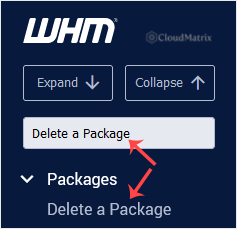
- Go to Packages >> Delete a Package. If you prefer, type Delete a Package into the menu filter box at the top of the left sidebar and click the result that appears.
- Under Delete a Package, select the package you want to remove from the list, then click Delete.
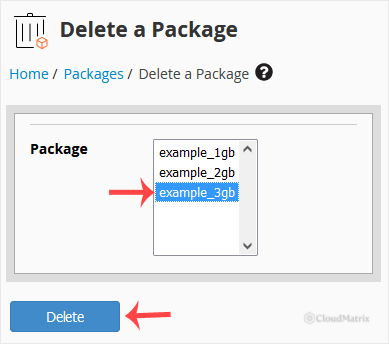
WHM confirms the removal on screen. The package disappears from the list and is no longer offered when you create an account.
Before You Delete: This Cannot Be Undone
There is no undo and no recycle bin for packages. A deleted package has to be rebuilt by hand, and rebuilding it means re-entering every quota, every feature list selection and every setting exactly as it was. If the package is one you might want back, take a screenshot of it in Packages >> Edit a Package first, or simply edit the package to be unavailable in practice rather than deleting it.
Editing is usually the better answer when a plan is being retired rather than abandoned. An edited package keeps its history and can be reused; a deleted one is gone.
If You Sell Through Billing Software
If you resell hosting and your billing system provisions cPanel accounts automatically, the package name is stored in the product configuration on the billing side as well as in WHM. Deleting the package in WHM does not update the billing system, so the next order placed against that product will try to create an account using a package that no longer exists and the provisioning will fail.
Update or disable the matching product in your billing system at the same time you delete the package. Doing both in one sitting avoids a failed order landing in your queue days later with no obvious cause.
Troubleshooting
Symptom: the deletion is refused because the package is in use. One or more accounts are still assigned to it. Move them with Account Functions >> Upgrade/Downgrade an Account, then delete the package. Remember to check suspended accounts too, since a suspended account still holds its package assignment.
Symptom: the package does not appear in the list at all. As a reseller you only see packages you own. Package names you created are prefixed with your username, so starter created by the server administrator and yourreseller_starter created by you are two different things. If the package you want is not prefixed with your username, it belongs to the server administrator.
Symptom: Delete a Package does not show in the sidebar. Your reseller account has not been granted the package management privilege. Ask for it to be added to your reseller permissions.
Symptom: you deleted the wrong package. It cannot be recovered. Recreate it with Packages >> Add a Package, matching the original limits and feature list. Existing accounts that used the old package are unaffected, but they will not automatically re-link to the recreated package unless you reassign them.
Related Articles
Need a Hand?
If a package will not delete and you cannot find the account holding it, open a ticket from your Noiz client area with the exact package name and the error WHM shows you. The Noiz support team can confirm the assignment server side and tell you precisely which account is still on the package.






