A package in WHM is a saved template of hosting limits and features: disk quota, bandwidth, mailbox and database counts, the cPanel theme, and the feature list. Once a package exists you can create a cPanel account from it in a couple of clicks instead of typing every limit by hand, and every customer on that plan gets an identical specification. Packages are also what billing and provisioning software matches against when it creates accounts automatically, so the package name you choose here matters beyond WHM itself.
This guide is for server administrators and resellers with WHM access on a Noiz cPanel server. Packages are sometimes called plans or hosting plans in billing software, and cPanel's own documentation occasionally refers to them as account packages. They are the same thing.
Last reviewed: 27 July 2026, against current cPanel & WHM releases. This guide is written for Noiz hosting and is kept current against cPanel & WHM. It complements, and does not replace, the official cPanel documentation linked below. Field names shift slightly between cPanel & WHM versions, so if a label on your screen differs from the one quoted here, the nearest equivalent is almost certainly the right one.
Official Documentation Reference
- WHM: Add a Package (full field-by-field reference)
- WHM: Feature Manager (building the feature lists a package can use)
- WHM: Upgrade/Downgrade an Account (moving an existing account onto a package)
Prerequisites
- A WHM login on your Noiz cPanel server, either the root account or a reseller account whose privileges include package creation.
- A decision on what the plan actually sells: disk space, monthly bandwidth, and how many domains, mailboxes and databases it allows.
- If the package will use a custom feature list, create that list first in Packages >> Feature Manager.
Step 1: Open the Add a Package interface
- Log in to WHM.
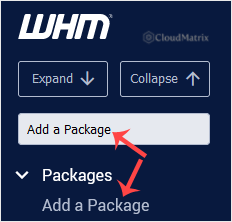
- Go to Packages >> Add a Package, or type
Add a Packageinto the menu filter box at the top left and click the result when it appears.
Step 2: Name the package
Enter a name in the Package Name field. Keep it to letters, numbers, hyphens and underscores, and avoid spaces and full stops. Short, plan-shaped names such as Bronze, Silver-2026 or Business-10GB are easier to live with than descriptive sentences.
Two things about naming that catch people out:
- If you are logged in as a reseller rather than as root, WHM automatically prefixes the package with your username and an underscore, so
Bronzeis stored asyourreseller_Bronze. That prefixed name is the real name, and it is what any external billing or provisioning system must be pointed at. - Package names cannot be changed after creation. Renaming means creating a replacement package and moving accounts onto it, so it is worth a moment's thought now.
Step 3: Set the resource limits
Work down the resources section and set each limit to suit the plan. Most fields accept either a number or an Unlimited tick box.
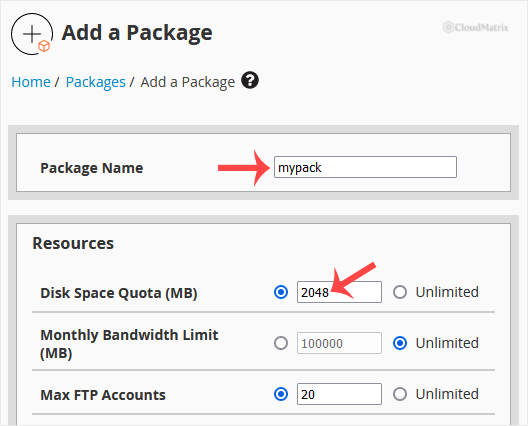
- Disk Quota (MB): the total space the account may use, including mail and databases. Setting this to unlimited on a shared server means a single account can fill the filesystem and take every other site on the machine down with it. Noiz recommends a real number on every shared package, however generous.
- Monthly Bandwidth (MB): counts web, mail and FTP traffic together, and resets at the start of each month. It is not the same as the transfer allowance quoted by your upstream network.
- Max FTP Accounts, Max Email Accounts, Max Email Lists, Max Databases: straightforward counts. Zero means none allowed, which is a valid choice for a locked-down plan and is not the same as unlimited.
- Max Subdomains, Max Aliases, Max Addon Domains: these govern how many extra domains the account can host. Aliases were called parked domains in older cPanel versions and appear under either label depending on your release.
- Max Quota per Email Address (MB): the ceiling a user may set on any one mailbox. Leave headroom above what you expect people to need, because a mailbox that hits its quota starts bouncing incoming mail.
- Maximum Hourly Email by Domain Relayed and the failed-or-deferred percentage limit: these are the outbound mail brakes. Leaving them unlimited is how a compromised script on one account gets the server's IP address onto a blocklist. A conservative hourly cap on shared plans is worth far more than the support tickets it saves.
Step 4: Configure the package settings
Under Settings, set the following.
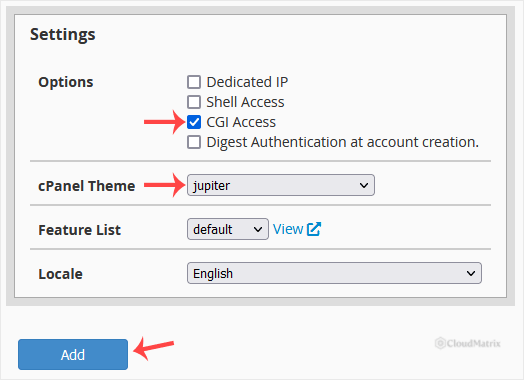
- Dedicated IP: leave this unticked unless you have a specific reason and a spare IP address allocated to the server. Modern browsers and clients all support SNI, so SSL certificates no longer require a dedicated IP. Ticking this on a package with no free addresses in the pool causes account creation to fail rather than silently fall back.
- Shell Access: grants the account SSH access to the server. Noiz recommends leaving this unticked and enabling shell access per account, only where it is genuinely needed. If you do grant it, use the jailed shell option at account level rather than full shell.
- CGI Access: enables legacy CGI script execution. Most modern sites do not need it.
- cPanel Theme: on current cPanel & WHM versions
jupiteris the only theme shipped, since the older Paper Lantern theme was removed. If your server offers only one entry here, that is expected. - Locale: the default interface language for accounts created from this package. Individual users can change their own afterwards.
- Feature List: which cPanel features the account can see. Leave it on
defaultunless you have built a custom list in Feature Manager. Thedefaultlist exposes everything the server licence allows, which is fine for most plans and too much for cut-down ones.
Step 5: Save the package
Click Add. WHM confirms that the package was created and it becomes immediately available in the package list when you create a new account through Account Functions >> Create a New Account.
Repeat steps 2 to 5 for each further plan you want to offer.
What Happens to Existing Accounts
This is the single most common misunderstanding about packages. A package is a template applied at the moment an account is created. It is not a live policy that keeps enforcing itself afterwards. Editing a package later does not retrospectively change accounts that were already built from it. To push new limits onto an existing account, reassign it through Account Functions >> Upgrade/Downgrade an Account, which reapplies the package as it stands today.
The practical consequence: if you are correcting a mistake in a plan that customers are already on, changing the package is step one of two, not the whole job.
Troubleshooting
Symptom: Add a Package does not appear in the WHM menu. Your WHM account does not have the package creation privilege. On a reseller account, the server owner has to grant it through Resellers >> Edit Reseller Nameservers and Privileges.
Symptom: WHM reports that the package name is invalid. Remove spaces, full stops and other punctuation, and keep to letters, numbers, hyphens and underscores.
Symptom: WHM reports that the package already exists, but you cannot see it. As a reseller you only see your own prefixed packages, so a name may already be taken by the prefixed version, or by a root-owned package of the same name. Choose a distinct name.
Symptom: account creation fails with an IP address error. The package has Dedicated IP ticked and the server has no unassigned addresses left. Untick it on the package, or have an address allocated to the server first.
Symptom: an existing customer's limits did not change after you edited the package. Expected behaviour. See What Happens to Existing Accounts above and reassign the account.
Related Articles
If your server is on a Noiz managed plan and you would rather have the packages built for you, or you want a second opinion on sensible limits before you sell a plan, open a ticket from the Noiz client area and the Noiz support team will take it from there.






