AutoSSL is the cPanel feature that issues and renews a free domain-validated SSL certificate for your domains automatically, so your site loads over https:// without you buying or installing anything. In normal operation you never touch it. This guide covers the case where it has not fired: your domain is still showing as unsecured, and you want to force AutoSSL to run now and tell you why it failed.
Last reviewed: 27 July 2026, against cPanel & WHM 136 (current RELEASE tier). This guide is written for Noiz hosting and is kept current against cPanel. It complements, and does not replace, the official cPanel documentation linked below.
Official Documentation Reference
- cPanel: SSL/TLS Status, the interface used throughout this guide.
- cPanel: Guide to SSL, background on certificate types and validation.
- Let's Encrypt: Rate Limits, relevant if you have already retried many times.
Prerequisites
- Access to your cPanel account.
- The domain's DNS already pointing at your Noiz hosting server. AutoSSL cannot validate a domain that does not resolve to the server holding the account.
- The domain not currently excluded from AutoSSL. See How to Include or Exclude a Domain from AutoSSL in cPanel.
If your control panel has no SSL/TLS Status page under a Security section, your hosting is not on cPanel and this procedure does not apply. Open a ticket and Noiz support will handle the certificate on the panel you are actually using.
Before You Force a Run: Check the Last Result
cPanel runs AutoSSL on a schedule on the server, so a newly added domain is usually secured within a few hours without any action. If more than 24 hours have passed and the domain is still unsecured, read the last result first. Forcing a run without reading the error just repeats the same failure and consumes certificate authority rate limit allowance.
- Log in to your cPanel account.
- In the Security section, click SSL/TLS Status.
- Find your domain in the list and read its Certificate Status. Domains that AutoSSL attempted and failed are marked with an AutoSSL problem, and the message explains what the validation could not do.

Two outcomes matter here:
- There is an error message. Work through the Troubleshooting section below. Most AutoSSL failures are caused by something on the domain itself, and fixing that is what makes the next run succeed.
- There is no error message and the domain simply is not secured. AutoSSL never picked the domain up. Force a run using the steps below.
Run AutoSSL on Your Domain
- Log in to your cPanel account.
- In the Security section, click SSL/TLS Status.
- Tick the domains you want to secure, or use Show Unsecured Domains to narrow the list to the ones that still need a certificate.
- Click Run AutoSSL. cPanel queues the check immediately and reports a success or an error against each domain.
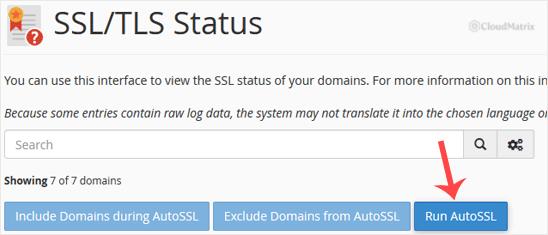
A success message means validation passed and the certificate has been requested. Installation is automatic from that point. Allow a short while for the certificate to be issued and deployed, and note that browsers may hold the old response in cache, so test in a private window before concluding it has not worked.
What a Successful Result Looks Like
Once the certificate is live, the domain's entry on SSL/TLS Status changes to an AutoSSL DV certificate with a Certificate Status of Active, and the expiry date is shown. Renewal is then automatic: cPanel reissues the certificate well before it expires, and you do not need to repeat this procedure each time.
Installing the certificate is not the same as forcing traffic onto it. Visitors reaching http://yourdomain.com will still be served over plain HTTP unless a redirect is in place. Use the Force HTTPS Redirect toggle on the cPanel Domains page, or the equivalent setting in your CMS, once the certificate is confirmed active. Enabling the redirect before the certificate exists will break the site.
Troubleshooting
AutoSSL proves you control a domain by requesting a token file over HTTP from that domain, under a /.well-known/ path. Nearly every failure is something interrupting that request.
Symptom: the error mentions the domain does not resolve, or resolves elsewhere. The domain's DNS is not pointing at the hosting server. Check the A record, and if you use external nameservers, confirm they have been updated and have propagated. A domain that is registered but not yet pointed cannot be validated.
Symptom: the error mentions an unexpected response, a redirect, or a 404 on the validation URL. A rule is intercepting the request before the token is served. Common causes are a catch-all redirect in .htaccess, a forced HTTPS redirect added before a certificate existed, a "coming soon" or maintenance mode plugin, or a CMS routing every unknown path to a custom 404 page. Temporarily disable the rule, run AutoSSL again, then re-enable it.
Symptom: the domain sits behind a CDN or proxy. If traffic is proxied rather than pointed directly at the server, the validation request never reaches your account. Either pause the proxy for the domain while AutoSSL runs, or use the certificate your proxy provider issues at the edge and keep a valid certificate on the origin.
Symptom: the error mentions CAA. A CAA record in your DNS restricts which certificate authorities may issue for the domain, and the authority cPanel uses is not on the list. Either add the correct CAA entry or remove the record, then run AutoSSL again.
Symptom: some names on the domain fail while the rest succeed. Service subdomains such as mail., webmail. or cpanel., and the www. variant, are validated individually. If one of them does not resolve to the server it is dropped from the certificate while the others are still secured. Point the missing name at the server, or exclude it so it stops reporting a problem. See How to Include or Exclude a Domain from AutoSSL in cPanel.
Symptom: the domain is skipped entirely with no error. It is most likely excluded from AutoSSL, or it already carries a valid certificate that AutoSSL will not overwrite. If you previously installed a purchased or third-party certificate, AutoSSL leaves it alone until it is close to expiry or removed.
Symptom: repeated runs now fail with a rate limit or "too many certificates" message. Certificate authorities cap how many certificates can be issued for a domain in a given window. Stop retrying, fix the underlying cause, and wait for the window to clear. This is why it is worth reading the error before forcing another run.
Still Not Secured
If you have worked through the above and the domain will not validate, open a ticket with Noiz support and include the exact error text shown under Certificate Status, along with the domain name. That message identifies the failure precisely and lets support resolve it on your behalf, including cases that need action at server level rather than in your cPanel account.






