AutoSSL is the cPanel feature that issues and renews free domain-validated SSL certificates for the domains on your hosting account, without you having to buy, install or manually renew anything. By default it tries to cover every domain and subdomain on the account, but you decide which ones it actually looks after. This guide shows you how to add a domain to AutoSSL coverage (include it) and how to take one out of coverage (exclude it), and explains when each is the right move.
Last reviewed: 27 July 2026, against cPanel & WHM v136 (current release tier). This guide is written for Noiz hosting and is kept current against cPanel. It complements, and does not replace, the official cPanel documentation linked below.
If the domain was only just created, give AutoSSL a few hours before you assume anything is wrong. cPanel runs AutoSSL on a schedule rather than the instant a domain appears, so a brand new domain or subdomain will normally pick up a certificate on the next run. You can see exactly what happened on the last run under cPanel > SSL/TLS Status > Certificate Status.
Official Documentation Reference
- cPanel Docs: SSL/TLS Status (the interface used throughout this guide)
- cPanel Docs: Guide to SSL (background on certificates, DCV and issuance)
- cPanel Docs: Manage AutoSSL (server-administrator level settings, for context)
Prerequisites
- A cPanel account on your Noiz hosting plan, and your cPanel login details.
- The domain or subdomain already added to the account (as an addon domain, subdomain, alias or the main domain).
- The domain resolving to your hosting server. AutoSSL proves ownership by fetching a validation file over HTTP, so a domain whose DNS points somewhere else cannot be validated.
- If you also want to force a certificate to issue immediately rather than waiting for the scheduled run, see How to Install an SSL on Your Domain Using AutoSSL in cPanel.
How to Include a Domain in AutoSSL
- Log in to your cPanel account.
-
In the Security section, click SSL/TLS Status.

-
Under Domain, tick the checkbox next to each domain or subdomain you want AutoSSL to cover, then click Include x domain(s) during AutoSSL. The selected domains and subdomains are added to AutoSSL coverage and will be picked up on the next run.
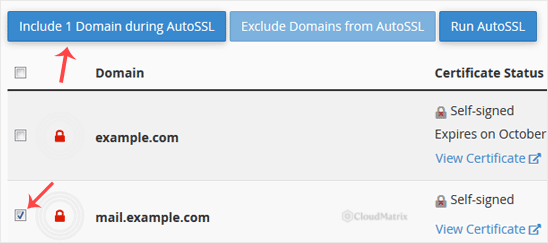
The button label changes to match what you have selected, so it reads Include 1 domain during AutoSSL for a single tick and counts upwards from there. If the button appears greyed out or missing, you have not ticked anything yet.
Including a domain does not issue the certificate there and then. It adds the domain to the queue for the next scheduled AutoSSL run, which is normally daily. If you need the certificate now, run AutoSSL manually from the same page.
How to Exclude a Domain from AutoSSL
- On the SSL/TLS Status page, under Domain, tick the checkbox next to each domain you want AutoSSL to leave alone.
-
Click Exclude x domain(s) from AutoSSL. The selected domains and subdomains are removed from AutoSSL coverage.
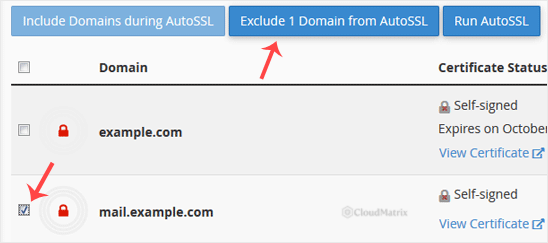
Note: the exclude option only applies to domains that are currently within AutoSSL coverage. A domain that has already been excluded, or that was never included, has nothing to exclude, so cPanel will not offer the option for it.
When Should You Exclude a Domain?
Excluding is not something to do casually, because an excluded domain stops receiving free renewals. These are the situations where it genuinely helps:
- The domain does not point at this server. If DNS for a domain is aimed at a different host, AutoSSL will attempt validation, fail, and email you about it on every run. Excluding it stops the noise until you are ready to move the DNS across.
- You are using a commercial or third-party certificate. If you have purchased a certificate and installed it yourself, excluding the domain keeps AutoSSL out of the way entirely, so there is no chance of it being replaced when it nears expiry.
- The certificate is terminated in front of the server. Where a proxy or CDN presents its own certificate to visitors, the validation request may never reach cPanel. Excluding the domain avoids repeated failures for a certificate the origin does not need.
- Service subdomains that do not resolve. cPanel automatically creates service subdomains such as
mail.,cpanel.,webmail.,webdisk.andautodiscover.for each domain. If those hostnames have no DNS records, AutoSSL reports a partial failure even though the main domain is fine. Excluding just those entries produces a clean run.
The thing to be aware of before you exclude: exclusion is permanent until you reverse it. An excluded domain that already holds an AutoSSL certificate keeps that certificate until it expires, and then it simply is not renewed. At that point visitors start seeing browser security warnings. If you exclude a live domain, put a reminder in your diary for the certificate expiry date, or re-include the domain well before then.
Troubleshooting
Symptom: the Include or Exclude button does nothing or looks disabled. No domain is selected. Tick at least one checkbox in the Domain column first; the button label updates to show the count.
Symptom: the domain has been included for over 24 hours but still has no certificate. Validation is failing. Open SSL/TLS Status and read the message in the Certificate Status column, then check that the domain's A record points to your hosting server and that http://yourdomain.com/.well-known/ is reachable. Redirect rules in .htaccess that force every request to HTTPS or to another URL are the most common cause, because they intercept the validation file before cPanel can serve it.
Symptom: you keep receiving "AutoSSL could not issue a certificate" notices. Either fix the underlying DNS or redirect problem, or exclude the domain that is failing. Excluding the specific failing entry, rather than turning coverage off across the account, keeps the rest of your certificates renewing normally.
Symptom: a site started showing a certificate warning after you excluded it. The old certificate has expired and was not renewed because the domain is out of coverage. Re-include the domain, then run AutoSSL to issue a fresh certificate straight away.
Symptom: you cannot find SSL/TLS Status in cPanel. The tool lives under Security. If it is genuinely absent, AutoSSL may be disabled at server level on your plan, or your account may be on a control panel other than cPanel. Open a ticket and Noiz support will confirm which applies to your account.
Getting Help from Noiz
If a domain refuses to validate and the checks above have not identified why, raise a support ticket from your Noiz client area with the domain name and the exact message shown in the Certificate Status column. Noiz support can read the AutoSSL log on the server, confirm what the validation attempt actually returned, and tell you whether the problem is DNS, a redirect, or something at server level. On managed plans Noiz will make the fix for you rather than just describing it.






