If you generated a Certificate Signing Request (CSR) in cPanel and then lost the copy you saved, you do not need to start again. cPanel keeps every CSR you generate in the SSL/TLS area of your account, and you can open it and copy the encoded text out at any time. This guide shows you where to find it. You may also see a CSR referred to as a certificate request or a PKCS#10 request.
A CSR is the block of Base64 text you hand to a certificate authority when you buy or reissue a commercial SSL certificate. It contains your domain name, your organisation details and the public half of a key pair. It contains no secret material, so it is safe to paste into an order form, an email or a support ticket. The matching private key is the part that must stay on the server, and cPanel stores that separately in the same SSL/TLS area.
Last reviewed: 27 July 2026, against cPanel with the Jupiter interface (current default). This guide is written for Noiz hosting and is kept current against cPanel. It complements, and does not replace, the official cPanel documentation linked below.
Official Documentation Reference
Prerequisites
- An active Noiz cPanel hosting account and your cPanel login details.
- A CSR that was previously generated in this cPanel account. cPanel can only show you requests it created itself, so a CSR generated on another server or with a local
opensslcommand will not appear here. If you have never generated one, see How to Generate a Certificate Signing Request (CSR) in cPanel.
Retrieve Your Saved CSR
The whole job takes about a minute. If you cannot spot the SSL/TLS tile on the cPanel home page, type SSL into the search box at the top of the page to jump straight to it.
-
Log in to your cPanel account.
-
In the Security section, click SSL/TLS.

-
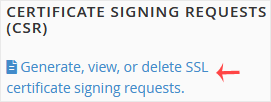
Under Certificate Signing Requests (CSR), click Generate, view, or delete SSL certificate signing requests.
-
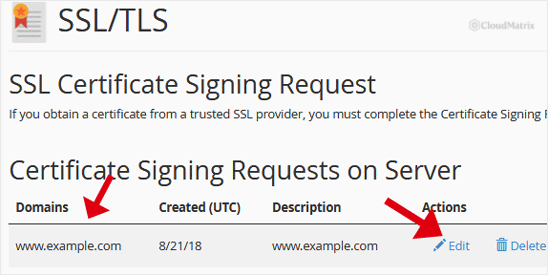
Look at the Certificate Signing Requests on Server table. Every CSR this account has generated is listed here, with its domains and the description you gave it when you created it.
-
In the Actions column, click Edit (shown as a pencil icon on newer cPanel builds) next to the request you want.
-
Copy the text in the Encoded Certificate Signing Request box. Take the whole block, including the first and last lines:
-----BEGIN CERTIFICATE REQUEST-----through to
-----END CERTIFICATE REQUEST-----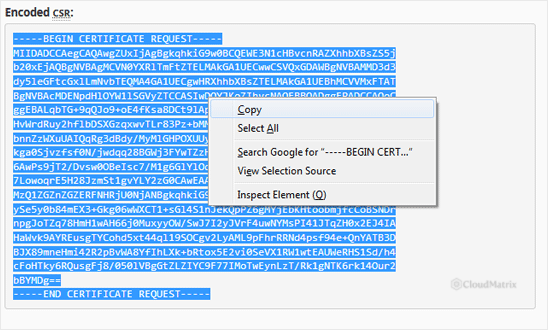
The same page also shows the decoded contents of the request, so you can confirm the common name, organisation and country before you submit it. That is worth a glance: a certificate authority will reject or reissue against exactly what the CSR says, not what you meant to type.
Good to Know
- Identify the right request by its description. If several CSRs exist for the same domain, the domain column alone will not tell them apart. Open each one and check the decoded details, or delete the stale ones so only the current request remains.
- A CSR is bound to one private key. The certificate you receive back will only work with the key that generated the request. Never mix a CSR from one account or server with a key from another. As long as you retrieve the CSR from the same cPanel account you generated it in, the matching key is already in place.
- Copy the whole block. Include both the BEGIN and END lines and keep the line breaks. A missing header, a stray space or a request pasted with the lines joined together is the most common reason a certificate authority rejects a CSR.
- Losing a CSR is not a crisis. A CSR has no value on its own and costs nothing to replace. If you cannot find the one you want, simply generate a new request for the same domain and use that for the order or reissue.
- Deleting a CSR does not affect a live certificate. Once a certificate is issued and installed, the request has done its job. Removing old entries only tidies the list.
- You may not need a CSR at all. Noiz cPanel hosting issues and renews free certificates automatically through AutoSSL, which handles the request and the key for you. A CSR is only required when you are buying or reissuing a commercial certificate, such as an organisation validated or extended validation certificate. See How to Install an SSL on Your Domain Using AutoSSL in cPanel.
Troubleshooting
The Certificate Signing Requests table is empty: no CSR has been generated in this cPanel account. Check that you are logged in to the correct account, then generate a fresh request. A CSR created elsewhere, for example with openssl on your own machine, is never stored in cPanel.
You can see the CSR but not the private key: the key is kept in a separate list on the SSL/TLS Manager page, under Private Keys (KEY). Open that list rather than the CSR list. Treat the key as a secret and never paste it into an order form or send it by email.
The certificate authority says the CSR is invalid or malformed: re-copy it and check that both the BEGIN and END lines are present, that nothing was truncated and that no extra characters were picked up from the clipboard. If it still fails, generate a new CSR and submit that.
The certificate authority says the details do not match: the common name in the CSR must match the exact hostname you are securing, so a request for yourdomain.com will not cover www.yourdomain.com unless the certificate is issued for both. Replace yourdomain.com with your own domain, and generate a new CSR with the correct details if they are wrong.
SSL/TLS is missing from your cPanel: the feature is controlled by the hosting package. If your plan should include it, contact Noiz support.
If you are ordering a commercial certificate and want a second pair of eyes on the request before you submit it, open a support ticket from your Noiz client area and the team will check it. On a managed plan, the certificate request and installation can be handled for you.






