
In this easy to follow article, we describe how to forward email from one mailbox to another, from the Plesk hosting control panel.
Notes:
- A mailbox is sometimes referred to as; an email address, an email account, a domain mailbox, etc.
- Forwarding an email is also referred to as; setting up an email forwarder.
- If you have not yet created the email address from which to forward mail, then follow the instructions in our How to create an email address in Plesk article.
- If you have already created a mailbox from which to forward mail, then continue with the tutorial below.
Table of contents
- Watch the video: How to turn on email forwarding in Plesk.
- Steps for forwarding mail from one mailbox to another.
- Conclusion.
Watch the video: How to turn on email forwarding in Plesk
Steps for forwarding mail from one mailbox to another
1. Log in to the Plesk hosting control panel of the subscription you have with us
Note: If you are not sure how to do this, then follow the instructions outlined in the tutorial found here:
https://www.cloudmatrix.co.za/knowledgebase/4886/How-to-log-in-to-Plesk.html
2. Once logged in, click on "Mail" tab, located in the sidebar menu of the Plesk hosting control panel graphical user interface.

3. In the main content area, underneath the "Email address" column, click on the email address FROM which you want to forward incoming emails.
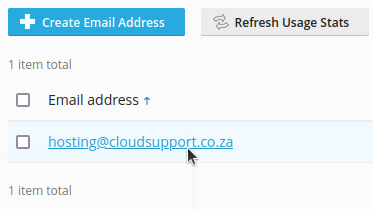
Note: In this tutorial, we are using hosting@cloudsupport.co.za as the example email. Be user to choose your own email address when following the steps.
4. From within the 'Email addresses' settings for your email address, select the 'Forwarding' tab, located between the 'General' tab, and the 'Email Aliases' tab.
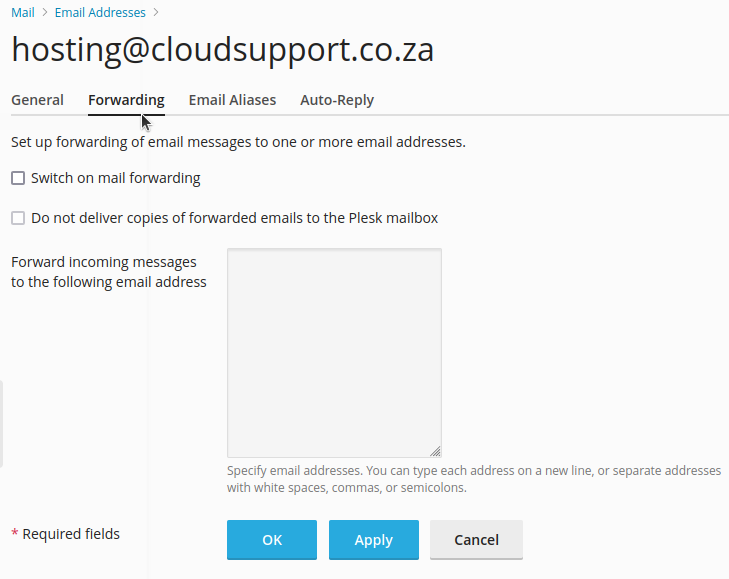
5. Select the first checkbox labelled 'Switch on mail forwarding' to turn on the forwarding service. This will enable two more options, specifically;
- 'Do not deliver copies of forwarded emails to the Plesk mailbox' - If selected, this option forwards mail to the DESTINATION address, and deletes the local copy, which is a great idea for saving disk space.
- 'Forward incoming messages to the following email address' - This is the destination address, that is where your forwarded mails are sent TO. This can be any email address except for the forwarding mailbox itself (to prevent mail loops). In the example below, we will forward email FROM hosting@cloudsupport.co.za TO support@cloudmatrix.co.za, while disabling local deliver. Set this according to your own needs.
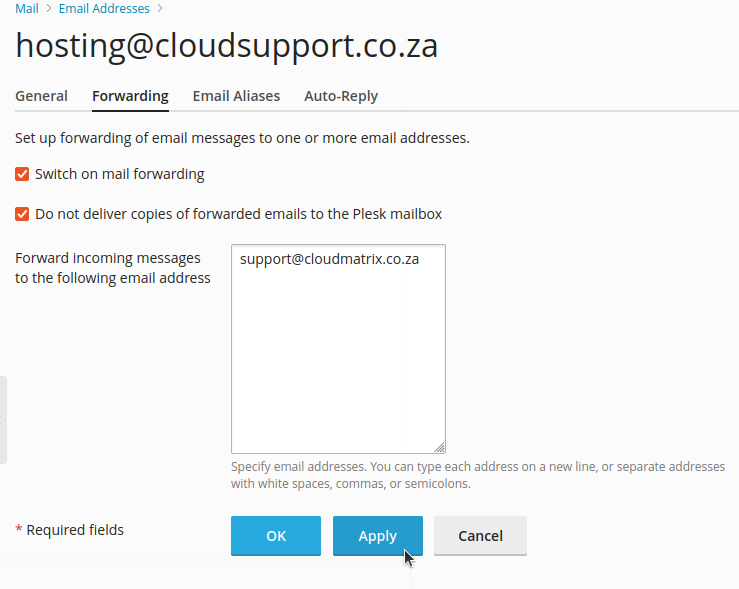
6. When you are happy that your settings are correct, click on the blue "Apply" or "OK" buttons to save the forwarder and activate it.
Conclusion
That's it
Your forwarder is now active, and any email received at your Plesk mailbox will be copied and forwarded to the destination address you have set.
Remember to search through our online knowledgebase for other great tutorials, or get in touch with our support department if you get stuck.