This guide shows you how to change the password for an email account (mailbox) that is hosted in Plesk. You would typically do this when a mailbox password has been forgotten, may have been exposed, or simply needs rotating as good security hygiene.
Last reviewed: 27 July 2026, against Plesk Obsidian (latest stable). This guide is written for Noiz hosting, where Plesk runs on neo.noiz.co.za, and is kept current against Plesk. It complements, and does not replace, the official Plesk documentation linked below.
Official Documentation Reference
Prerequisites
- A Plesk login with access to the subscription that owns the mailbox.
- The email address whose password you want to change.
Change the Mailbox Password
1. Log in to your Plesk account.
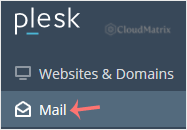
2. Click Mail in the sidebar menu.
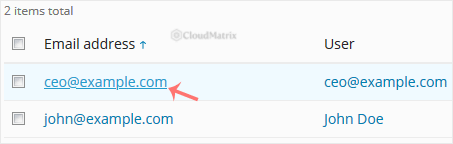
3. In the list of email addresses, click the mailbox whose password you want to change.
4. In the Password field, type a new password, or click Generate to have Plesk create a strong one for you. Click Show to reveal the password so you can copy it and store it somewhere safe.
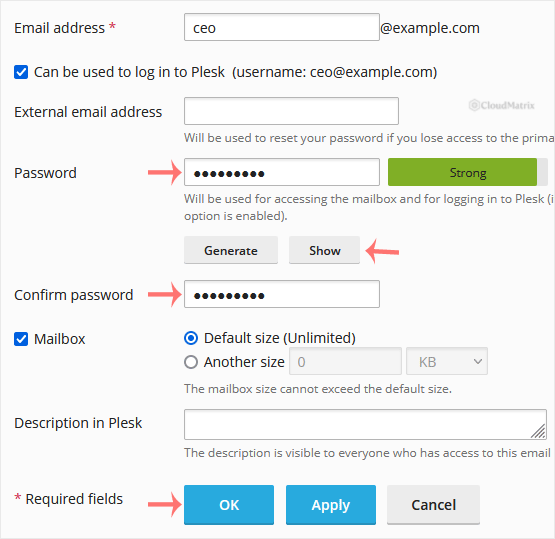
5. Click OK (or Apply) to save the change. The new password takes effect immediately.
After You Change the Password
Changing the password in Plesk changes it everywhere that mailbox is used. Any device or program that was signed in with the old password will stop sending and receiving mail until you update it:
- Update the saved password in every email client (for example Outlook, Apple Mail or Thunderbird) and on every phone or tablet that collects that mailbox.
- Webmail sessions that are already open stay signed in, but you will need the new password the next time you log in.
Leaving an old password configured on a device is one of the most common causes of "cannot connect" errors, and the repeated failed login attempts can temporarily block your connection for security reasons. If that happens, correct the password on every device first, then wait a few minutes before trying again.
Troubleshooting
Plesk rejects the password as too weak: Plesk enforces a minimum strength policy. Use the Generate button, or choose a longer passphrase that mixes upper and lower case letters, numbers and symbols.
Mail still will not connect after the change: Confirm the new password is entered correctly on the device, with no trailing spaces, and that the account is still using the correct incoming and outgoing server settings for your domain.
If you are on a Noiz managed hosting plan and would prefer the Noiz team to reset a mailbox password for you, contact support and Noiz will take care of it.






