A site redirect sends visitors who request one address on your domain to a different address instead. If you created a redirect in DirectAdmin and no longer need it, you can delete it from the same screen you created it on, and the original address starts serving its own content again.
This guide is for DirectAdmin users on Noiz hosting who want to remove an existing redirect. If you are trying to create a redirect rather than remove one, see How to Redirect Your Website Using DirectAdmin.
Last reviewed: 27 July 2026, against the current DirectAdmin release and its Evolution interface. This guide is written for Noiz hosting and is kept current against DirectAdmin. It complements, and does not replace, the official DirectAdmin documentation linked below.
Official Documentation Reference
Prerequisites
- Your DirectAdmin login details for the hosting account that holds the domain.
- An existing redirect created through DirectAdmin's Site Redirection tool. Redirects added by hand to
.htaccess, or created inside a CMS plugin, will not appear here and are removed elsewhere. - Knowledge of which path the redirect applies to, for example
/old-pageor/for the whole site.
Remove the Redirect
Step 1: Log in to DirectAdmin
Sign in to your DirectAdmin account. If you have more than one domain on the account, use the domain selector at the top of the page to switch to the domain that carries the redirect. Redirects are stored per domain, so working on the wrong domain is the single most common reason a redirect appears not to delete.
Step 2: Open Site Redirection
In the Account Manager section, click Site Redirection. If you cannot see it in the menu, type Site Redirection into the navigation filter box at the top of the sidebar and the option will appear. Click it.

Step 3: Find the redirect you want to remove
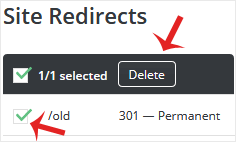
The page lists every redirect on the selected domain. Under Local URL Path, select the entry you want to remove. Check the destination column before you select anything, because a domain can carry several redirects that look similar at a glance, and a path of / redirects the entire site rather than a single page.
Step 4: Delete it
Click Delete, then confirm by clicking Delete again in the confirmation prompt.
DirectAdmin removes the rule from the web server configuration for that domain and the change applies immediately. There is no DNS wait, because nothing about the domain's DNS records has changed.
What to Expect After Removal
- The original address serves its own content again. If real content exists at that path, visitors will see it. If nothing exists there, they will get a
404 Not Foundinstead, which is often a surprise when the redirect had been hiding an empty path for a long time. - Browsers cache permanent redirects. This is the big one. A
301is a permanent redirect, and browsers are entitled to remember it and keep redirecting without ever asking the server again. Your own browser can therefore keep following a redirect that no longer exists on the server. Always test in a private or incognito window, or from a different device, before concluding that the deletion failed. - Caches in front of the site behave the same way. If the domain is proxied through a CDN or reverse proxy, purge its cache too. Some mobile networks and corporate proxies also hold on to permanent redirects for a while.
- Search engines take longer. Search results may keep pointing at the redirect target for days or weeks until the pages are recrawled.
Troubleshooting
Symptom: the redirect still fires in your browser after deleting it. Almost always a cached 301. Test in a private window first. If that loads correctly, clear your browser cache, or wait it out on the affected browser.
Symptom: the redirect still fires in a private window and on other devices. Something outside DirectAdmin's Site Redirection tool is doing the redirecting. Check the domain's .htaccess file for hand-written Redirect or RewriteRule lines, then check your CMS. WordPress in particular will redirect based on its Site Address setting and on SEO or redirection plugins, and none of that is visible to DirectAdmin.
Symptom: the redirect entry is not listed at all. You are most likely viewing a different domain or subdomain in the domain selector. Switch domains and check again. A redirect created on yourdomain.com does not appear under sub.yourdomain.com.
Symptom: the page now shows a 404 error. The redirect was removed correctly, but there is no content at that path to serve. Either restore the page, or recreate a redirect pointing somewhere sensible.
Symptom: you get a redirect loop after deleting one of several redirects. Two remaining rules are pointing at each other. Review every entry left in Site Redirection, along with any redirect rules in .htaccess, and remove the conflicting pair.
Related Articles
Need a Hand?
If a redirect will not clear after you have ruled out browser caching, or you are not sure which rule on the domain is responsible, contact Noiz support with the domain name and the address that keeps redirecting, and the redirect chain will be traced for you.






