A site redirect tells visitors' browsers, and search engines, that a page or an entire website now lives somewhere else. DirectAdmin exposes this through Site Redirection, so you can point a path such as /old-page at a new address without editing any configuration files by hand. This guide shows you how to create one on your Noiz DirectAdmin hosting, and, just as importantly, how to choose the right redirect type so you do not lock visitors into a redirect you later regret.
Last reviewed: 27 July 2026, against the current DirectAdmin release. This guide is written for Noiz hosting and is kept current against DirectAdmin. It complements, and does not replace, the official DirectAdmin documentation linked below.
Official Documentation Reference
- DirectAdmin Documentation (product reference and changelogs)
- MDN: HTTP redirections (what each status code actually means)
- Google Search Central: Redirects and Google Search (how redirects affect indexing)
Prerequisites
- Your DirectAdmin username and password for your Noiz hosting account.
- The domain you are redirecting already added to the account and resolving to the server.
- The full destination URL, including
https://, and confirmation that it loads.
Choose the Right Redirect Type First
DirectAdmin asks you for a Redirect Type, and this single choice matters more than anything else on the form. Decide before you create the redirect, not after.
301: Moved Permanently
Use a 301 when the old address is never coming back. Search engines treat it as a permanent move and transfer the old page's ranking signals to the new one, which is what you want after a domain change, a site rebuild with new URLs, or a permanent consolidation of two sites into one.
The catch is that browsers cache a 301 aggressively, often for the lifetime of the browser profile. If you point the wrong address at the wrong destination with a 301, every visitor who loaded it once may keep being redirected even after you delete the rule. Clearing your own cache proves nothing about theirs.
302: Found (Temporary)
Use a 302 when the move is temporary and the original address will be used again: a maintenance page, a seasonal landing page, a short campaign, or a staging cutover you intend to reverse. Search engines keep the original URL indexed and do not transfer ranking signals to the destination.
The Practical Rule
Test with a 302, then switch to a 301 once you are certain the destination is correct. A wrong 302 is forgotten within minutes; a wrong 301 can follow your visitors for months. If you are genuinely unsure whether the move is permanent, that uncertainty is itself the answer: use a 302.
Create the Redirect in DirectAdmin
Step 1: Open Site Redirection
Log in to your DirectAdmin account. In the Account Manager section, click Site Redirection. If you cannot see it, type Site Redirection into the navigation filter box at the top of the menu and the option will appear. Click it.

If your account hosts more than one domain, check the domain selector at the top of the page before you go any further. Redirects are per-domain, and creating one against the wrong domain is the single most common mistake on this screen.
Step 2: Start a New Redirect
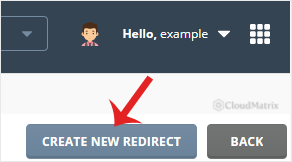
Click Create New Redirect, at the top right of the page.
Step 3: Fill In the Details
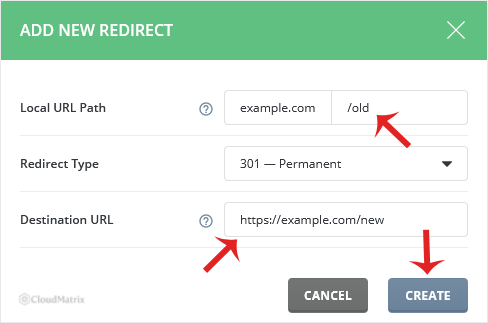
- Local URL Path: the path on your own site that you want to move. Enter
/to redirect the entire website, or a specific path such as/old-pageto move a single page or section. Leave the leading slash in place. - Redirect Type: choose the permanent (301) or temporary (302) option from the drop-down menu, using the guidance above.
- Destination URL: the full address visitors should land on, including the scheme, for example
https://www.yourdomain.com/new-page. Replaceyourdomain.comwith your own domain.
A path redirect normally applies to that path and everything beneath it, so /blog also catches /blog/article-one. That is usually helpful, but it means a broad path can capture more than you intended. Be as specific as the job requires.
Step 4: Save
Click Create. The redirect is created and appears in the list on the Site Redirection page. DirectAdmin applies it at web server level rather than through a .htaccess file you maintain yourself, so it takes effect without any further action from you.
Test It Properly
Open the old address in a private or incognito window. A normal window may serve you a cached result and tell you nothing. Confirm that you land on the destination, and that the destination itself loads correctly rather than showing an error page.
If you use Cloudflare or any other CDN in front of the site, purge its cache as well. The CDN can keep serving the previous response, including a previous redirect, long after DirectAdmin has changed it.
What a Site Redirect Does Not Do
- It does not move your content. The files stay where they are; only visitors are sent elsewhere.
- It does not affect email. Mailboxes, forwarders and MX records are untouched by a site redirect.
- It does not change DNS. The domain still has to resolve to the server for the redirect to be reached at all.
- It is not a substitute for adding a domain. To point a second domain at this site, add that domain to the account first, then redirect it.
Troubleshooting
Symptom: the browser reports too many redirects, or ERR_TOO_MANY_REDIRECTS. The destination leads back to the source, usually because the whole site (/) was redirected to an address on the same domain, or because a plugin or CMS setting is redirecting in the opposite direction. Remove the DirectAdmin redirect, confirm the destination loads on its own, then recreate it.
Symptom: nothing happens when you visit the old address. Check that the correct domain was selected, that the Local URL Path starts with a slash and matches the real path, and that you are testing in a private window. A rule in your application or in an existing .htaccess file can also handle the request before the redirect is reached.
Symptom: a redirect you deleted still fires for you. That is a cached 301 in your own browser, not a server fault. Test in a different browser or on a device that has never visited the address. Other visitors' browsers will hold it for a while too, which is exactly why a 301 deserves care up front.
Symptom: SSL certificate renewal starts failing after you redirect the entire site to another domain. Site-wide redirects can send certificate validation requests away from the server that needs to answer them. Redirect specific paths instead of / where you can, or contact Noiz support so the renewal can be checked against the redirect in place.
Removing a Redirect
When the redirect has served its purpose, delete it from the same Site Redirection page. See How to Remove a Redirect From Your Website Using DirectAdmin for the full procedure.
Need a Hand?
If a redirect is not behaving as expected, or you are planning a domain move and want the redirect strategy checked before it goes live, open a ticket with Noiz support. Include the old address, the destination address and whether the move is permanent, and the Noiz team can review it against your hosting configuration.






